

Remove Pages
Delete specific pages from your PDF.
or drop a file here · PDF up to 100 MB · files stay on your device
How it works
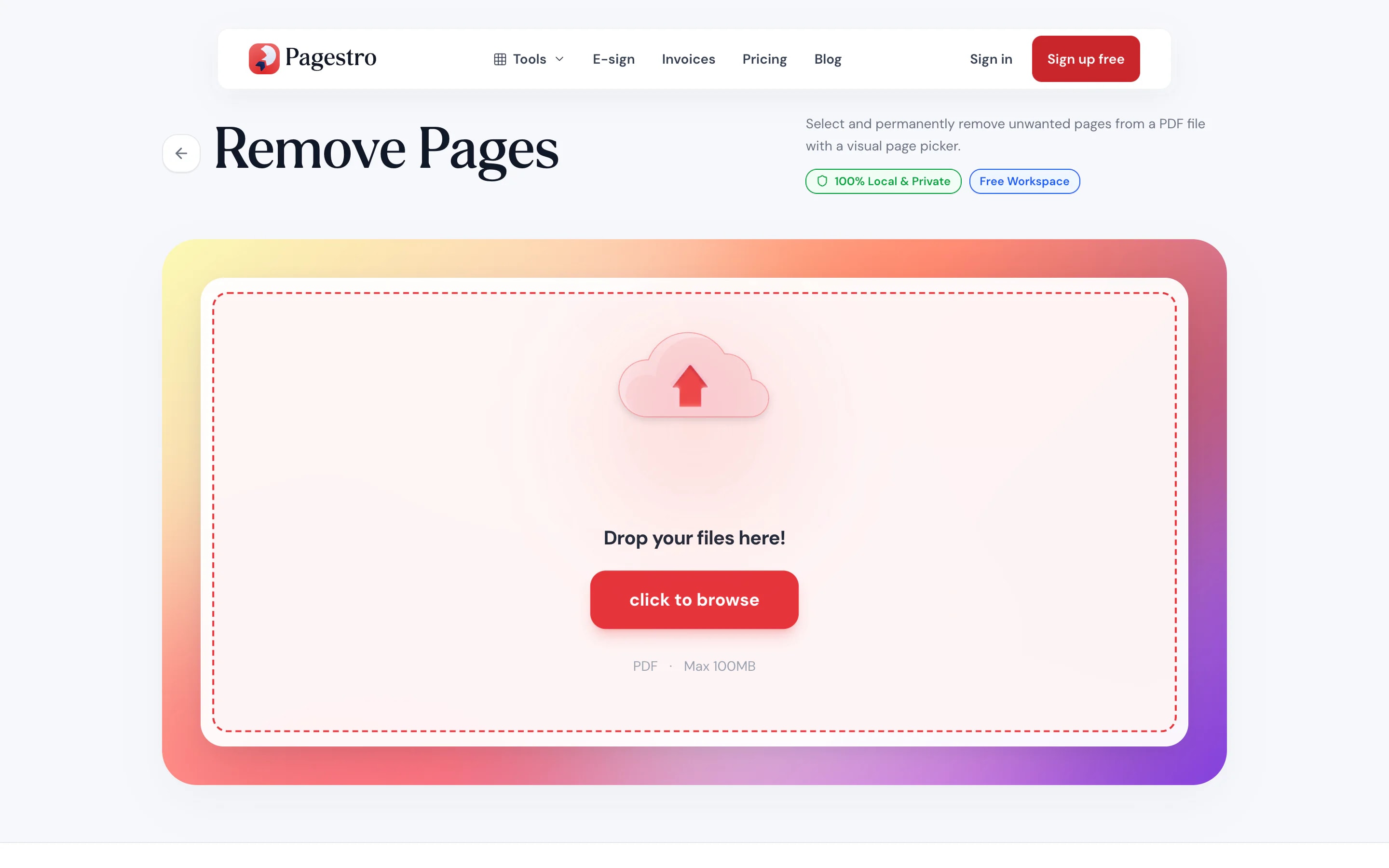
- 1Open your PDFDrop in a file up to 100 MB and 200 pages. Every page appears as a thumbnail.
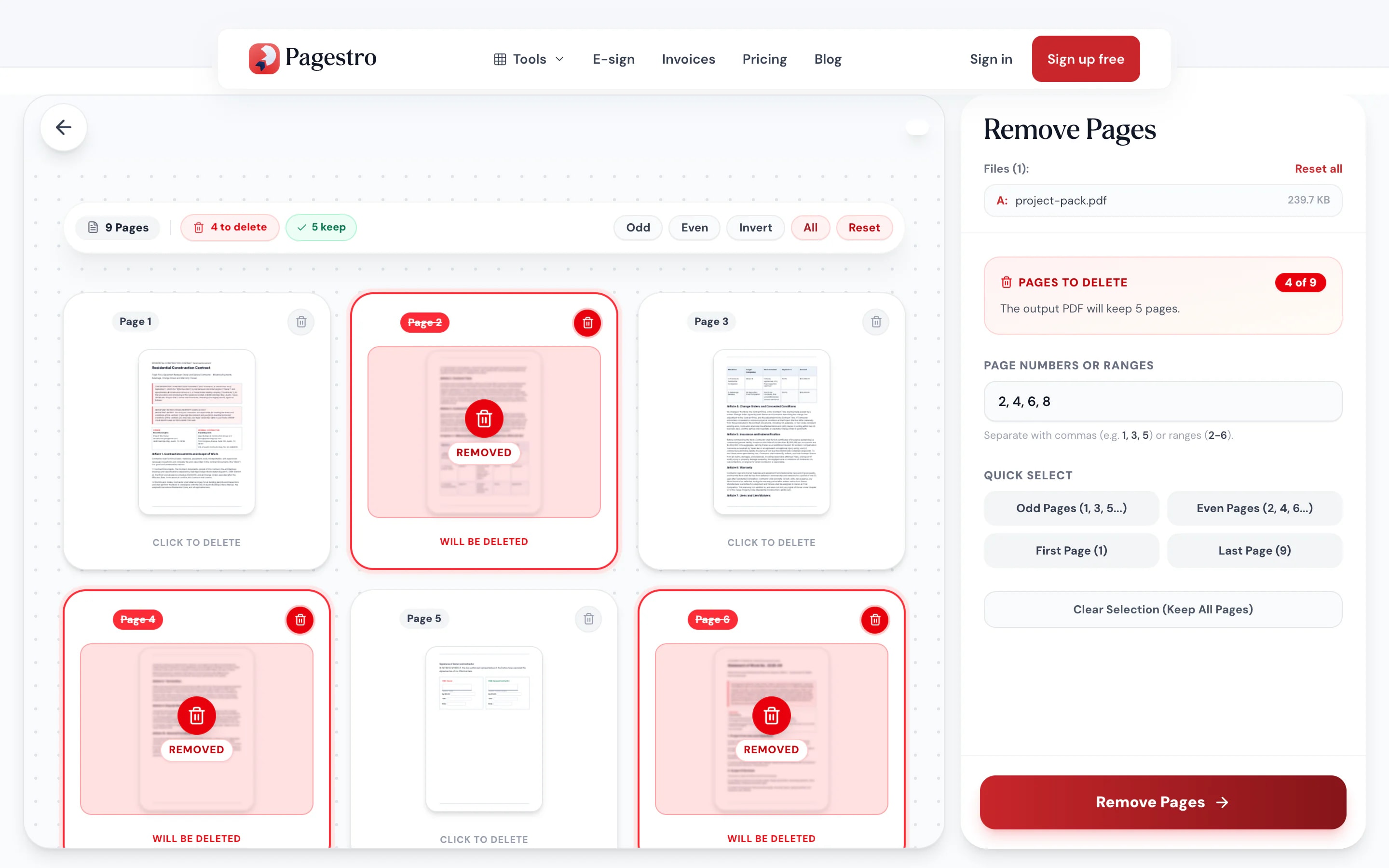
- 2Pick the pages to deleteClick thumbnails, type ranges like 2, 5-7, or use the odd, even, first and last page shortcuts.
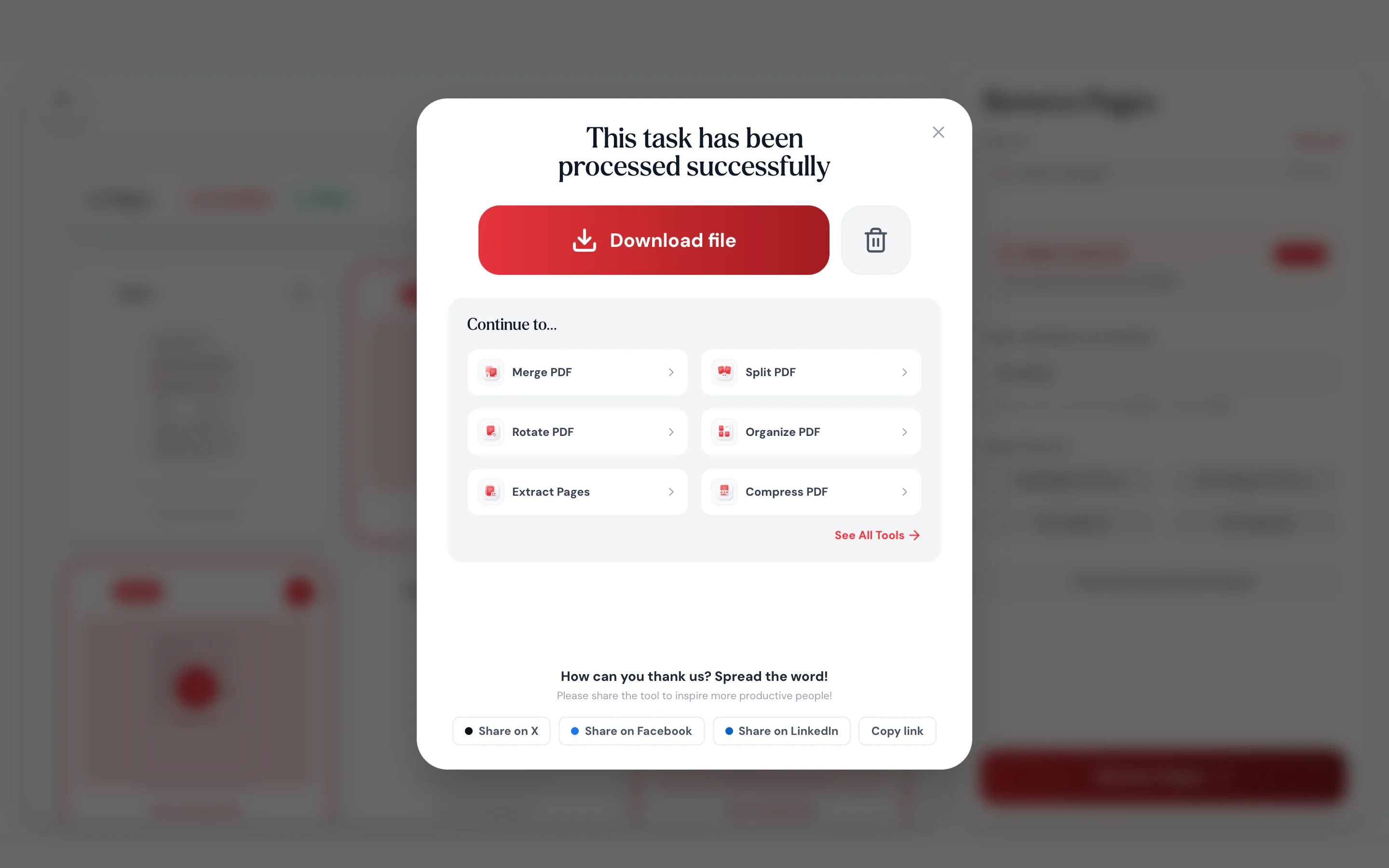
- 3Save the shorter copyDownload a new PDF without those pages. The original file on your device stays as it was.
At a glance
- uploaded: pages are removed on your device
- 0 bytes
- odd, even, first or last page in one click
- 4 shortcuts
- per PDF, with files up to 100 MB
- 200 pages
- no account, no watermark
- Free
Questions and answers
How do I delete pages from a PDF?
Add your PDF, then click the pages you want gone or type them in, like 2, 5-7. Press Remove Pages and download the new file.
How do I remove a blank page from a PDF?
Find the blank page in the thumbnail grid and click it, or type its number. For a double-sided scan with blank backs, use the even pages shortcut.
Can I delete several pages at once?
Yes. Type a list and ranges such as 1, 4, 10-20, or click as many thumbnails as you like. They’re all removed in one go.
Will removing pages change the rest of my PDF?
No. The pages you keep are copied as they are, so text, images and layout stay the same.
Is my PDF uploaded anywhere?
No. Pages are removed in your browser, so the file never leaves your device.
Is there a page limit?
Each PDF can be up to 100 MB and 200 pages. For longer files, split them first with Split PDF.
How do I delete pages from a PDF on iPhone?
Open this page in Safari, tap the drop zone and choose the PDF from Files. Type the pages to delete, tap Remove Pages and save the result.
Other page tools
At a glance
- uploaded: pages are removed on your device
- 0 bytes
- odd, even, first or last page in one click
- 4 shortcuts
- per PDF, with files up to 100 MB
- 200 pages
- no account, no watermark
- Free
Delete pages in three steps
Drop in a file up to 100 MB and 200 pages. Every page appears as a thumbnail.
Click thumbnails, type ranges like 2, 5-7, or use the odd, even, first and last page shortcuts.
Download a new PDF without those pages. The original file on your device stays as it was.
- 1
Open your PDF
Drop in a file up to 100 MB and 200 pages. Every page appears as a thumbnail.
- 2
Pick the pages to delete
Click thumbnails, type ranges like 2, 5-7, or use the odd, even, first and last page shortcuts.
- 3
Save the shorter copy
Download a new PDF without those pages. The original file on your device stays as it was.
Out with the pages nobody needs
See what you’re deleting
Thumbnails show the real pages, so you remove the blank scan and keep the signature page.
Type or click
Enter ranges like 10-14, or click pages in the grid.
Odd or even in one click
Handy when a double-sided scan left blank backs.
Works on your phone
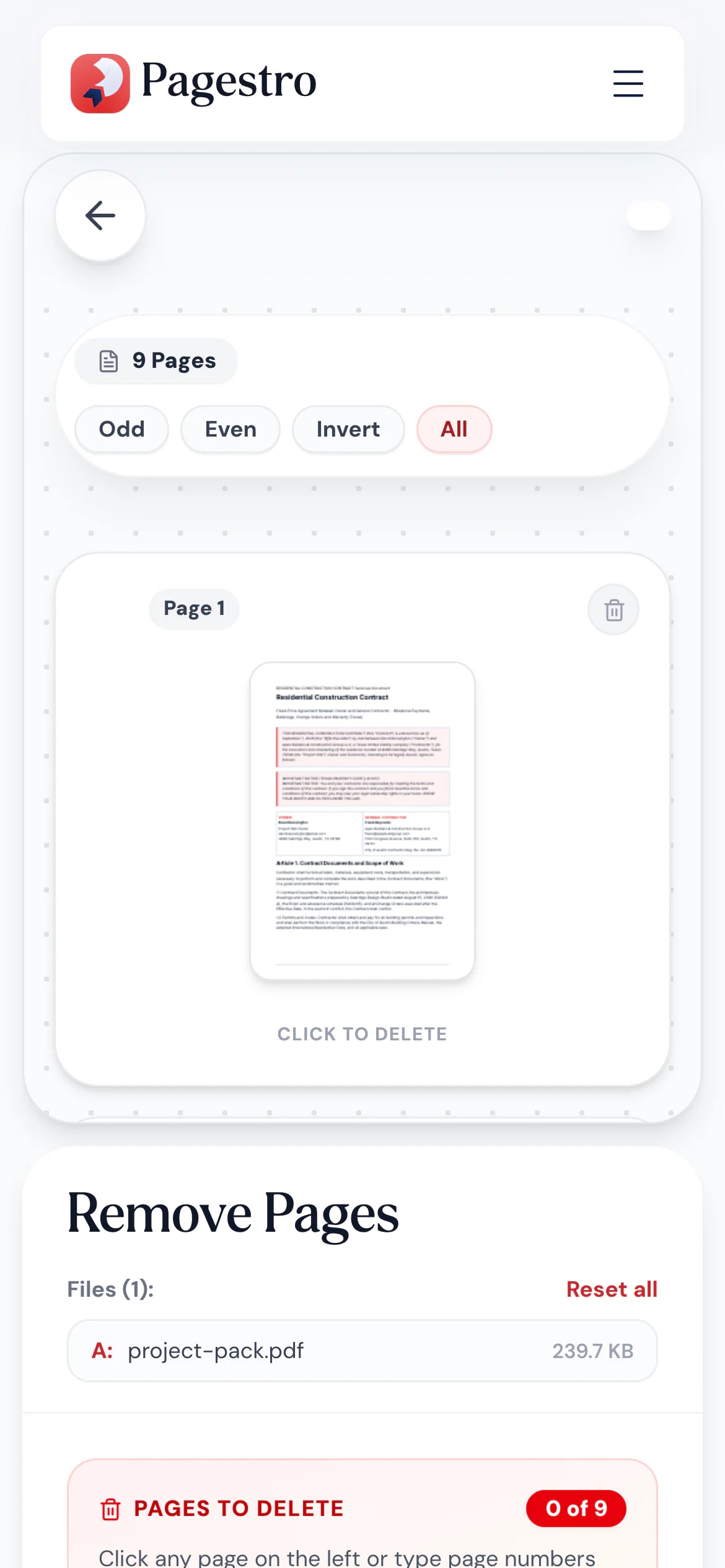
Type the page numbers, tap the button and save the trimmed PDF.
The rest stays untouched
Remaining pages are kept as they are. Text stays sharp and images aren’t recompressed.
Private by default
Pages are removed in your browser. Nothing is uploaded or stored.
Before you send
Send only the pages that matter
Blank backs from a duplex scan, an outdated appendix, a cover sheet the client doesn’t need. Remove them in one pass and send a shorter file that gets read.
- Select every even page to drop blank backs
- Delete a whole range like 20-35 at once
- Your original file stays unchanged
On your phone
Trim a PDF from your phone
An attachment with a few pages too many? Open Pagestro in your phone’s browser, type the pages to delete and save the result. No app, no laptop.
- Works in Safari and Chrome on iOS and Android
- Pick the file from Files, Drive or your downloads
- The trimmed PDF saves straight to your phone
Shorter files, faster reading
- Pages removed
Office teams
Drop blank backs from scans
When a duplex scan leaves empty backs, remove every even page at once.
- Pages removed
Sales teams
Tailor a proposal
Cut the pricing tiers or case studies a client doesn’t need before you send it.
- Pages removed
Students
Hand in only what’s asked
Remove instruction pages and extras from a worksheet before you submit it.
How Pagestro compares
 Pagestro Pagestro | Desktop software | Upload-based sites | |
|---|---|---|---|
| Files stay on your device | Yes | Yes | No |
| Nothing to install | Yes | No | Yes |
| Works in a phone browser | Yes | No | Yes |
| No waiting for uploads | Yes | Yes | No |
| Odd and even page shortcuts | Yes | Varies | Varies |
| Price | Free | Often a paid license | Often free with limits |
How do I delete pages from a PDF?
Add your PDF, then click the pages you want gone or type them in, like 2, 5-7. Press Remove Pages and download the new file.
How do I remove a blank page from a PDF?
Find the blank page in the thumbnail grid and click it, or type its number. For a double-sided scan with blank backs, use the even pages shortcut.
Can I delete several pages at once?
Yes. Type a list and ranges such as 1, 4, 10-20, or click as many thumbnails as you like. They’re all removed in one go.
Will removing pages change the rest of my PDF?
No. The pages you keep are copied as they are, so text, images and layout stay the same.
Is my PDF uploaded anywhere?
No. Pages are removed in your browser, so the file never leaves your device.
Is there a page limit?
Each PDF can be up to 100 MB and 200 pages. For longer files, split them first with Split PDF.
How do I delete pages from a PDF on iPhone?
Open this page in Safari, tap the drop zone and choose the PDF from Files. Type the pages to delete, tap Remove Pages and save the result.
Other page tools
 Extract PagesPull specific pages into a new PDF or ZIPOpen tool
 Split PDFSplit PDF by pages, ranges or extract all pagesOpen tool
 Organize PDFReorder, add, or remove pages with drag & dropOpen tool
 Merge PDFCombine multiple PDFs into one documentOpen tool
 Compress PDFReduce PDF file size while keeping qualityOpen tool
 Page numbersInsert page numbers into your PDFOpen tool


