

At a glance
- per page, in the same shape as the page
- 1 slide
- in place, with its fonts and colors
- Editable text
- uploaded: slides are built on your device
- 0 bytes
- no sign-up, no watermark
- Free
PDF to slides in three steps
Drop in an exported deck, a report or a one-pager, up to 100 MB.
See the extracted text next to each original page and fix any line before converting.
Open it in PowerPoint, Keynote or Google Slides and edit the text right on the slide.


- 1
Add your PDF
Drop in an exported deck, a report or a one-pager, up to 100 MB.
- 2
Review the pages
See the extracted text next to each original page and fix any line before converting.
- 3
Download the .pptx
Open it in PowerPoint, Keynote or Google Slides and edit the text right on the slide.
What you get
The design stays, the words are editable
Text right where it was.
Each line becomes a text box at its original position, with font, size, bold, italic and color.
Design kept as a background.
Colors, shapes and pictures sit behind the text, with the old text cleaned out.
Tables you can edit.
Detected tables become native PowerPoint tables.
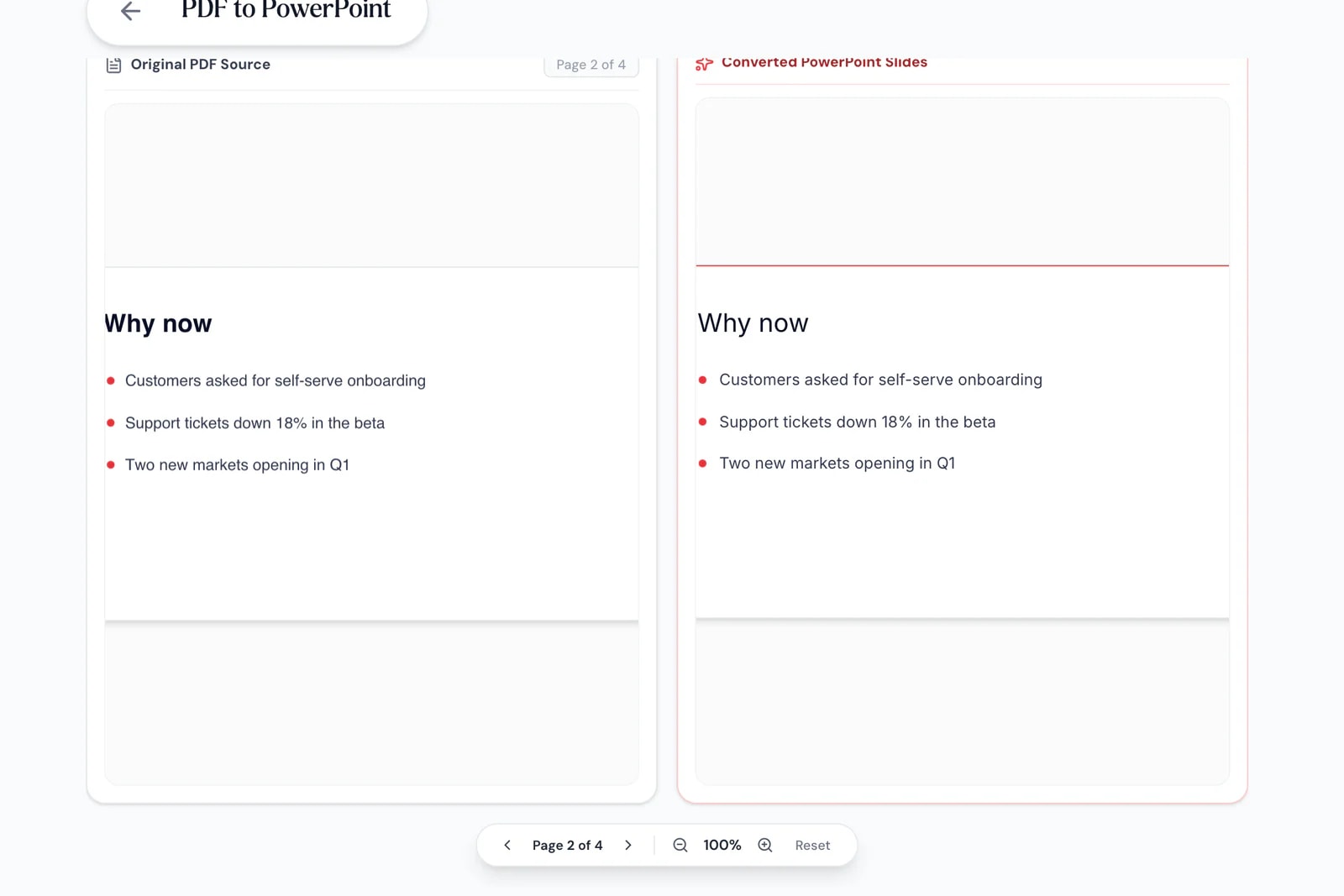
Check it on a tablet.
Page through the preview before you convert.
Same page shape.
Slides match the PDF’s page size.
Private.
Nothing is uploaded.
Reuse, don’t rebuild
Edit the deck you only have as PDF
The original file is lost, but the PDF from last year’s pitch is in your inbox. Convert it, update the numbers and headlines on the slides, and present again without rebuilding a single page.
- Headlines and bullets editable in place
- Backgrounds and artwork kept on every slide
- Converted in your browser, never uploaded
On your phone
Start the conversion from anywhere
Convert the PDF in your phone’s browser, then open the .pptx in your presentation app to tweak a headline before the meeting.
- Works in Safari and Chrome on iOS and Android
- Pick the PDF from Files, Drive or downloads
- The .pptx saves straight to your phone

Slides from the PDFs you already have
Sales teams
Refresh last quarter’s deck.
Update figures in a deck that only survives as a PDF.
Consultants
Report pages as slides.
Turn key pages of a PDF report into slides for a client meeting.
Teachers
Handouts into lessons.
Make a PDF handout into slides you can present and edit.
How Pagestro compares
 Pagestro
PDF stays on your device
- Pagestro
- Yes
- Desktop software
- Yes
- Upload-based sites
- No
Nothing to install
- Pagestro
- Yes
- Desktop software
- No
- Upload-based sites
- Yes
Text editable in place
- Pagestro
- Yes
- Desktop software
- Varies
- Upload-based sites
- Varies
No waiting for uploads
- Pagestro
- Yes
- Desktop software
- Yes
- Upload-based sites
- No
Price
- Pagestro
- Free
- Desktop software
- Often a paid license
- Upload-based sites
- Often free with limits
PDF to PowerPoint questions
Didn't find your answer? Write to us and we'll reply by email.
How do I convert a PDF to PowerPoint?
Add the PDF, check the preview and press Convert & Download. You get a .pptx with one slide per page.
Is the text editable?
Yes. Every line becomes a text box at its original position, keeping its font, size, weight and color.
Can I move the pictures and shapes?
They’re kept as each slide’s background, with the original text removed so it doesn’t show twice. You can add, replace or crop pictures on top as usual.
What size are the slides?
Each slide matches the PDF page’s shape. A PDF exported from a widescreen deck gives widescreen slides; an A4 or Letter page gives portrait slides.
Does it work with scanned PDFs?
Scanned pages have no text to extract, so they arrive as pictures. Run them through OCR PDF first to recognize the text.
Is my PDF uploaded?
No. The slides are built in your browser, so the PDF never leaves your device.


