

Edit PDF
Add text, images, shapes or freehand annotations to a PDF.
or drop a file here · PDF up to 100 MB · files stay on your device
How it works
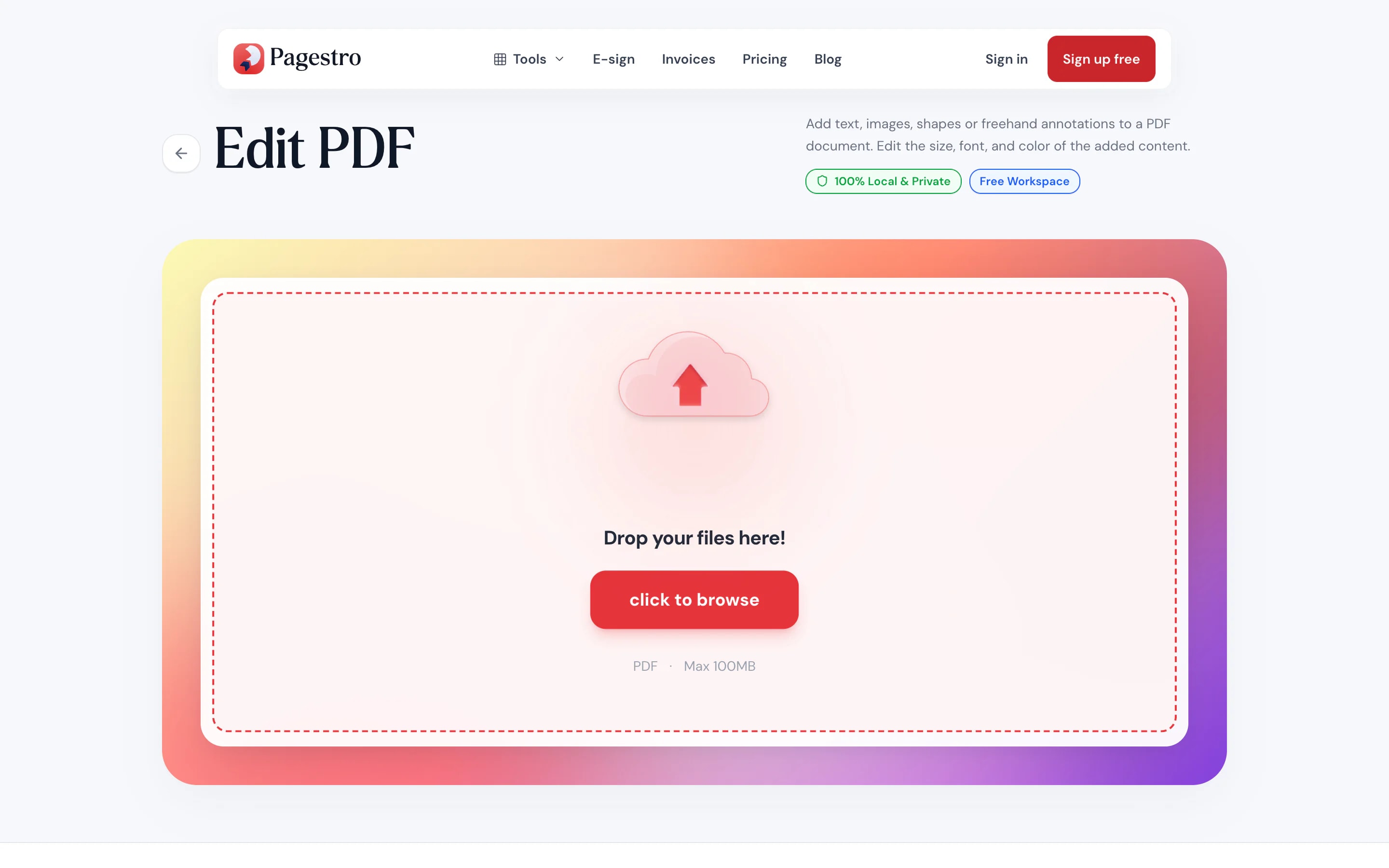
- 1Open your PDFDrop in a document of up to 100 pages. Every page opens in the editor.
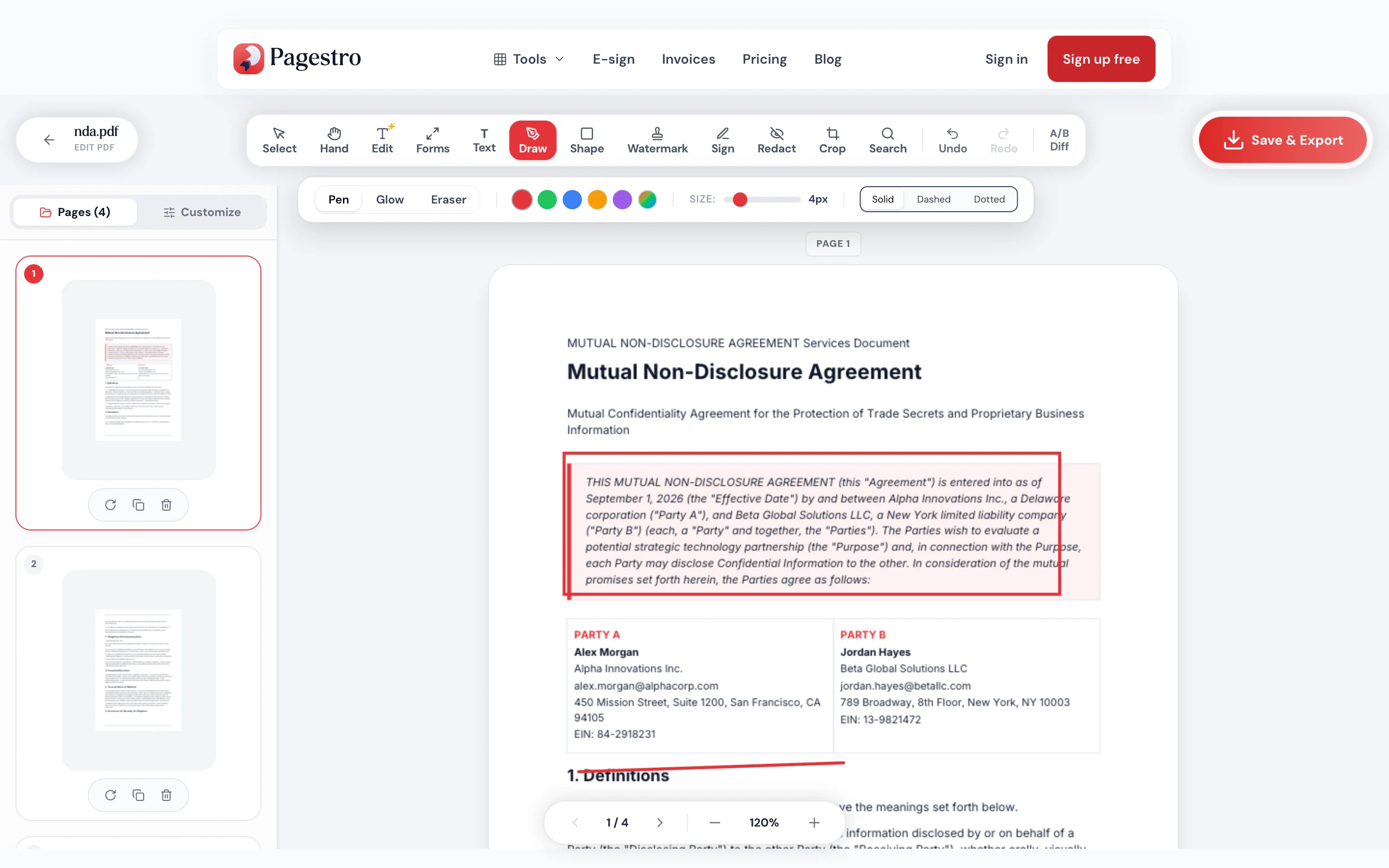
- 2Make your changesRetype a line, add text, draw, add shapes or a signature. Undo anything that isn’t right.
- 3Download the edited PDFSave the new version to your device, ready to send.
At a glance
- click a line in the PDF and retype it
- Edit text
- uploaded: editing happens on your device
- 0 bytes
- per document, up to 100 MB
- 100 pages
- no sign-up and no watermark
- Free
Questions and answers
How do I edit text in a PDF for free?
Open the PDF in the tool at the top of this page and click the line you want to change. Type the new text and download. Pagestro covers the old line and writes yours on top.
Will the font match the original?
Pagestro uses the closest standard font: Helvetica, Times or Courier style. Common fonts look the same; unusual ones may look slightly different.
Can I edit a scanned PDF?
A scan is a picture of text, so there are no lines to click. You can still add text, shapes, drawings and a signature on top.
Can I add a signature?
Yes. Draw it, type it or upload a picture of it, then place it anywhere on the page.
How do I delete or reorder pages?
Delete, duplicate or rotate a page from the page list on the left; the download follows it. To reorder pages, use Organize PDF, which works the same way: in your browser, with no upload.
Is there a size limit?
Documents can have up to 100 pages and be up to 100 MB.
Is my PDF uploaded?
No. Editing happens in your browser on your own device. The document is never sent to Pagestro.
Other ways to change a PDF
At a glance
- click a line in the PDF and retype it
- Edit text
- uploaded: editing happens on your device
- 0 bytes
- per document, up to 100 MB
- 100 pages
- no sign-up and no watermark
- Free
How it works
Open, edit, download
Drop in a document of up to 100 pages. Every page opens in the editor.
Retype a line, add text, draw, add shapes or a signature. Undo anything that isn’t right.
Save the new version to your device, ready to send.
- 1
Open your PDF
Drop in a document of up to 100 pages. Every page opens in the editor.
- 2
Make your changes
Retype a line, add text, draw, add shapes or a signature. Undo anything that isn’t right.
- 3
Download the edited PDF
Save the new version to your device, ready to send.
Tools
One editor for the small fixes
Fix typos without the source file
Click a line of text, retype it, and Pagestro writes your version in its place.
Add text anywhere
Bold, italic, underline, any size or color.
Shapes and arrows
Boxes, circles, lines, arrows, ticks and crosses.
Room to work on a tablet
Draw and place notes with your finger on a bigger screen.
Draw by hand
Circle a figure or sketch a note with the freehand pen.
Sign while you’re there
Draw, type or upload your signature and place it on any page.
Undo anything
Every change can be undone and redone until you download.
Private by design
Edits happen in your browser
Contracts, invoices and forms often need one small change, and they’re rarely documents you want on someone else’s server. Pagestro opens the PDF inside your browser and builds the edited copy there.
- No upload, so no server copy
- The editor runs as code inside this page
- Close the tab and nothing is kept
On the go
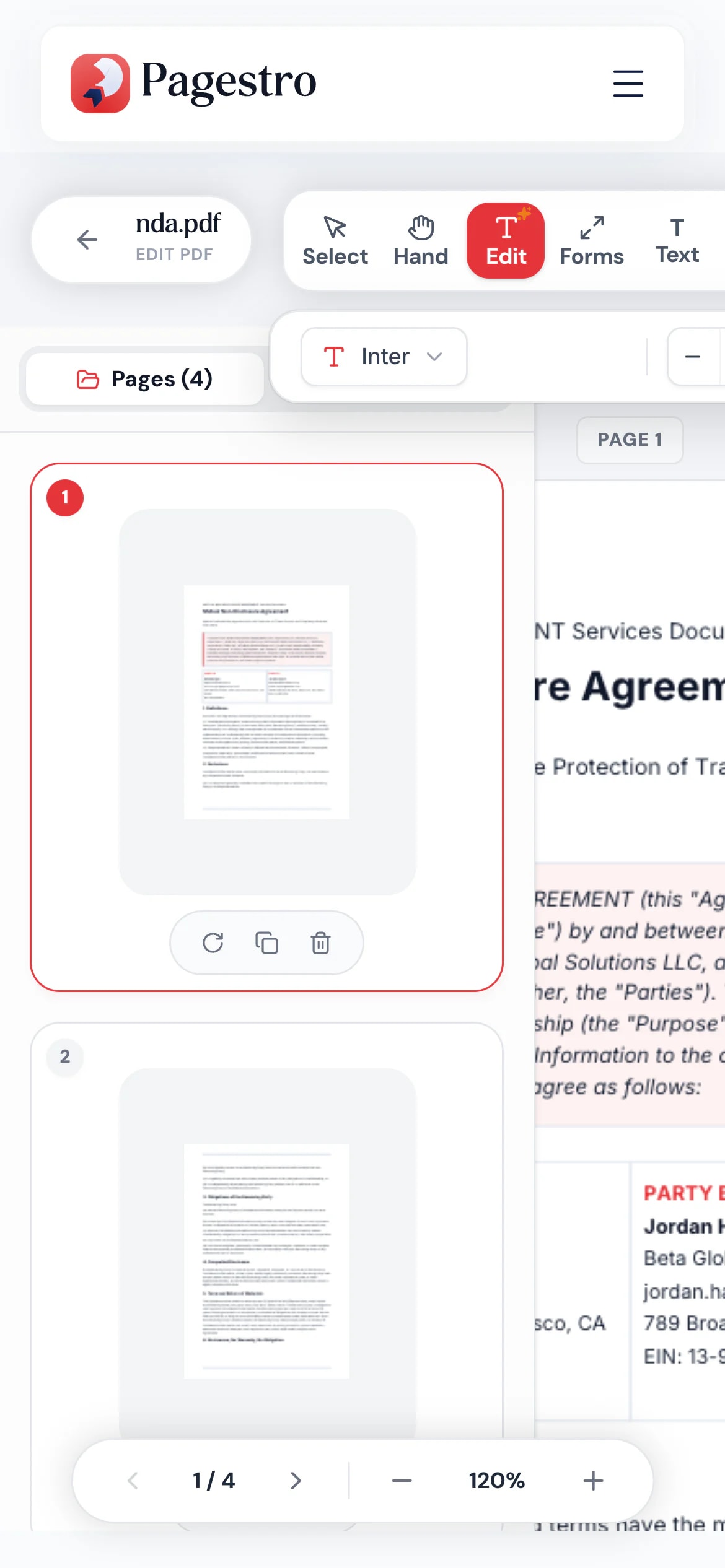
Quick fixes from your phone
Spotted a wrong date just before the meeting? Open the PDF in your phone’s browser, fix the line and send the corrected copy.
- No app to install
- Works in Safari, Chrome and Firefox
- The edited PDF saves to your phone
Who uses it
Small changes, no software needed
- Changes saved
Office teams
A wrong date or name
Fix the line instead of hunting for the Word file.
- Changes saved
Reviewers
Notes, arrows and circles
Mark up a draft so the author sees exactly what you mean.
- Changes saved
Students
Annotated readings
Add notes, arrows and circles beside the text.
- Changes saved
Small businesses
Price lists and menus
Update one price without rebuilding the whole document.
How Pagestro compares
 Pagestro Pagestro | Desktop software | Upload-based sites | |
|---|---|---|---|
| File stays on your device | Yes | Yes | No |
| Retype existing text | Yes | Varies | Varies |
| Nothing to install | Yes | No | Yes |
| Works on phones and tablets | Yes | No | Yes |
| Price | Free | Often a paid license | Varies by site |
How do I edit text in a PDF for free?
Open the PDF in the tool at the top of this page and click the line you want to change. Type the new text and download. Pagestro covers the old line and writes yours on top.
Will the font match the original?
Pagestro uses the closest standard font: Helvetica, Times or Courier style. Common fonts look the same; unusual ones may look slightly different.
Can I edit a scanned PDF?
A scan is a picture of text, so there are no lines to click. You can still add text, shapes, drawings and a signature on top.
Can I add a signature?
Yes. Draw it, type it or upload a picture of it, then place it anywhere on the page.
How do I delete or reorder pages?
Delete, duplicate or rotate a page from the page list on the left; the download follows it. To reorder pages, use Organize PDF, which works the same way: in your browser, with no upload.
Is there a size limit?
Documents can have up to 100 pages and be up to 100 MB.
Is my PDF uploaded?
No. Editing happens in your browser on your own device. The document is never sent to Pagestro.
Other ways to change a PDF
 Sign PDFDraw, type or upload your signature and place it on a PDFOpen tool
 PDF FormsFill out PDF forms and add interactive fieldsOpen tool
 WatermarkAdd text or image watermarks to PDFOpen tool
 Organize PDFReorder, add, or remove pages with drag & dropOpen tool
 Remove PagesDelete specific pages from your PDFOpen tool
 Compress PDFReduce PDF file size while keeping qualityOpen tool


