

Organize PDF
Reorder, add, or remove pages with drag & drop.
or drop a file here · PDF up to 100 MB · files stay on your device
How it works
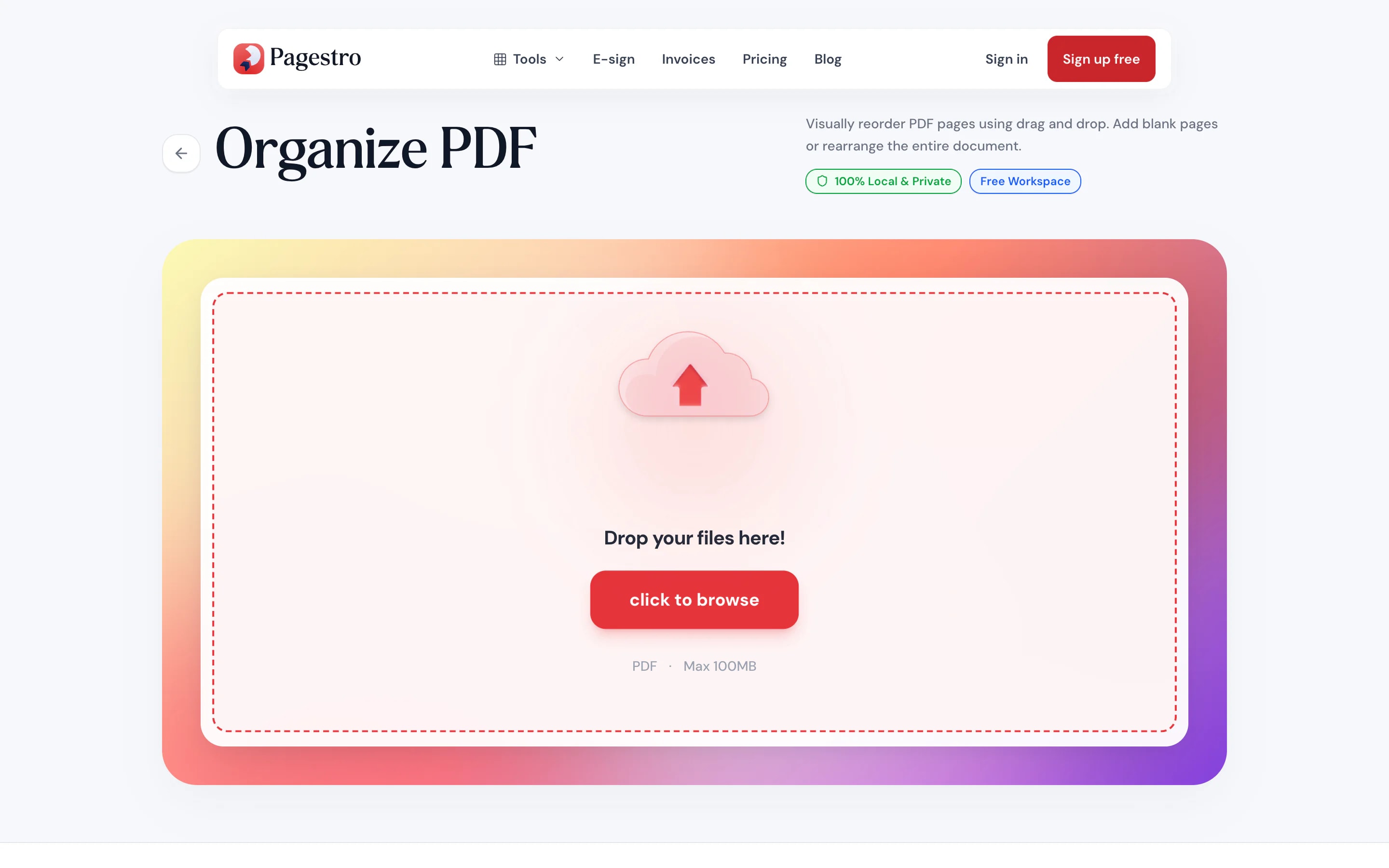
- 1Open your PDFDrop in a file up to 100 MB and 200 pages. Every page lands on the board.
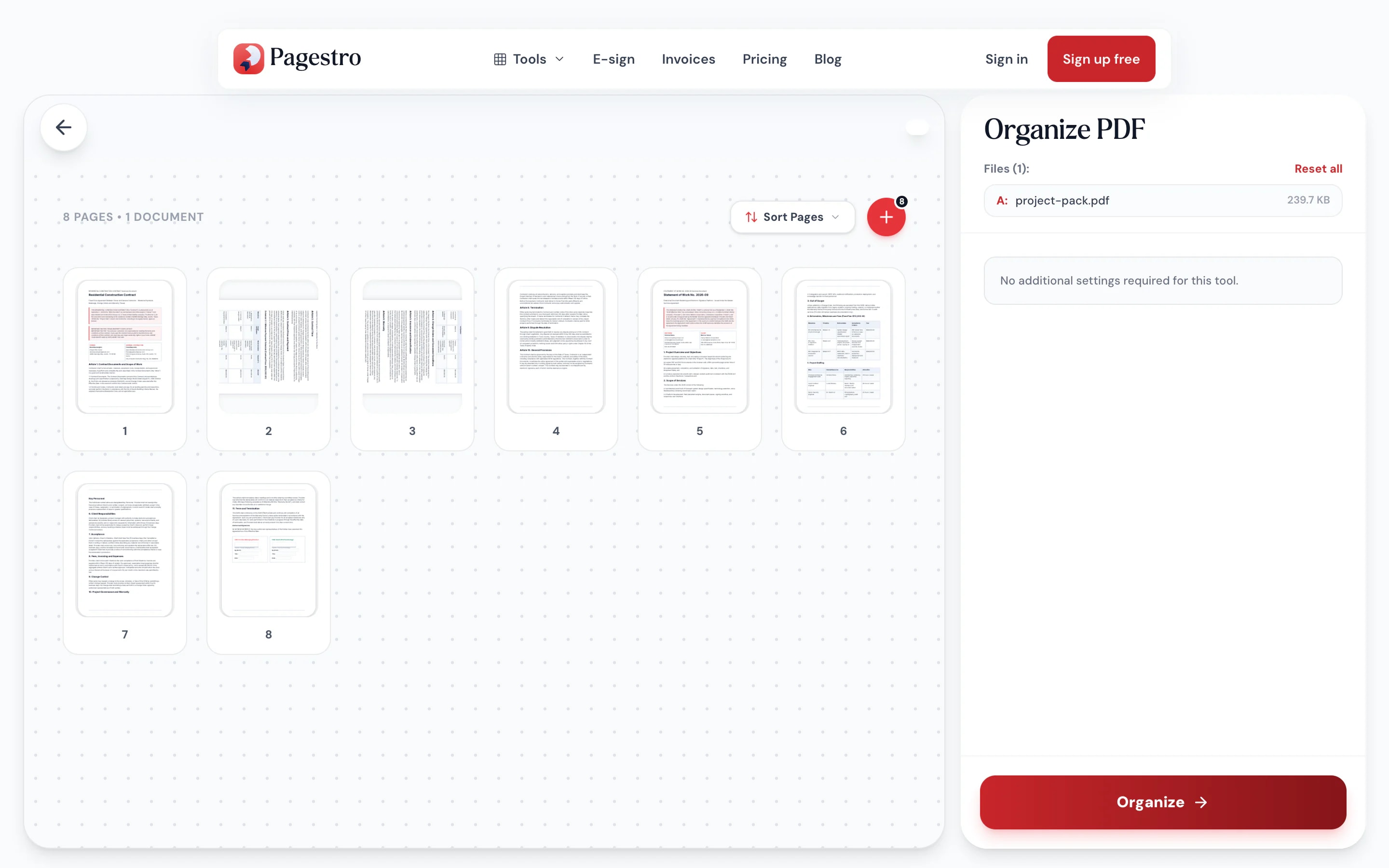
- 2Drag, rotate, insertMove pages into place, turn them 90°, delete extras, and add pages from other PDFs or images.
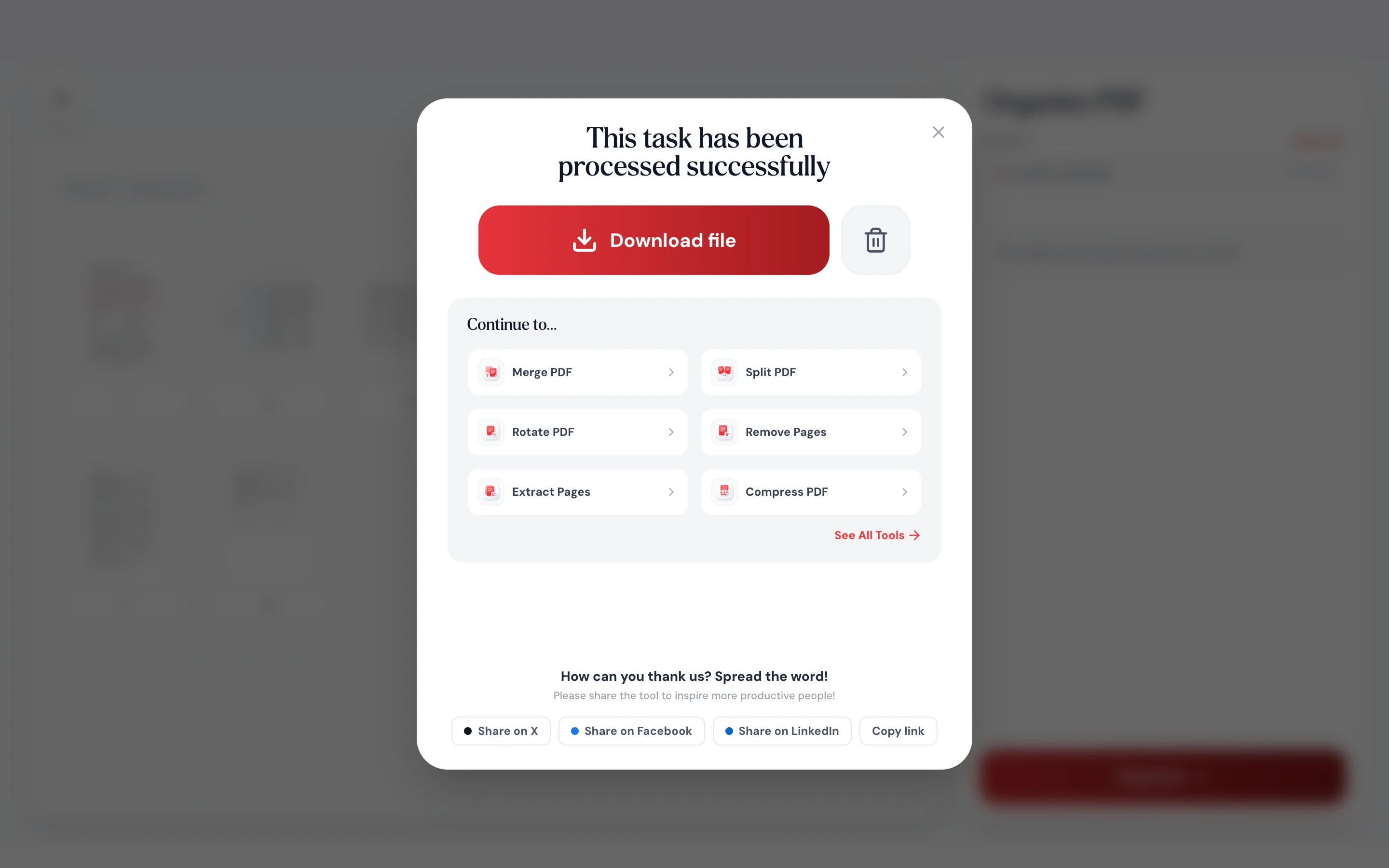
- 3Save the new orderPress Organize to build one PDF in exactly the order on the board.
At a glance
- uploaded: pages are arranged on your device
- 0 bytes
- mixed into one document
- PDFs + images
- per PDF, up to 100 MB
- 200 pages
- no sign-up, no watermark
- Free
Questions and answers
How do I rearrange pages in a PDF?
Add your PDF, then drag the page thumbnails into the order you want. Press Organize to download a new PDF in that order.
Can I add pages from another PDF?
Yes. Use the plus button on the board, or the insert buttons beside any page, to add another PDF. Its pages appear where you chose and can be moved like the rest.
Can I add a photo or image as a page?
Yes. Insert a PNG, JPG or WebP image anywhere. You can crop it first and choose whether it fits the page size or keeps its own size.
How do I reverse the page order of a PDF?
Open Sort Pages above the board and choose Reverse Order. Reset Original puts everything back.
Can I rotate or delete single pages?
Yes. Each page has its own rotate and delete buttons, so you can fix one page without touching the others.
Are my files uploaded?
No. Pages are arranged and saved in your browser, so your files never leave your device.
Is there a page limit?
The PDF you start with can be up to 100 MB and 200 pages. Very large documents also depend on your device’s memory.
Keep working on your document
At a glance
- uploaded: pages are arranged on your device
- 0 bytes
- mixed into one document
- PDFs + images
- per PDF, up to 100 MB
- 200 pages
- no sign-up, no watermark
- Free
Rearrange a PDF in three steps
Everything happens on one board of page thumbnails.
Drop in a file up to 100 MB and 200 pages. Every page lands on the board.
Move pages into place, turn them 90°, delete extras, and add pages from other PDFs or images.
Press Organize to build one PDF in exactly the order on the board.
- 1
Open your PDF
Drop in a file up to 100 MB and 200 pages. Every page lands on the board.
- 2
Drag, rotate, insert
Move pages into place, turn them 90°, delete extras, and add pages from other PDFs or images.
- 3
Save the new order
Press Organize to build one PDF in exactly the order on the board.
What you can do
A page board you can rearrange
Sorting, rotating, deleting and inserting, without leaving the page.
Drag pages into order
Pick up any page and drop it where it belongs. The board shows the final order before you save.
Insert from other files
Add a PDF or a PNG, JPG or WebP image before or after any page.
Turn pages upright
Rotate a single sideways page by 90° without touching the rest.
Crop images first
Trim a photo, then fit it to the page size or keep its own size.
Reverse in one click
Sort pages ascending, descending, reversed, or reset to the original.
Check any page full screen
Open a quick view to read a page at full size before you decide where it goes.
Build one document
Bring scans, photos and PDFs together
Start with your main PDF, then slot in the signed page you photographed, the appendix from another file and the receipt you scanned last week. Each one goes exactly where you drop it.
- Insert PDFs or images before or after any page
- Images can match the page size or keep their own
- Delete pages you don’t need on the way
Bigger screen, bigger board
Room to see every page
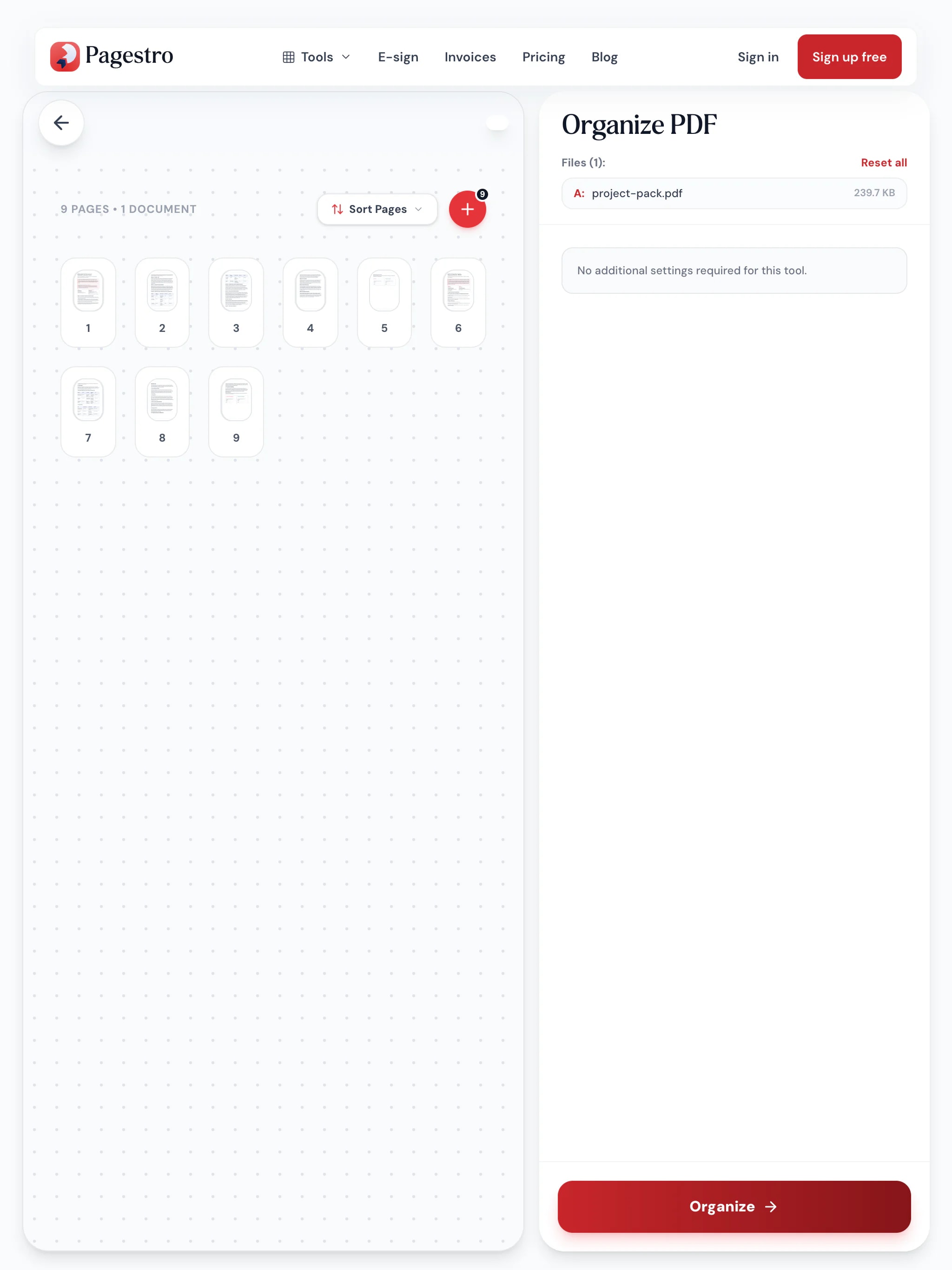
Organizing is a hands-on job, and it’s easiest with space. On a laptop or tablet you see many pages at once and move them where they belong. Your files are processed in the browser, so nothing needs to sync or upload first.
- Many pages visible at once
- Quick view any page at full size
- Nothing to install or sync
Put every page where it belongs
- Pages in order
Office managers
Fix a scan fed in wrong
Pages out of order or upside down after a batch scan? Sort and turn them in minutes.
- Pages in order
Real estate agents
One clean listing packet
Combine the disclosure, floor plan image and photos into one ordered file.
- Pages in order
Students
Thesis chapters in order
Move chapters and appendices around and add a scanned signature page.
How Pagestro compares
 Pagestro Pagestro | Desktop software | Upload-based sites | |
|---|---|---|---|
| Files stay on your device | Yes | Yes | No |
| Nothing to install | Yes | No | Yes |
| No waiting for uploads | Yes | Yes | No |
| Insert images between pages | Yes | Varies | Varies |
| Price | Free | Often a paid license | Often free with limits |
How do I rearrange pages in a PDF?
Add your PDF, then drag the page thumbnails into the order you want. Press Organize to download a new PDF in that order.
Can I add pages from another PDF?
Yes. Use the plus button on the board, or the insert buttons beside any page, to add another PDF. Its pages appear where you chose and can be moved like the rest.
Can I add a photo or image as a page?
Yes. Insert a PNG, JPG or WebP image anywhere. You can crop it first and choose whether it fits the page size or keeps its own size.
How do I reverse the page order of a PDF?
Open Sort Pages above the board and choose Reverse Order. Reset Original puts everything back.
Can I rotate or delete single pages?
Yes. Each page has its own rotate and delete buttons, so you can fix one page without touching the others.
Are my files uploaded?
No. Pages are arranged and saved in your browser, so your files never leave your device.
Is there a page limit?
The PDF you start with can be up to 100 MB and 200 pages. Very large documents also depend on your device’s memory.
Keep working on your document
 Merge PDFCombine multiple PDFs into one documentOpen tool
 Rotate PDFRotate pages 90°, 180°, or 270°Open tool
 Remove PagesDelete specific pages from your PDFOpen tool
 Split PDFSplit PDF by pages, ranges or extract all pagesOpen tool
 Page numbersInsert page numbers into your PDFOpen tool
 JPG to PDFConvert JPG images to a PDF documentOpen tool


