

Resize Image
Resize images by pixels or percentage.
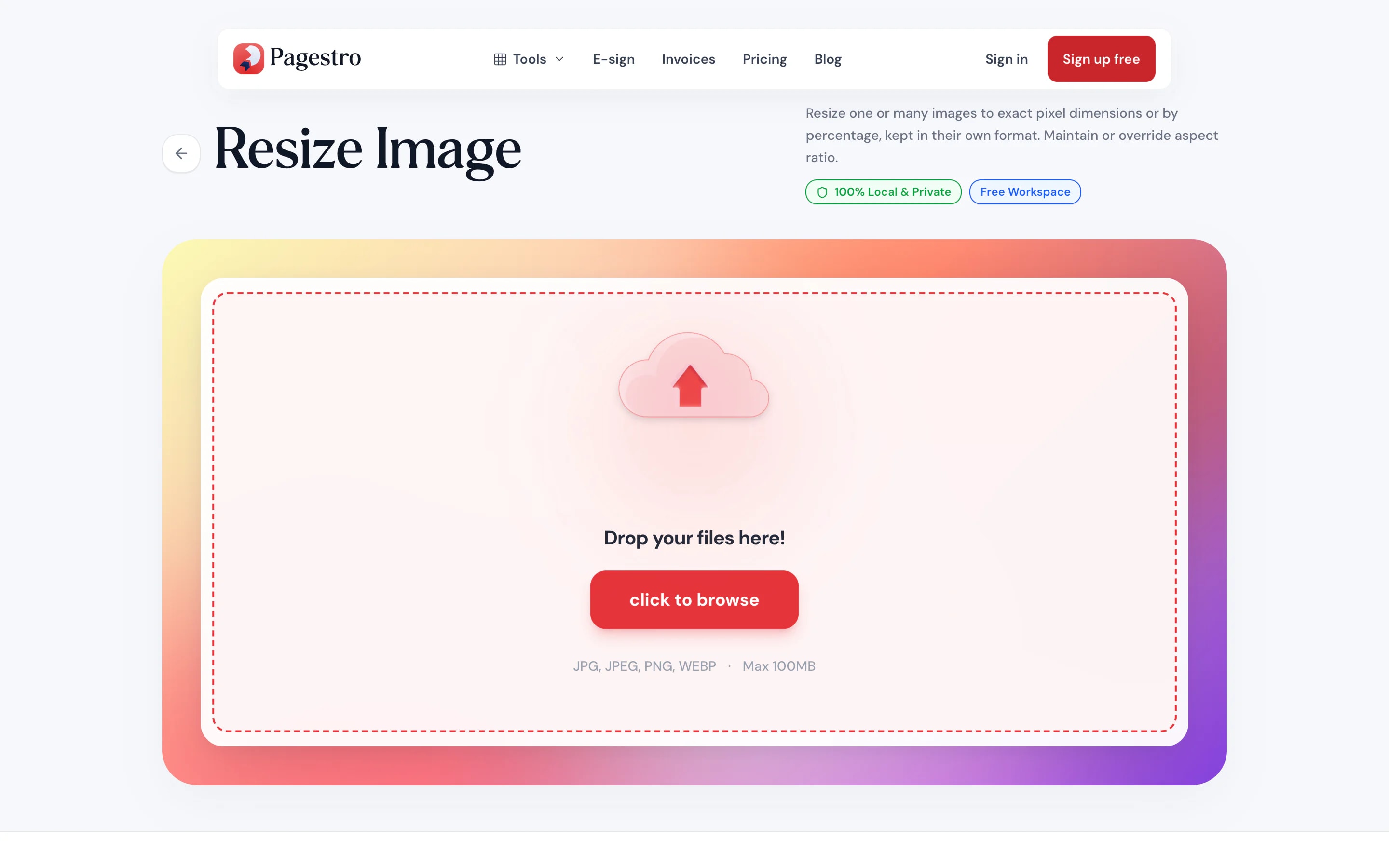
or drop files here · JPG, PNG, WEBP up to 100 MB · files stay on your device
How it works
- 1Add your imagesDrop in one JPG, PNG or WebP file, or a whole batch.
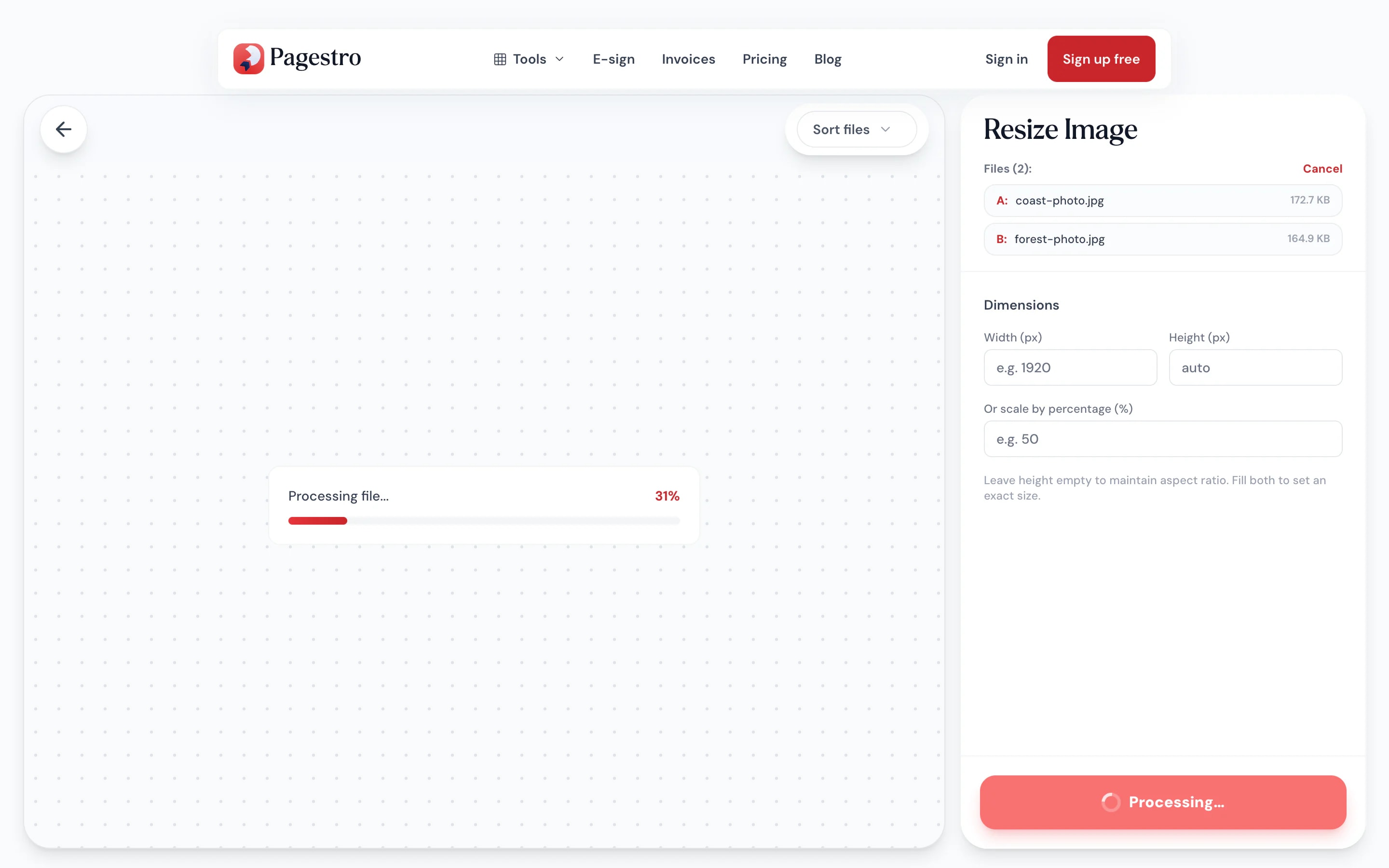
- 2Enter the sizeType the width in pixels and leave the height empty to keep the proportions, fill both in for an exact size, or scale by a percentage.
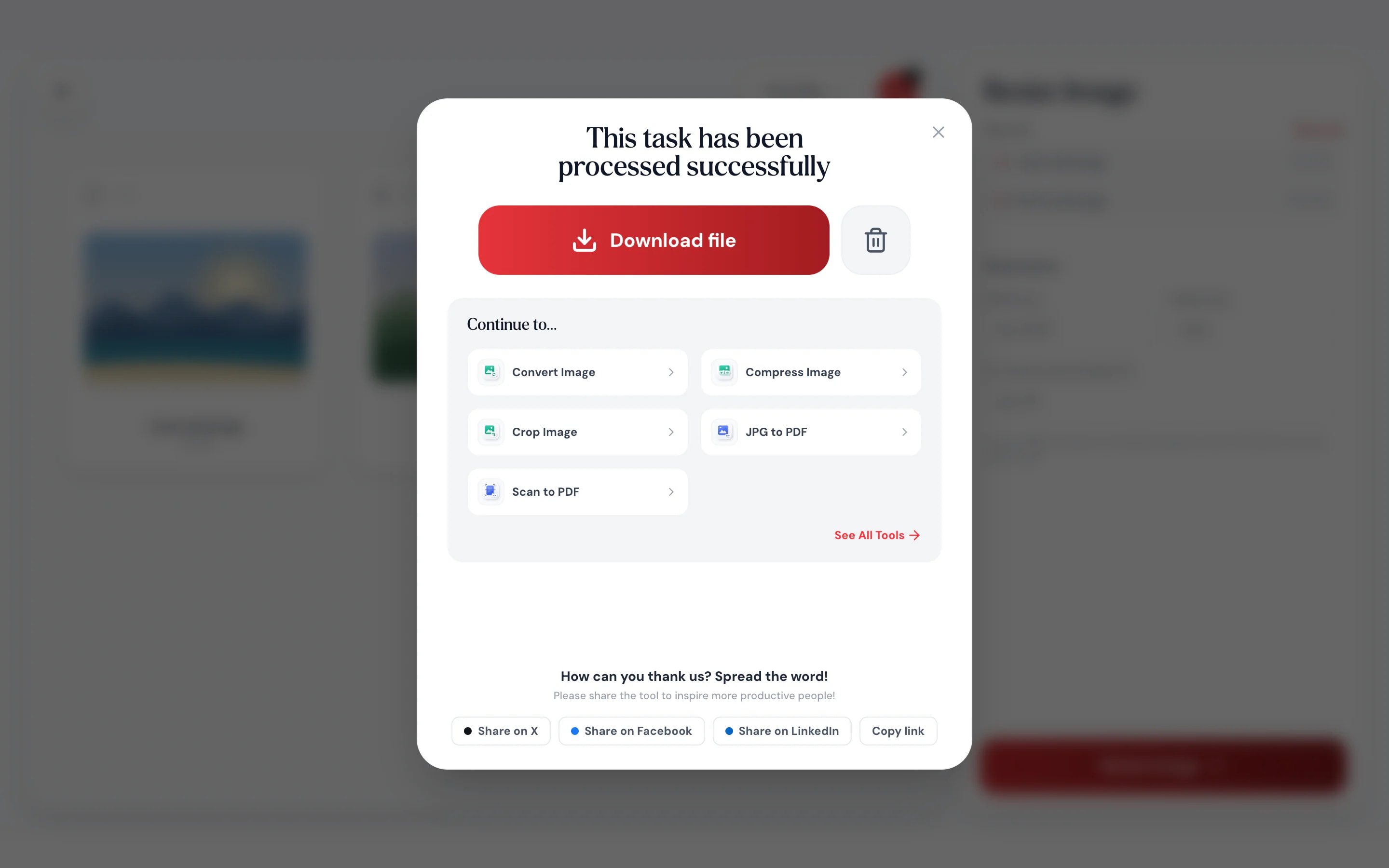
- 3Download the resultSave the resized image in its own format, or a ZIP when you resized several.
At a glance
- set the width, the height or both
- Exact pixels
- keeps proportions when you leave it blank
- Auto height
- uploaded: resizing runs in your browser
- 0 bytes
- no sign-up and no watermark
- Free
Questions and answers
How do I resize an image without losing quality?
Make it smaller, not larger. Type the new width in the tool at the top of this page and leave the height empty. Shrinking keeps the image sharp.
How do I keep the aspect ratio?
Enter only the width and leave the height empty. Pagestro works out the height so the image isn’t stretched.
Can I make an image bigger?
Yes, but enlarging can’t add detail that isn’t there, so a much larger image may look soft.
Can I resize by percentage?
Yes. Type a percentage instead of pixels: 50% halves both sides and keeps the proportions.
Can I resize several images at once?
Yes. Add as many as you like; they all get the same setting and download together as a ZIP, each in its own format.
What’s the difference between resizing and compressing?
Resizing changes the width and height in pixels. Compressing keeps the size and makes the file lighter. Use Compress Image after resizing for the smallest file.
Are my images uploaded?
No. Resizing happens in your browser on your own device. Nothing is sent to Pagestro.
More image tools


At a glance
- set the width, the height or both
- Exact pixels
- keeps proportions when you leave it blank
- Auto height
- uploaded: resizing runs in your browser
- 0 bytes
- no sign-up and no watermark
- Free
How it works
Type a size, get an image
Drop in one JPG, PNG or WebP file, or a whole batch.
Type the width in pixels and leave the height empty to keep the proportions, fill both in for an exact size, or scale by a percentage.
Save the resized image in its own format, or a ZIP when you resized several.
- 1
Add your images
Drop in one JPG, PNG or WebP file, or a whole batch.
- 2
Enter the size
Type the width in pixels and leave the height empty to keep the proportions, fill both in for an exact size, or scale by a percentage.
- 3
Download the result
Save the resized image in its own format, or a ZIP when you resized several.
Why Pagestro
The right size, no guesswork
Exact sizes in seconds
Type a number of pixels and get exactly that, without opening a photo editor.
Proportions kept
Leave the height blank and nothing gets squashed.
Or force a size
Fill in both numbers when a form wants exact pixels.
Resize on your phone
Fix a photo’s size right before you upload it.
Sizes people often need
Profile photos around 400 px wide, social posts at 1080 px, website banners at 1920 px.
Private by default
Your image is resized on your device and never uploaded.
Free, with no limits to count
No sign-up, no daily cap and no watermark.
Private by design
Resized here, not on a server
Pagestro redraws your image at the new size inside your browser. There’s no upload queue, no copy on a server and nothing to clean up afterwards.
- No upload and no account
- Resizing runs as code inside this page
- Close the tab and nothing is kept
On the go
Make it fit from your phone
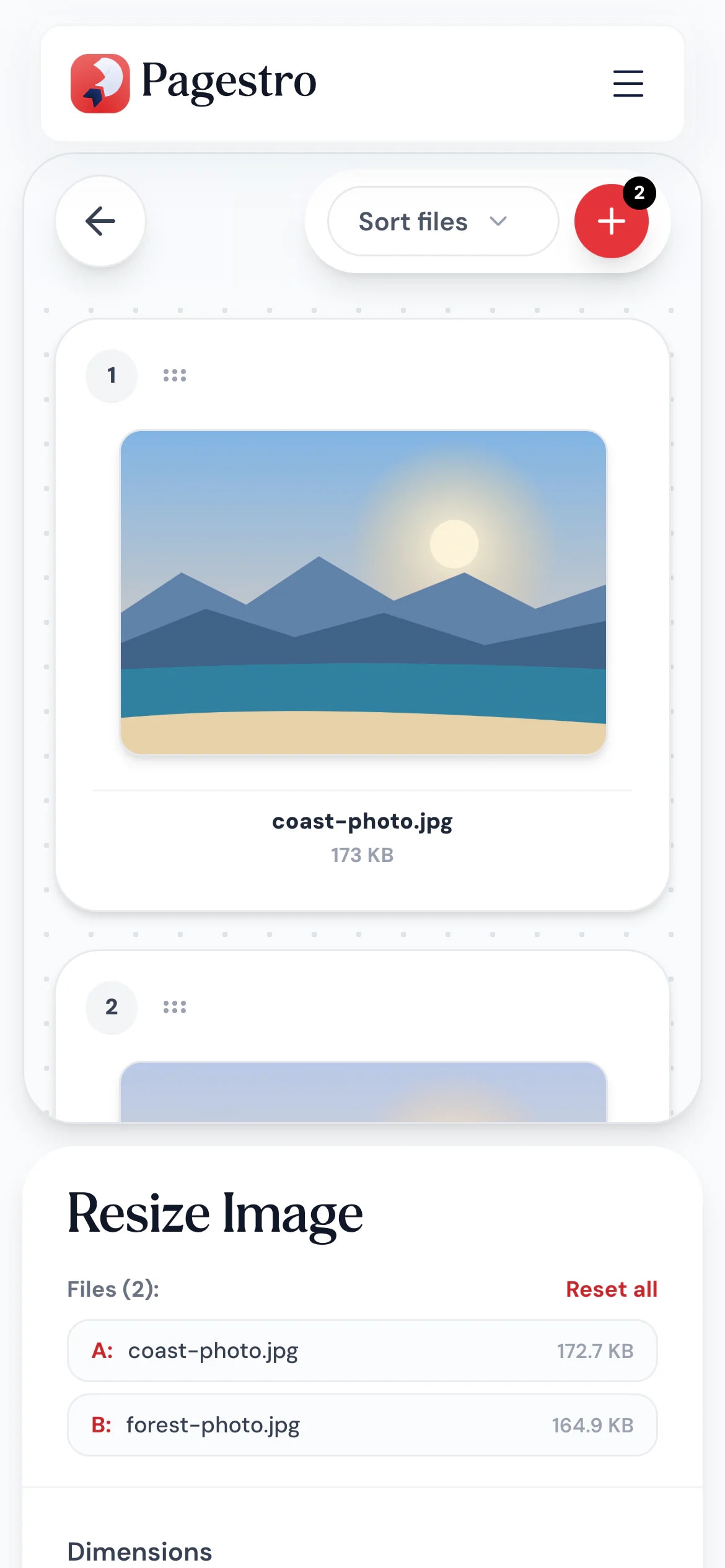
The form wants a photo no wider than 600 pixels. Open Pagestro in your phone’s browser, type 600, and upload the result.
- Pick photos from your camera roll
- No app to install
- Saves straight back to your phone
Who uses it
When a size is required
- Resized
Social media managers
Posts and headers at set widths
Size images to the width each channel recommends.
- Resized
Shop owners
Product photos that match
Give every product photo the same width before uploading.
- Resized
Applicants
Photos for forms
Hit the exact pixel size an application asks for.
- Resized
Bloggers
Images that fit the column
Resize to your blog’s content width so pages load faster.
How Pagestro compares
 Pagestro Pagestro | Desktop software | Upload-based sites | |
|---|---|---|---|
| Images stay on your device | Yes | Yes | No |
| Nothing to install | Yes | No | Yes |
| Works on phones and tablets | Yes | No | Yes |
| No waiting for uploads | Yes | Yes | No |
| Price | Free | Often a paid license | Varies by site |
How do I resize an image without losing quality?
Make it smaller, not larger. Type the new width in the tool at the top of this page and leave the height empty. Shrinking keeps the image sharp.
How do I keep the aspect ratio?
Enter only the width and leave the height empty. Pagestro works out the height so the image isn’t stretched.
Can I make an image bigger?
Yes, but enlarging can’t add detail that isn’t there, so a much larger image may look soft.
Can I resize by percentage?
Yes. Type a percentage instead of pixels: 50% halves both sides and keeps the proportions.
Can I resize several images at once?
Yes. Add as many as you like; they all get the same setting and download together as a ZIP, each in its own format.
What’s the difference between resizing and compressing?
Resizing changes the width and height in pixels. Compressing keeps the size and makes the file lighter. Use Compress Image after resizing for the smallest file.
Are my images uploaded?
No. Resizing happens in your browser on your own device. Nothing is sent to Pagestro.


