

Protect PDF
Password-protect your PDF with 256-bit AES.
or drop a file here · PDF up to 100 MB · files stay on your device
How it works
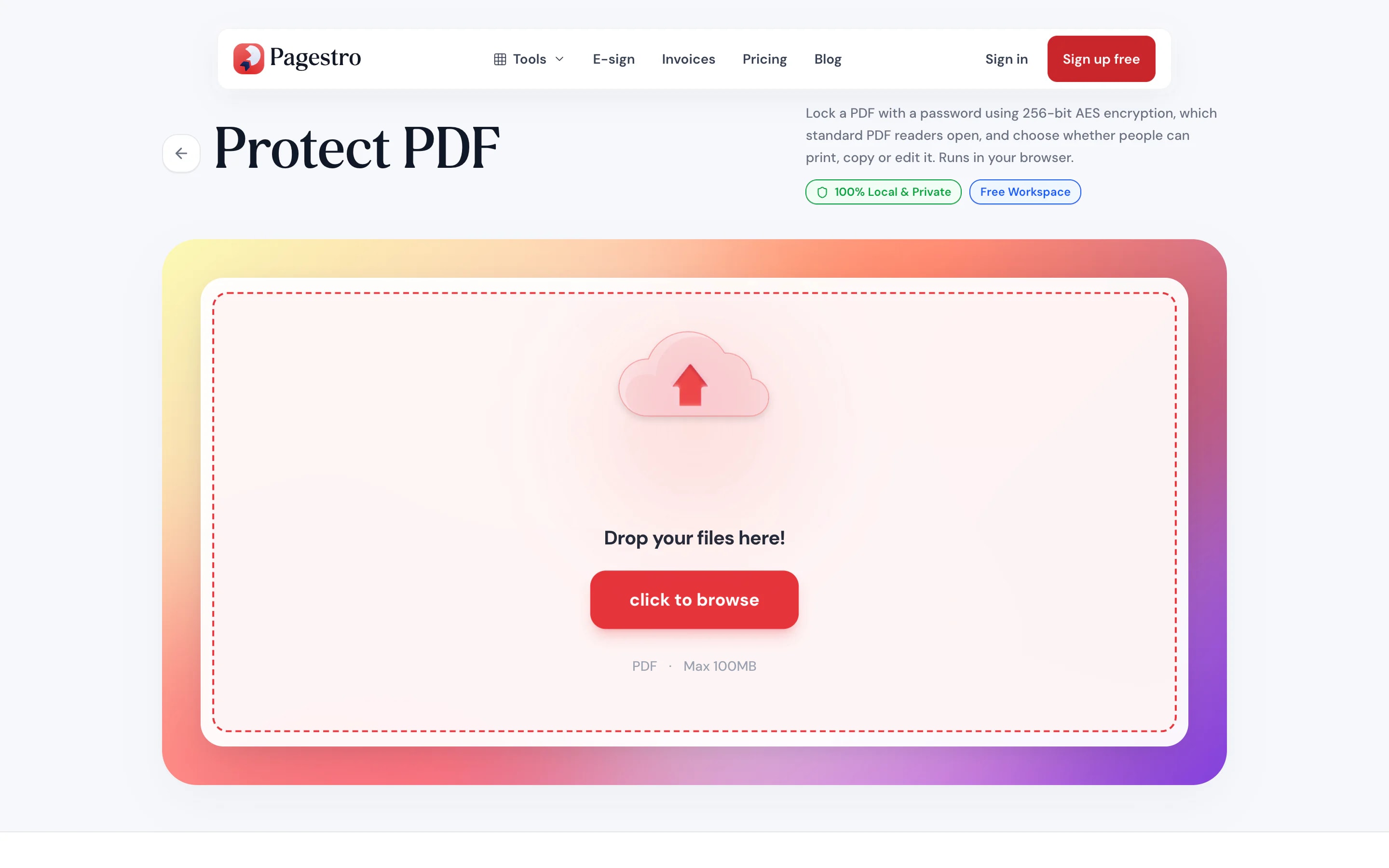
- 1Add your PDFDrop in the PDF you want to lock, or pick it from your device.
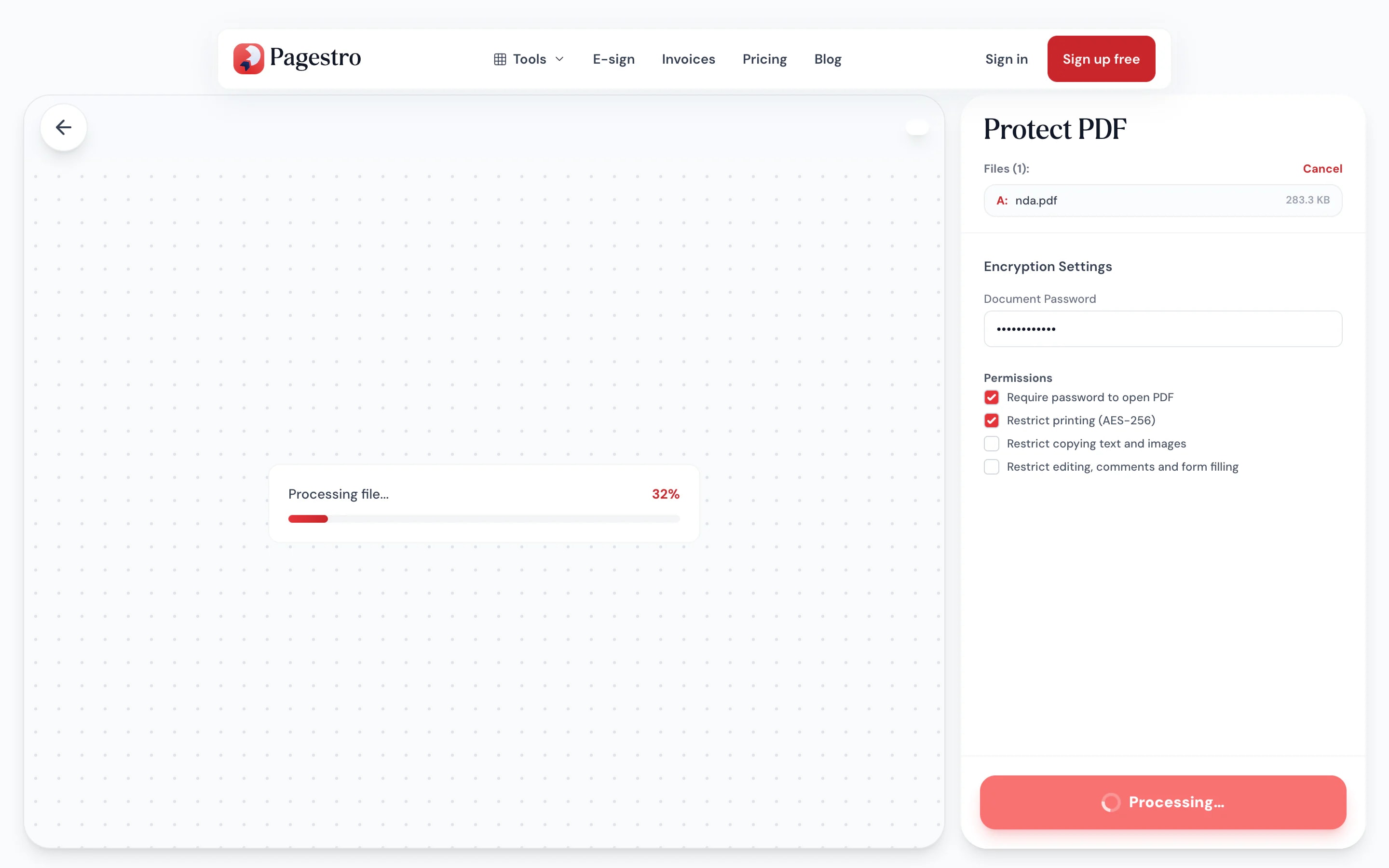
- 2Choose a passwordType a password you can share with the right people. Longer is stronger.
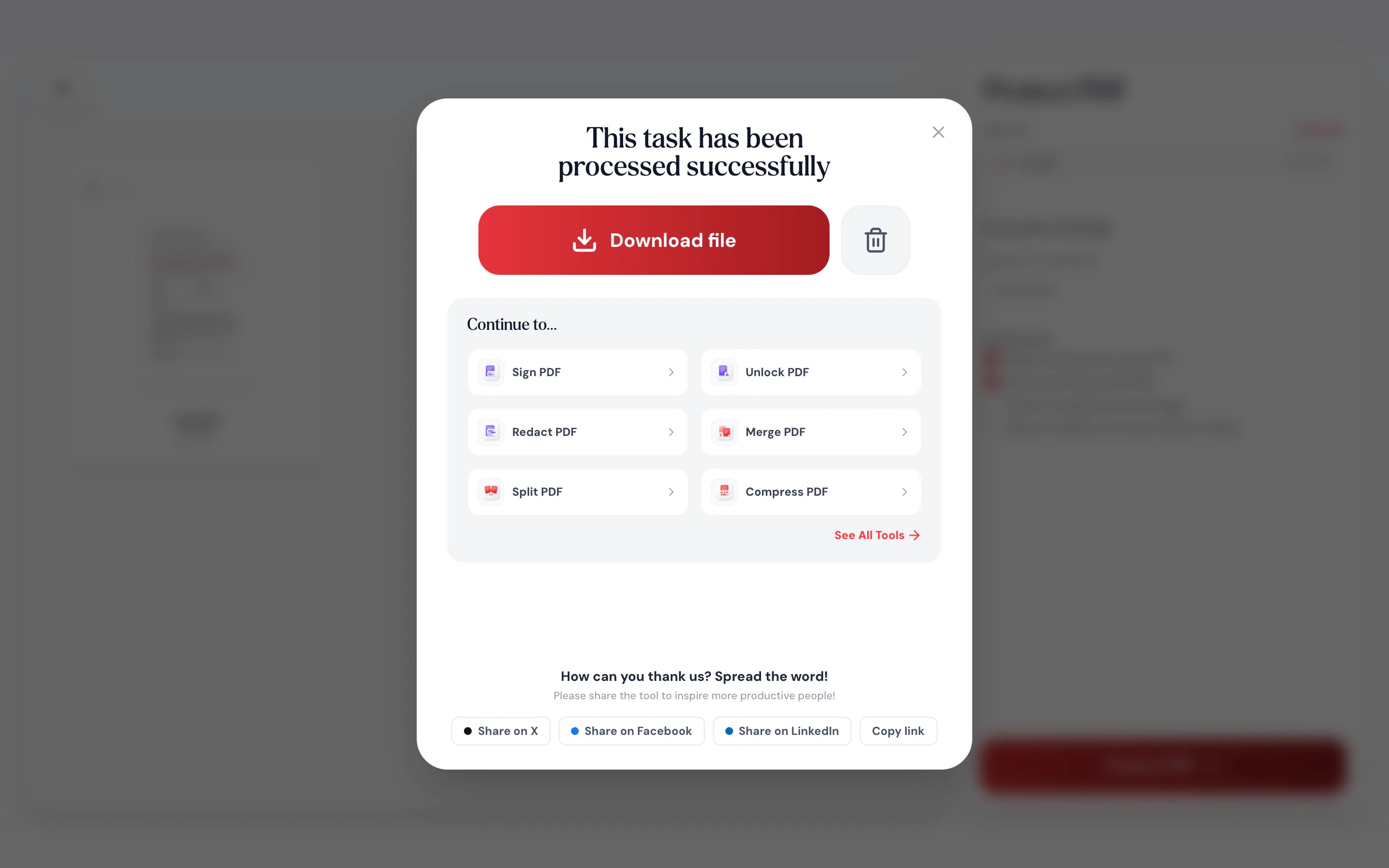
- 3Download the locked copyThe new PDF asks for the password before it shows a single page.
At a glance
- encryption that standard PDF readers open
- 256-bit AES
- uploaded: file and password stay on your device
- 0 bytes
- needed by anyone who opens the file
- 1 password
- no sign-up and no watermark
- Free
Questions and answers
How do I password protect a PDF for free?
Add the PDF to the tool at the top of this page, type a password and download the protected copy. It’s free, with no sign-up.
What encryption does Pagestro use?
256-bit AES, the strongest encryption in the PDF standard. Current PDF readers on desktop, browser and phone open it.
Can I stop people printing or copying the PDF?
Yes. Printing is blocked by default, and you can also block copying text and images, or editing, comments and form filling. Readers that follow the PDF standard enforce these limits after the password is entered.
What happens if I forget the password?
Pagestro can’t recover it, because we never see it. Keep your original unprotected file somewhere safe until you’re sure.
How should I share the password?
Use a different channel from the file. If you email the PDF, send the password by text message or tell the person in a call.
Is my PDF or password uploaded?
No. Both stay in your browser on your own device. The encryption happens there, and nothing is sent to Pagestro.
How do I remove the password later?
Open the file in Unlock PDF, enter the password and download a copy without it.
Related security tools
At a glance
- encryption that standard PDF readers open
- 256-bit AES
- uploaded: file and password stay on your device
- 0 bytes
- needed by anyone who opens the file
- 1 password
- no sign-up and no watermark
- Free
How it works
A password in three steps
Drop in the PDF you want to lock, or pick it from your device.
Type a password you can share with the right people. Longer is stronger.
The new PDF asks for the password before it shows a single page.
- 1
Add your PDF
Drop in the PDF you want to lock, or pick it from your device.
- 2
Choose a password
Type a password you can share with the right people. Longer is stronger.
- 3
Download the locked copy
The new PDF asks for the password before it shows a single page.
Why Pagestro
Locked on your device, opened anywhere
Encrypted before it goes anywhere
Your browser encrypts the PDF. The unprotected file never travels over the internet.
We never see the password
It’s used inside this page and never sent anywhere.
Opens in standard readers
Desktop, browser and phone PDF readers ask for the password.
Lock files on your phone
Protect a scan right after you make it, before you send it.
The whole file is locked
Without the password, the pages, text and images stay unreadable.
Protect it last
Merge, watermark or compress first, then add the password as the final step.
Free, with no account
Lock as many files as you need. No sign-up and nothing stamped on your pages.
Private by design
A password that travels with the file
Email gets forwarded and shared drives get messy. A password-protected PDF stays locked wherever it ends up, and only people with the password can open it. Pagestro adds that lock in your browser, so the unprotected version never leaves your device.
- No upload of the original or the password
- The lock stays on the file when it’s forwarded
- Share the password through a different channel
On the go
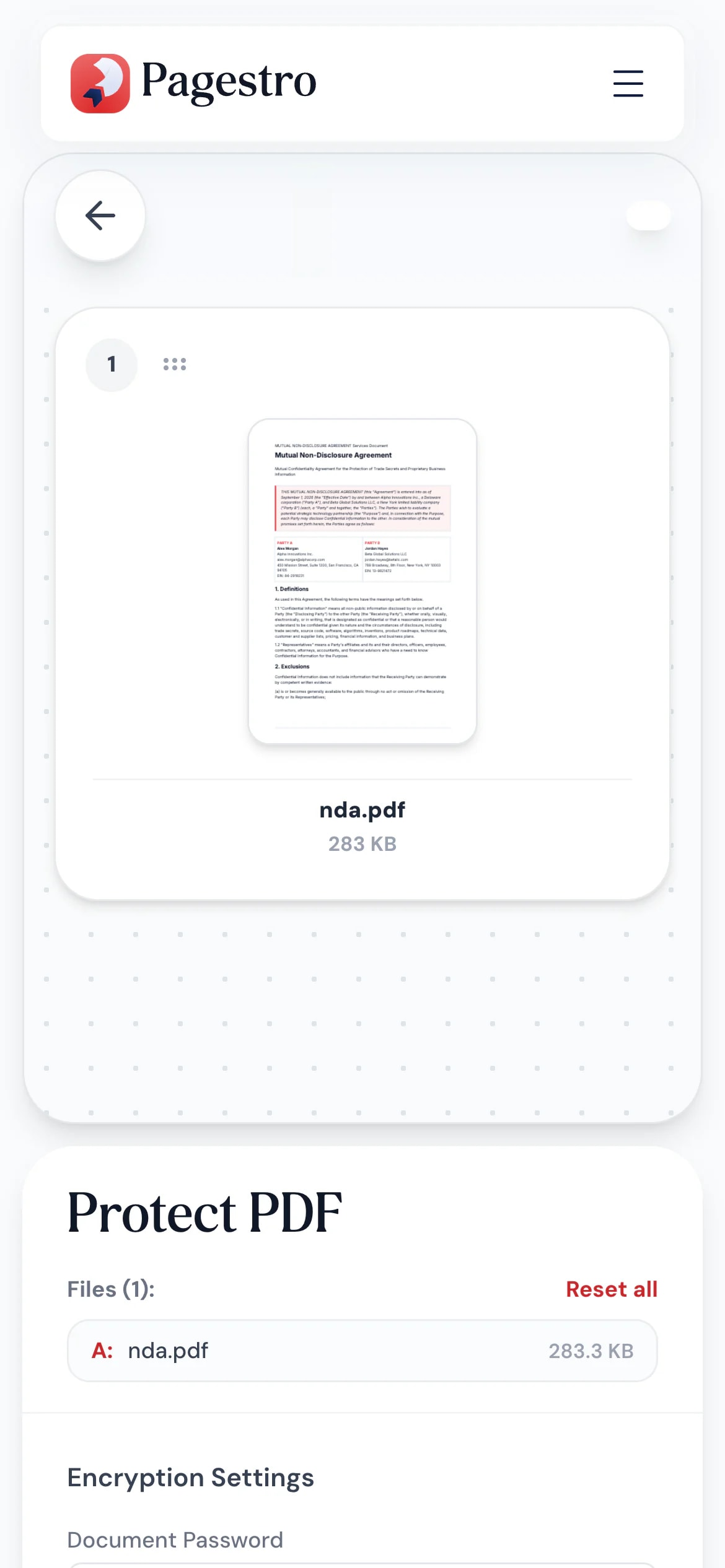
Lock it on your phone, then send
Scanned your passport for a visa form? Open Pagestro in your phone’s browser, add a password, and attach the locked copy instead.
- No app to install
- Works in Safari, Chrome and Firefox
- The locked PDF saves to your phone
Who uses it
Files that shouldn’t be open to anyone
- Password added
Accountants
Tax returns sent to clients
Email the return, then text the password.
- Password added
HR and payroll
Payslips and contracts
Personal pay details, readable only by the employee.
- Password added
Families
Medical and school records
Share reports with a new doctor or school, locked.
- Password added
Freelancers
ID scans and signed contracts
Send the copies a client asks for without leaving them open.
How Pagestro compares
 Pagestro Pagestro | Desktop software | Upload-based sites | |
|---|---|---|---|
| Unprotected file stays on your device | Yes | Yes | No |
| Password never sent to a server | Yes | Yes | No |
| Nothing to install | Yes | No | Yes |
| Works on phones and tablets | Yes | No | Yes |
| Price | Free | Often a paid license | Varies by site |
How do I password protect a PDF for free?
Add the PDF to the tool at the top of this page, type a password and download the protected copy. It’s free, with no sign-up.
What encryption does Pagestro use?
256-bit AES, the strongest encryption in the PDF standard. Current PDF readers on desktop, browser and phone open it.
Can I stop people printing or copying the PDF?
Yes. Printing is blocked by default, and you can also block copying text and images, or editing, comments and form filling. Readers that follow the PDF standard enforce these limits after the password is entered.
What happens if I forget the password?
Pagestro can’t recover it, because we never see it. Keep your original unprotected file somewhere safe until you’re sure.
How should I share the password?
Use a different channel from the file. If you email the PDF, send the password by text message or tell the person in a call.
Is my PDF or password uploaded?
No. Both stay in your browser on your own device. The encryption happens there, and nothing is sent to Pagestro.
How do I remove the password later?
Open the file in Unlock PDF, enter the password and download a copy without it.
Related security tools
 Unlock PDFRemove password protection from PDFOpen tool
 WatermarkAdd text or image watermarks to PDFOpen tool
 Sign PDFDraw, type or upload your signature and place it on a PDFOpen tool
 Merge PDFCombine multiple PDFs into one documentOpen tool
 Compress PDFReduce PDF file size while keeping qualityOpen tool


