

Page numbers
Insert page numbers into your PDF.
or drop a file here · PDF up to 100 MB · files stay on your device
How it works
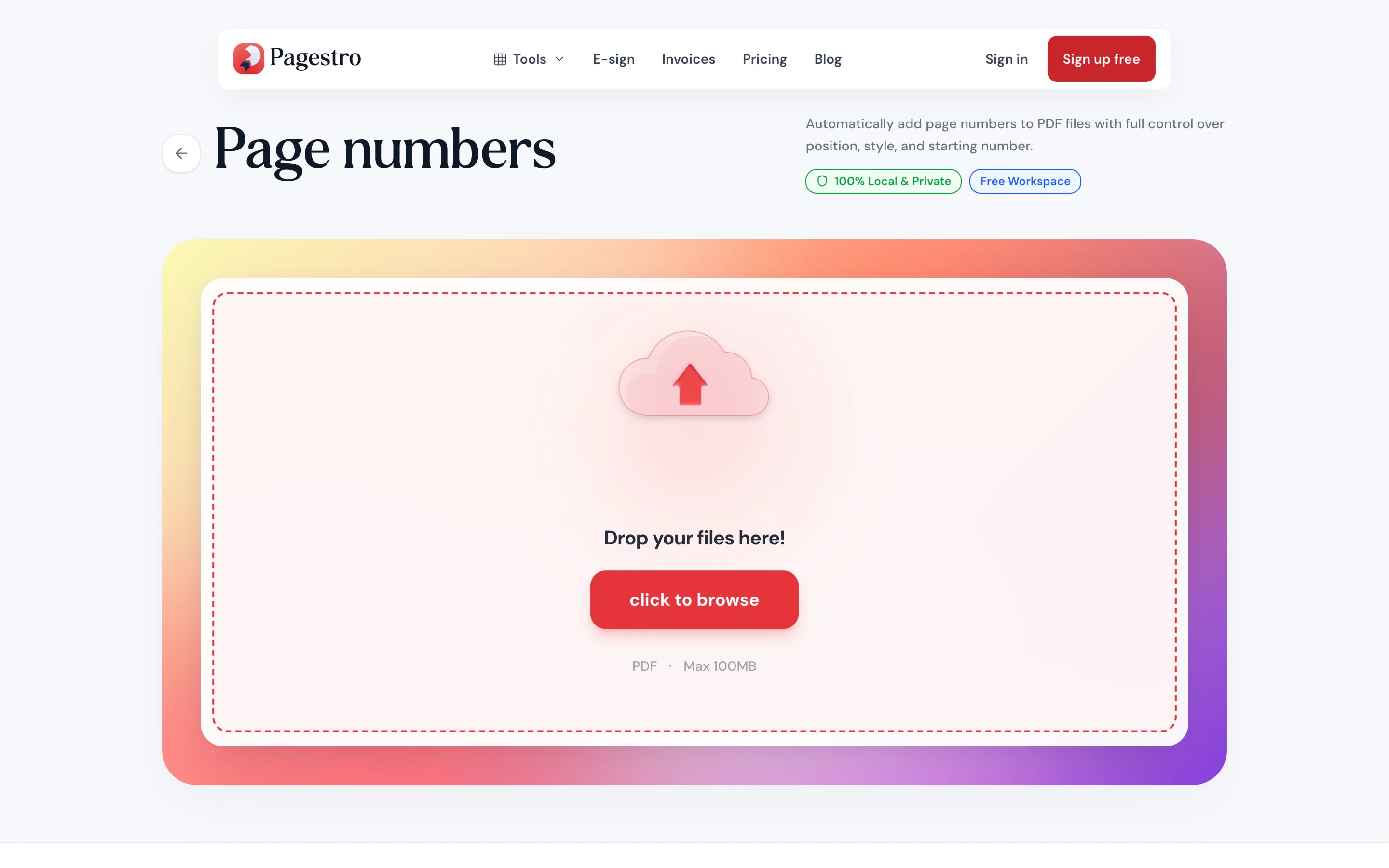
- 1Add your PDFDrop in one PDF of up to 200 pages, or pick it from your device.
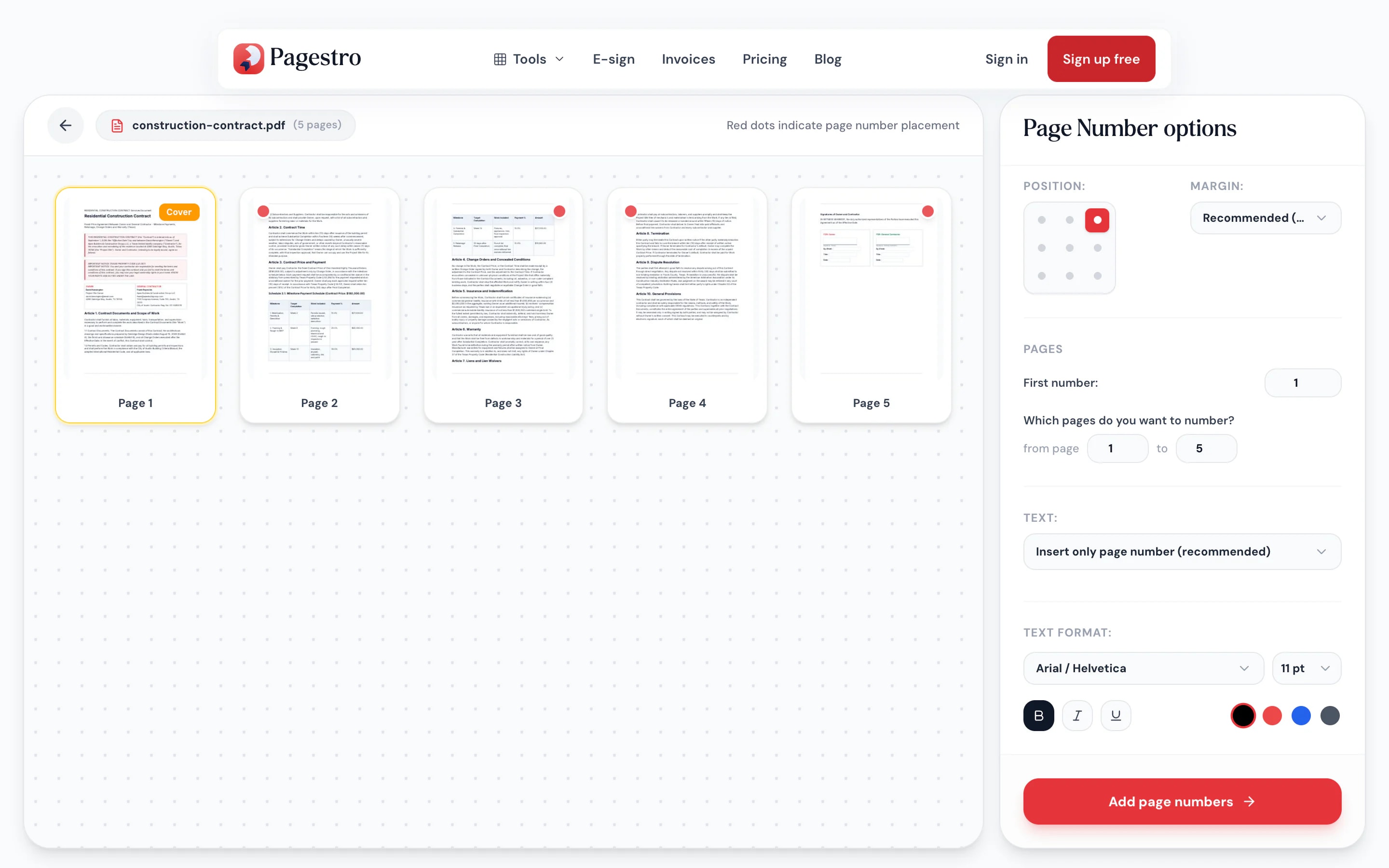
- 2Choose position and formatClick a spot on the 3×3 grid, set the first number and pick a format.
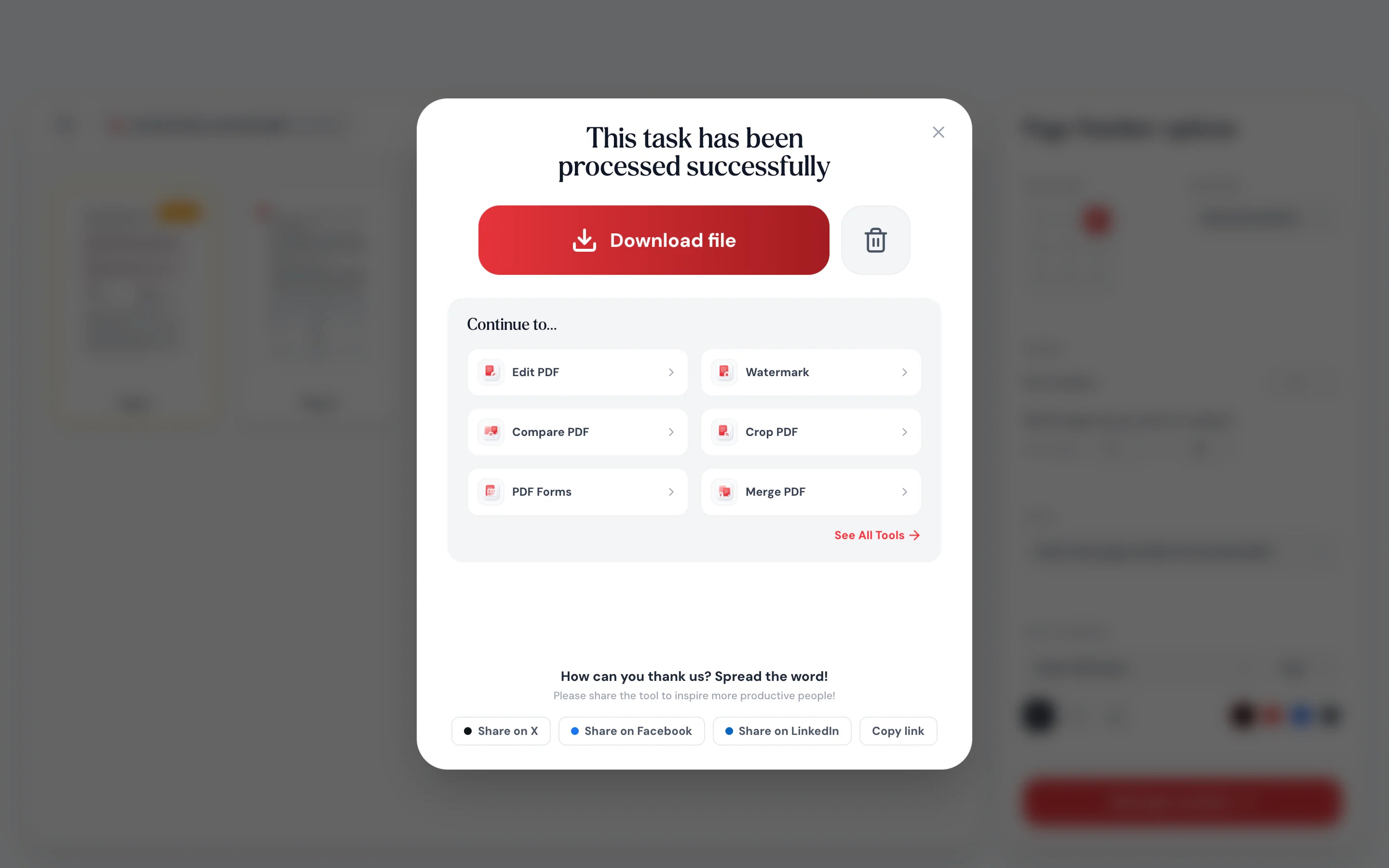
- 3Download the numbered PDFEvery page in your range gets its number. Save the file and print or share it.
At a glance
- corners, edges or the center of the page
- 9 spots
- or any format you type
- Page 1 of 10
- uploaded: numbering runs in your browser
- 0 bytes
- no sign-up and no watermark
- Free
Questions and answers
How do I add page numbers to a PDF?
Add your PDF to the tool at the top of this page, click a position on the grid, choose the format and download. It takes about a minute.
How do I start numbering on page 2?
Tick “first page is cover”. The cover gets no number and numbering starts on the next page.
Can I add “Page X of Y”?
Yes. Pick “Page {n} of {total}” as the text format, or write your own using {n} for the page number and {total} for the page count.
Can I number only some pages?
Yes. Set the range, for example from page 3 to page 20. Pages outside the range are left as they are.
Can I change the font, size and color?
Yes. Choose Helvetica, Times or Courier, set the size, make it bold, italic or underlined, and pick any color.
Is there a page limit?
You can number PDFs of up to 200 pages and 100 MB.
Is my PDF uploaded?
No. The numbers are added by your browser on your own device, so the file never reaches Pagestro.
Pair it with
At a glance
- corners, edges or the center of the page
- 9 spots
- or any format you type
- Page 1 of 10
- uploaded: numbering runs in your browser
- 0 bytes
- no sign-up and no watermark
- Free
How it works
Numbered pages in three steps
Page previews show where each number will land before you download.
Drop in one PDF of up to 200 pages, or pick it from your device.
Click a spot on the 3×3 grid, set the first number and pick a format.
Every page in your range gets its number. Save the file and print or share it.
- 1
Add your PDF
Drop in one PDF of up to 200 pages, or pick it from your device.
- 2
Choose position and format
Click a spot on the 3×3 grid, set the first number and pick a format.
- 3
Download the numbered PDF
Every page in your range gets its number. Save the file and print or share it.
Options
Numbering that fits the document
Put numbers exactly there
Nine positions and three margins: small, recommended or big. The previews update as you choose.
Skip the cover
Tick “first page is cover” and numbering starts on page two.
Start at any number
Continuing from part one? Start at 47.
Works on your phone
Number a report from your phone’s browser, no app needed.
Facing pages for print
For booklets, left and right corners swap on even pages, so numbers sit on the outer edge.
Your own format
Number only, “Page 3 of 12”, or custom text such as “Appendix – 3”.
Match the document’s style
Helvetica, Times or Courier, any size, bold, italic or underlined, in any color.
Built for print
Ready for the binder, not just screens
Long reports, theses and court bundles get printed and flipped through. Pagestro handles the details print needs: numbers on the outer edge of facing pages, a cover without a number, and a range that skips the front matter.
- Number only pages 5 to 40 if that’s what you need
- Margins of 15, 25 or 40 points from the edge
- Numbers are real text, sharp at any zoom
Anywhere
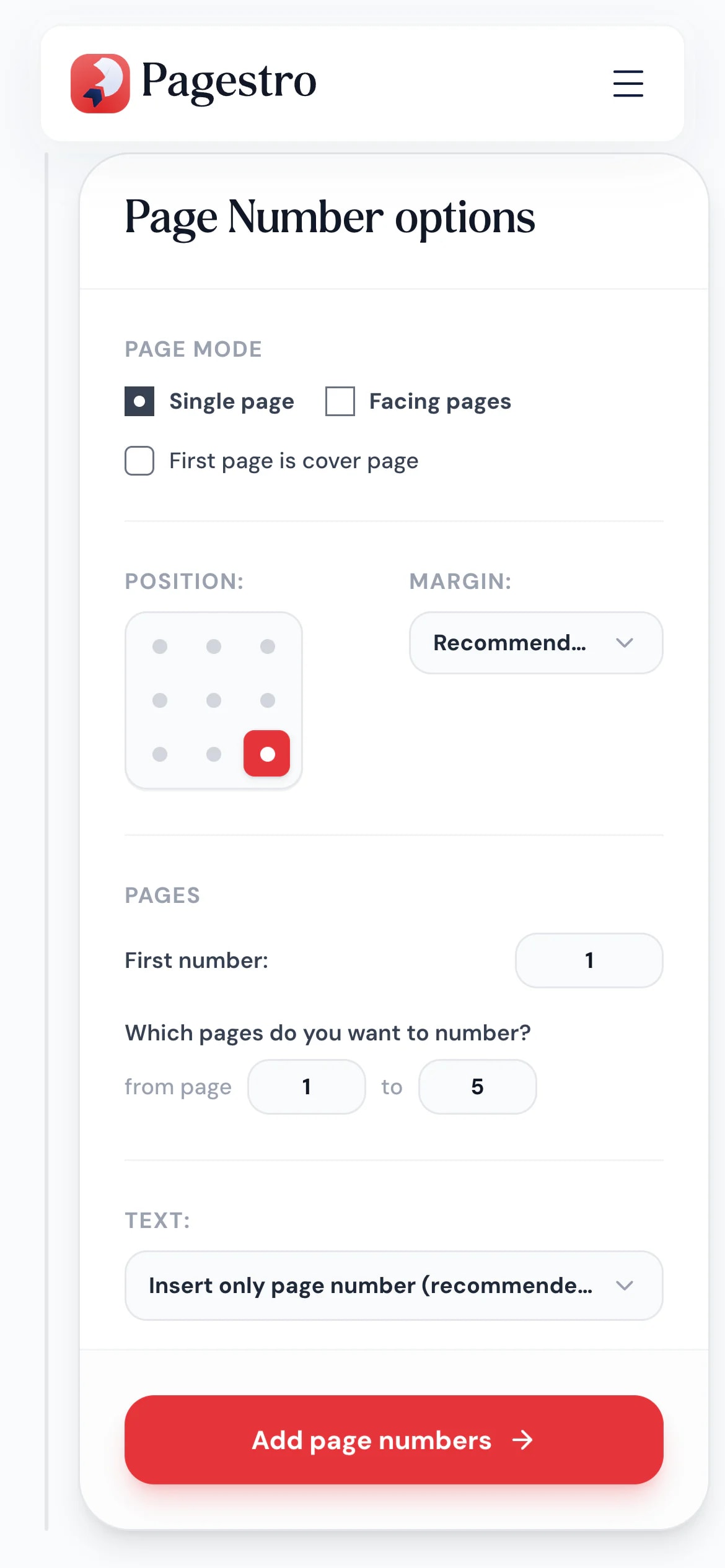
Number pages from your phone
The report is due and you’re not at your desk. Open the tool in your phone’s browser, tap a corner, and download the numbered PDF.
- Same options as on desktop
- Nothing to install
- Your file stays on your phone
Who uses it
Long documents people need to navigate
- Page numbers added
Students
Theses and dissertations
Skip the title page and number the body the way your school asks.
- Page numbers added
Legal teams
Bundles and exhibits
Everyone in the meeting can say “turn to page 84”.
- Page numbers added
Self-publishers
Zines and booklets
Facing-page numbers that sit on the outside edge when printed.
- Page numbers added
Office managers
Board and meeting packs
Merge the papers, then number the whole pack in one pass.
How Pagestro compares
 Pagestro Pagestro | Desktop software | Upload-based sites | |
|---|---|---|---|
| File stays on your device | Yes | Yes | No |
| Facing pages and cover skip | Yes | Varies | Varies |
| Nothing to install | Yes | No | Yes |
| Works on phones and tablets | Yes | No | Yes |
| Price | Free | Often a paid license | Varies by site |
How do I add page numbers to a PDF?
Add your PDF to the tool at the top of this page, click a position on the grid, choose the format and download. It takes about a minute.
How do I start numbering on page 2?
Tick “first page is cover”. The cover gets no number and numbering starts on the next page.
Can I add “Page X of Y”?
Yes. Pick “Page {n} of {total}” as the text format, or write your own using {n} for the page number and {total} for the page count.
Can I number only some pages?
Yes. Set the range, for example from page 3 to page 20. Pages outside the range are left as they are.
Can I change the font, size and color?
Yes. Choose Helvetica, Times or Courier, set the size, make it bold, italic or underlined, and pick any color.
Is there a page limit?
You can number PDFs of up to 200 pages and 100 MB.
Is my PDF uploaded?
No. The numbers are added by your browser on your own device, so the file never reaches Pagestro.
Pair it with
 Merge PDFCombine multiple PDFs into one documentOpen tool
 Organize PDFReorder, add, or remove pages with drag & dropOpen tool
 WatermarkAdd text or image watermarks to PDFOpen tool
 Split PDFSplit PDF by pages, ranges or extract all pagesOpen tool
 Compress PDFReduce PDF file size while keeping qualityOpen tool
 Sign PDFDraw, type or upload your signature and place it on a PDFOpen tool


