

At a glance
- uploaded: text is recognized in your browser
- 0 bytes
- searchable PDF, Word, Excel, Markdown and more
- 9 formats
- PDF, JPG, PNG, WebP, BMP or TIFF
- Scans + photos
- no sign-up, no page credits
- Free
From scan to text in three steps
Drop in a scanned PDF or an image of a page, up to 100 MB.
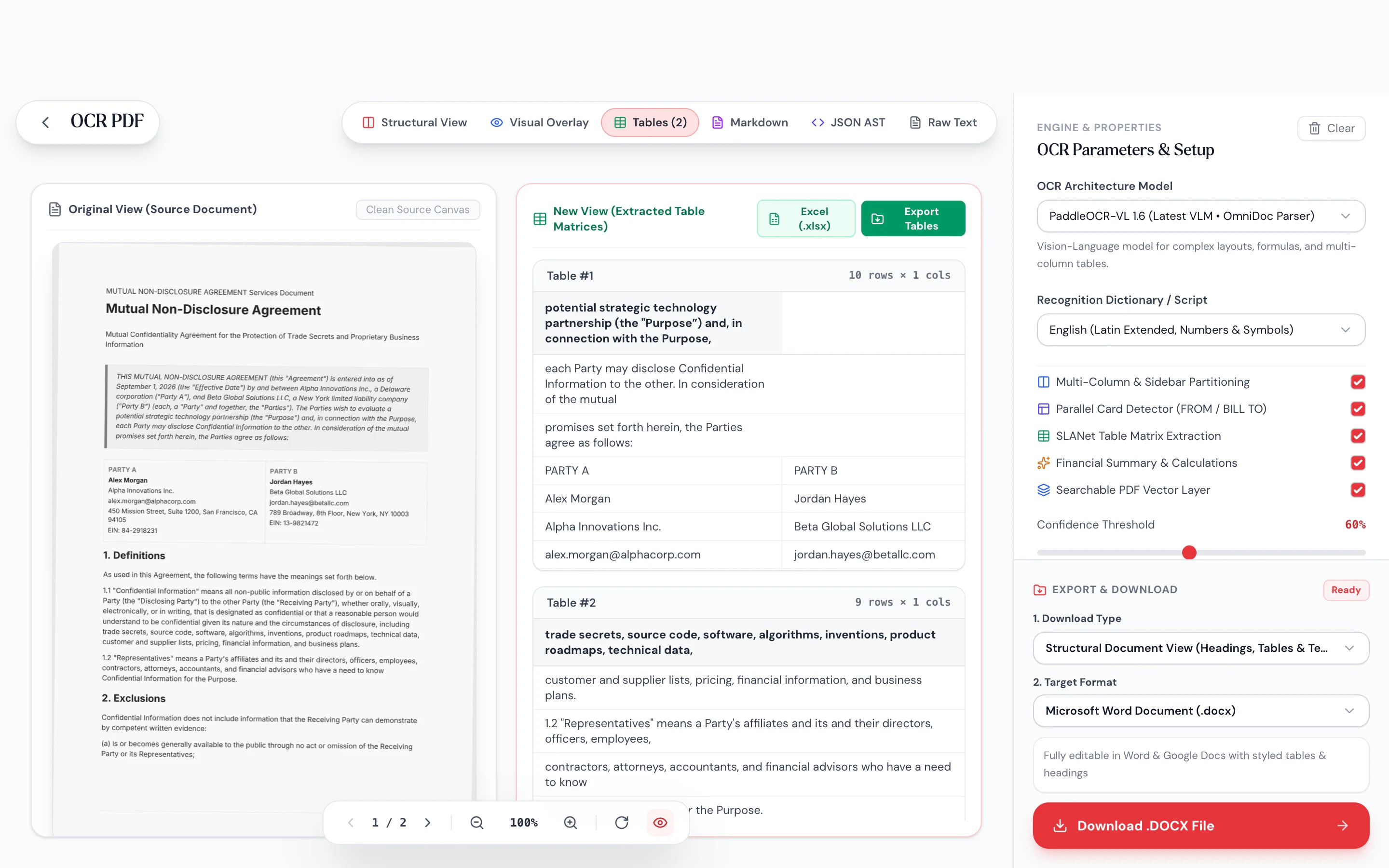
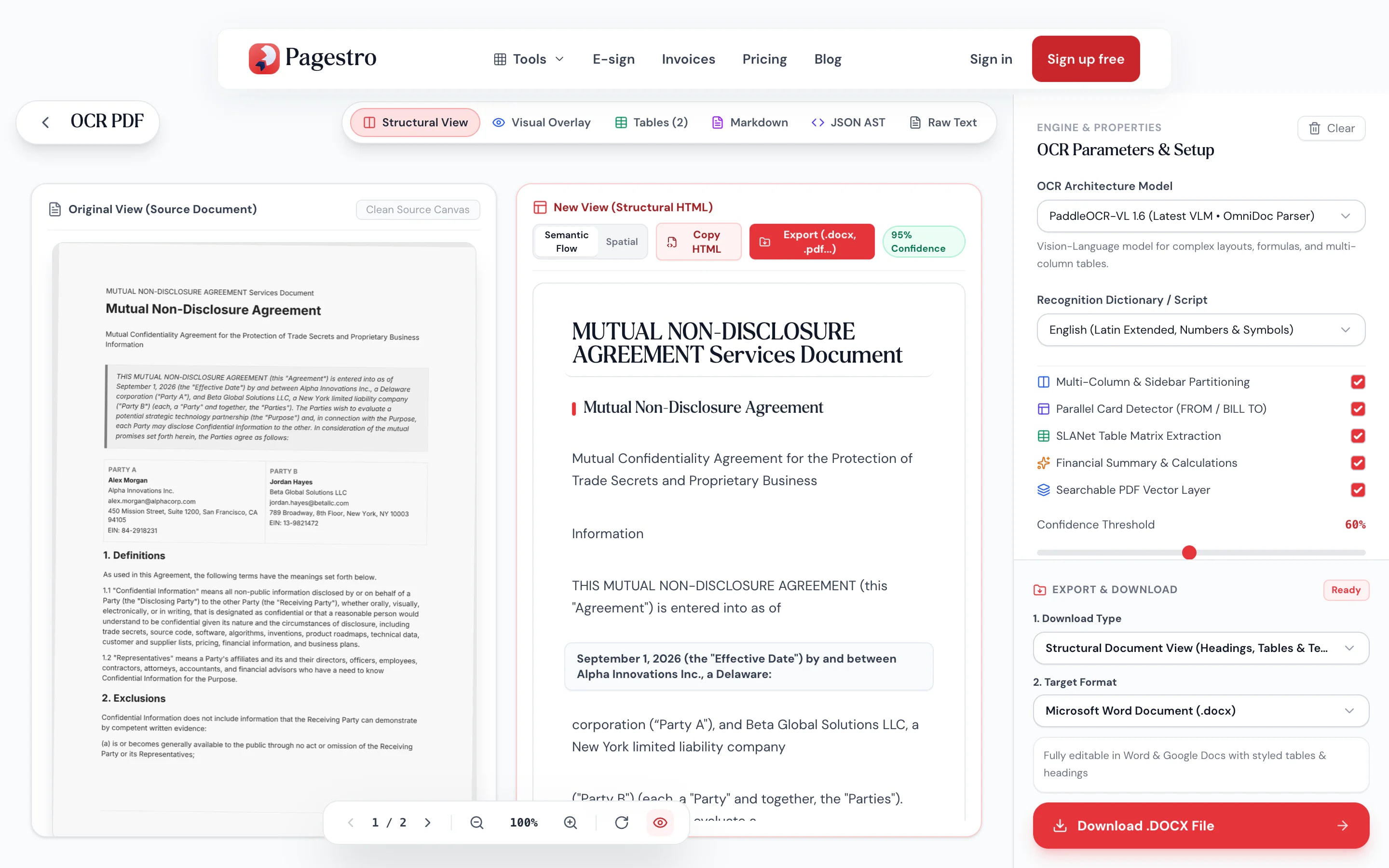
Compare the text, tables and layout against the scan. Switch the language and run it again if needed.
Save a searchable PDF, Word, Excel, CSV, Markdown, HTML, JSON or plain text, or all of them in one ZIP.


- 1
Add a scan or photo
Drop in a scanned PDF or an image of a page, up to 100 MB.
- 2
Check the recognized text
Compare the text, tables and layout against the scan. Switch the language and run it again if needed.
- 3
Pick a format and download
Save a searchable PDF, Word, Excel, CSV, Markdown, HTML, JSON or plain text, or all of them in one ZIP.
What you get
Text you can search, copy and reuse
One recognition pass, many useful outputs.
Read the scan, keep the look.
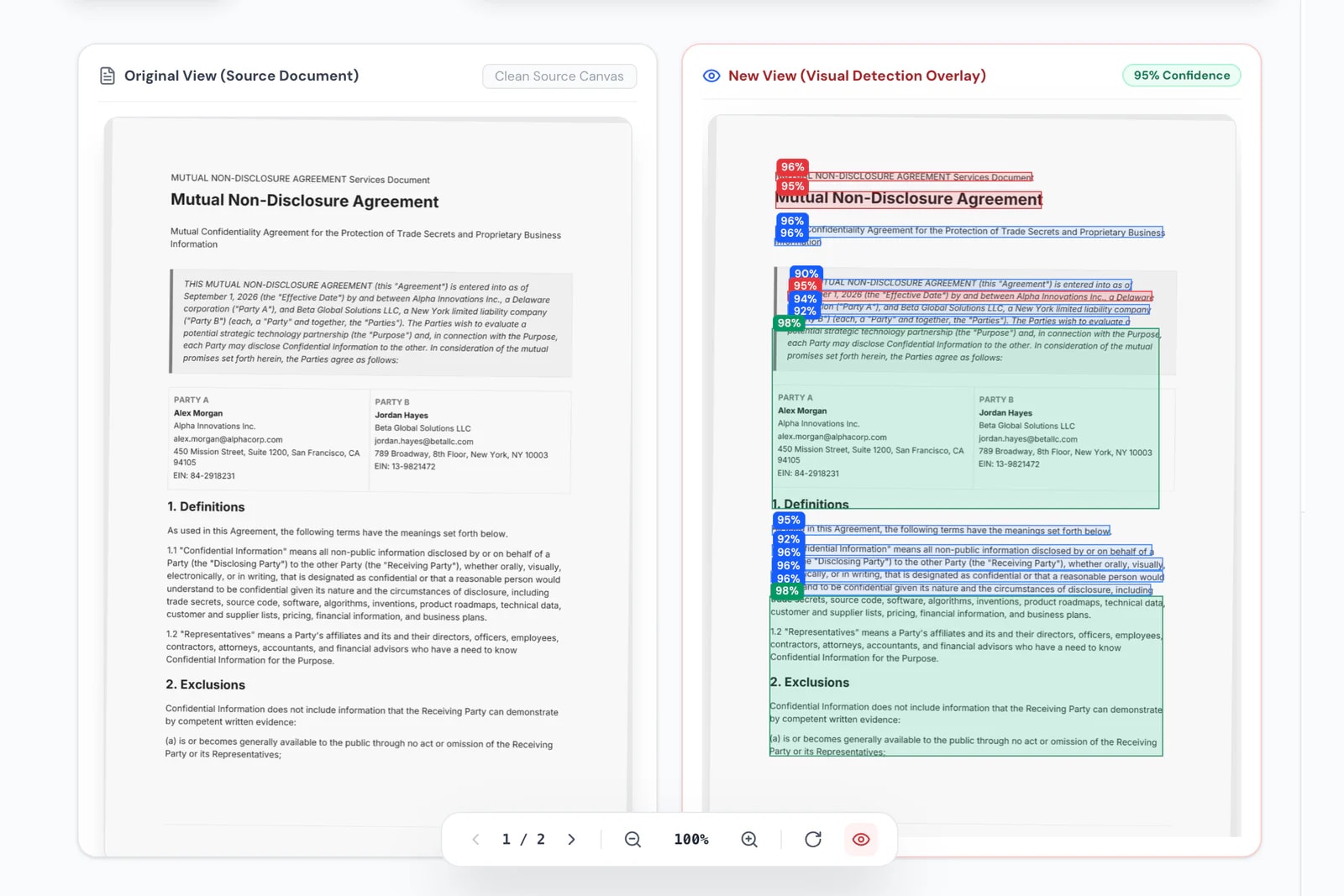
A searchable PDF keeps every original page as it was and adds an invisible text layer, so search and copy just work.
Tables stay tables.
Detected tables export to Excel or CSV with rows and columns intact.
Columns in reading order.
Multi-column pages and sidebars are detected and split, so the text keeps its reading order.
Review before you save.
Switch between the scan, the structured text, tables and Markdown to check the result.
Not just English.
French, German, Spanish, Italian, Portuguese, Chinese, Japanese and Korean too.
Real text read directly.
Pages that already contain text skip recognition.
Sensitive scans stay with you.
IDs, medical records and signed contracts are recognized in your browser and never uploaded.
Private OCR
Recognition runs on your device
Cloud OCR needs your scan on someone else’s server. Here the recognition engine loads into your browser instead. The first run downloads the engine and language data; after that, your pages are read on your own device and never sent anywhere.
- No upload of the document at any step
- Pages with existing text skip recognition
- Re-run with another language in one click
On your phone
Photo of a page, straight to text
Photographed a letter, a receipt or a page of notes? Open Pagestro in your phone’s browser, pick the photo and copy the text out, or save it as a Word file.
- Accepts JPG, PNG, WebP, BMP and TIFF photos
- Works in Safari and Chrome on iOS and Android
- Clear, straight, well-lit photos read best

Paper archives, finally searchable
Law and compliance
Search scanned case files.
Make scanned agreements and correspondence searchable without sending them to a third party.
Accountants
Receipts and statements to Excel.
Pull table rows out of scanned statements instead of retyping them.
Researchers
Quote from old printouts.
Turn photocopied articles into text you can search, quote and cite.
Developers
Structured JSON with coordinates.
Export every line with its position and confidence for your own pipeline.
How Pagestro compares
 Pagestro
Document stays on your device
- Pagestro
- Yes
- Desktop software
- Yes
- Upload-based sites
- No
Nothing to install
- Pagestro
- Yes
- Desktop software
- No
- Upload-based sites
- Yes
Searchable PDF, Word and Excel from one run
- Pagestro
- Yes
- Desktop software
- Varies
- Upload-based sites
- Varies
Works in a phone browser
- Pagestro
- Yes
- Desktop software
- No
- Upload-based sites
- Yes
Price
- Pagestro
- Free
- Desktop software
- Often a paid license
- Upload-based sites
- Often free with limits
How do I make a scanned PDF searchable?
Add the scan, let recognition finish, then choose Searchable PDF as the download. You get the original pages with an invisible text layer, so you can search, select and copy.
Can I convert a scanned PDF to Word?
Yes. Choose Word under the structural formats. Headings, paragraphs and detected tables are rebuilt as an editable .docx.
Which languages are supported?
English; Multilingual European, which reads French, German, Spanish, Italian and Portuguese together with English; Chinese (Simplified), Japanese and Korean. Recognition starts in English; pick another language and run it again in one click.
Does OCR work on photos and images?
Yes. Besides PDFs you can add JPG, PNG, WebP, BMP and TIFF images. Sharp, straight, evenly lit pages give the most accurate text.
Is my document uploaded for OCR?
No. The recognition engine runs in your browser. The first time, your browser downloads the engine and language data, but your document itself never leaves your device.
Can I get the text out of Chinese, Japanese or Korean scans?
Yes, in every format, including the searchable PDF: its hidden text layer uses Noto fonts, so Chinese, Japanese, Korean, accented Latin, Greek and Cyrillic text can be searched and copied.
Does it keep the layout?
Yes. Columns, boxes, tables, label and value pairs (like Invoice # and its number) and the reading order are worked out from where things sit on the page. The Layout view shows every block where it was on the scan.
How accurate is it?
Clean printed text is usually recognized well. Handwriting is marked as handwriting and read on a best-effort basis; formulas are kept as plain text, not converted to LaTeX. Low-resolution or skewed scans and decorative fonts lower accuracy, so check the preview before you rely on the result.
Do more with the text
 PDF to WordConvert PDF to editable Word documentOpen tool
 PDF to ExcelConvert PDF tables to Excel spreadsheetOpen tool
 PDF to MarkdownTurn PDF files into clean Markdown documentsOpen tool
 Scan to PDFCapture document scans from your mobile deviceOpen tool
 Compress PDFReduce PDF file size while keeping qualityOpen tool
 Compare PDFShow a side-by-side document comparisonOpen tool