

Extract Pages
Pull specific pages into a new PDF or ZIP.
or drop a file here · PDF up to 100 MB · files stay on your device
How it works
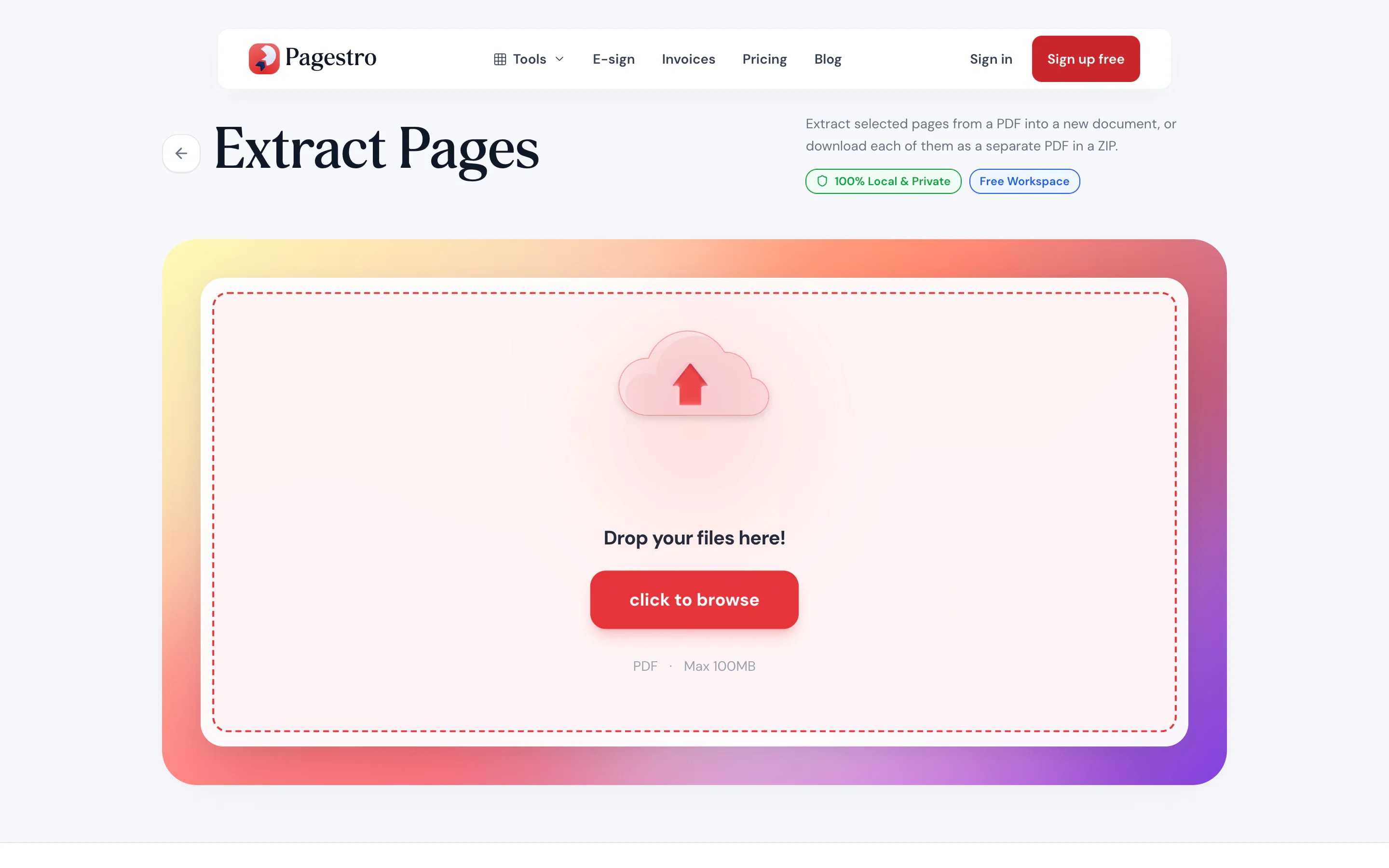
- 1Add the long PDFDrop in a file up to 100 MB and 200 pages. Each page shows as a thumbnail.
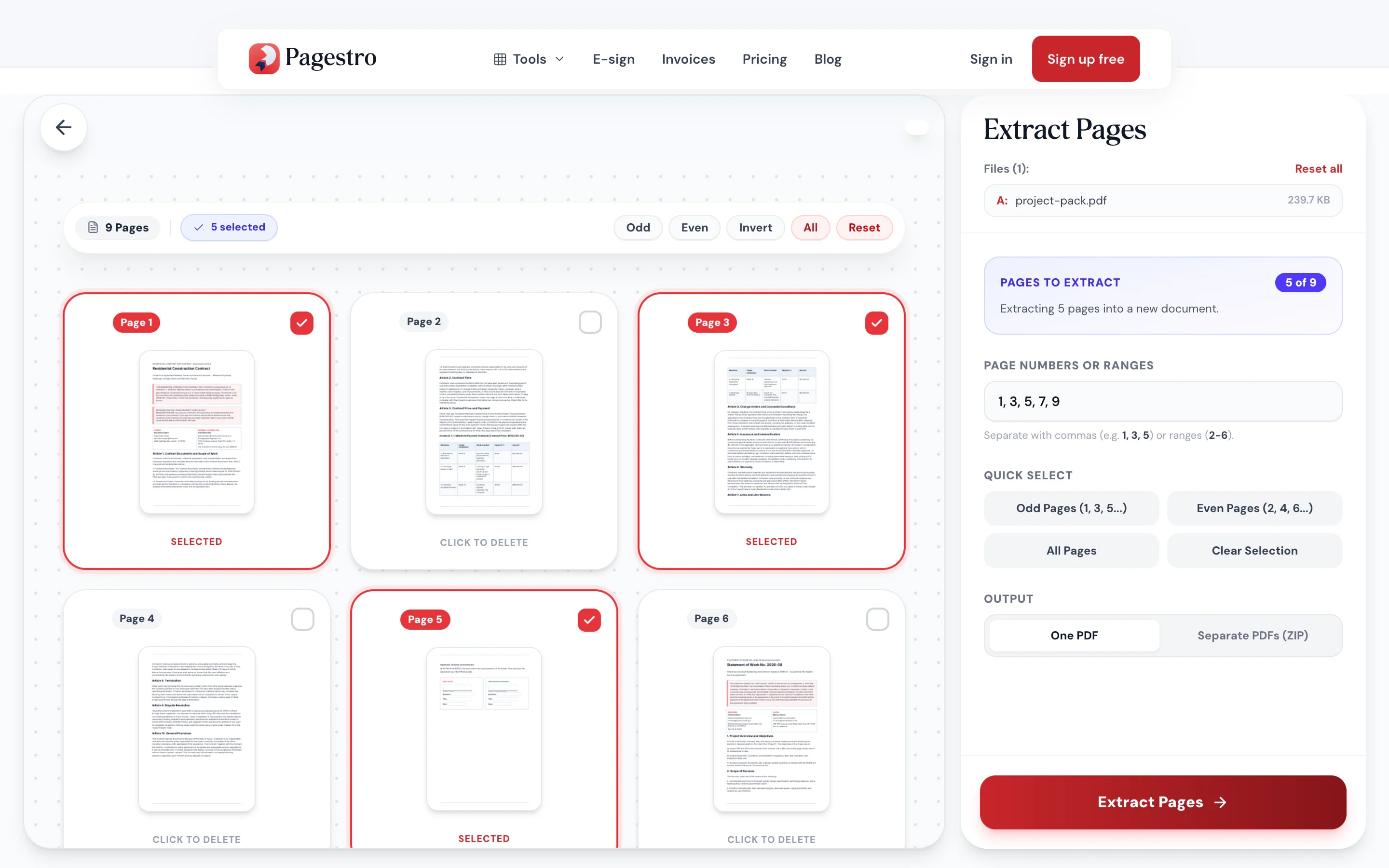
- 2Pick the pages you needClick thumbnails or type 1, 4-6. Shortcuts select odd, even or all pages.
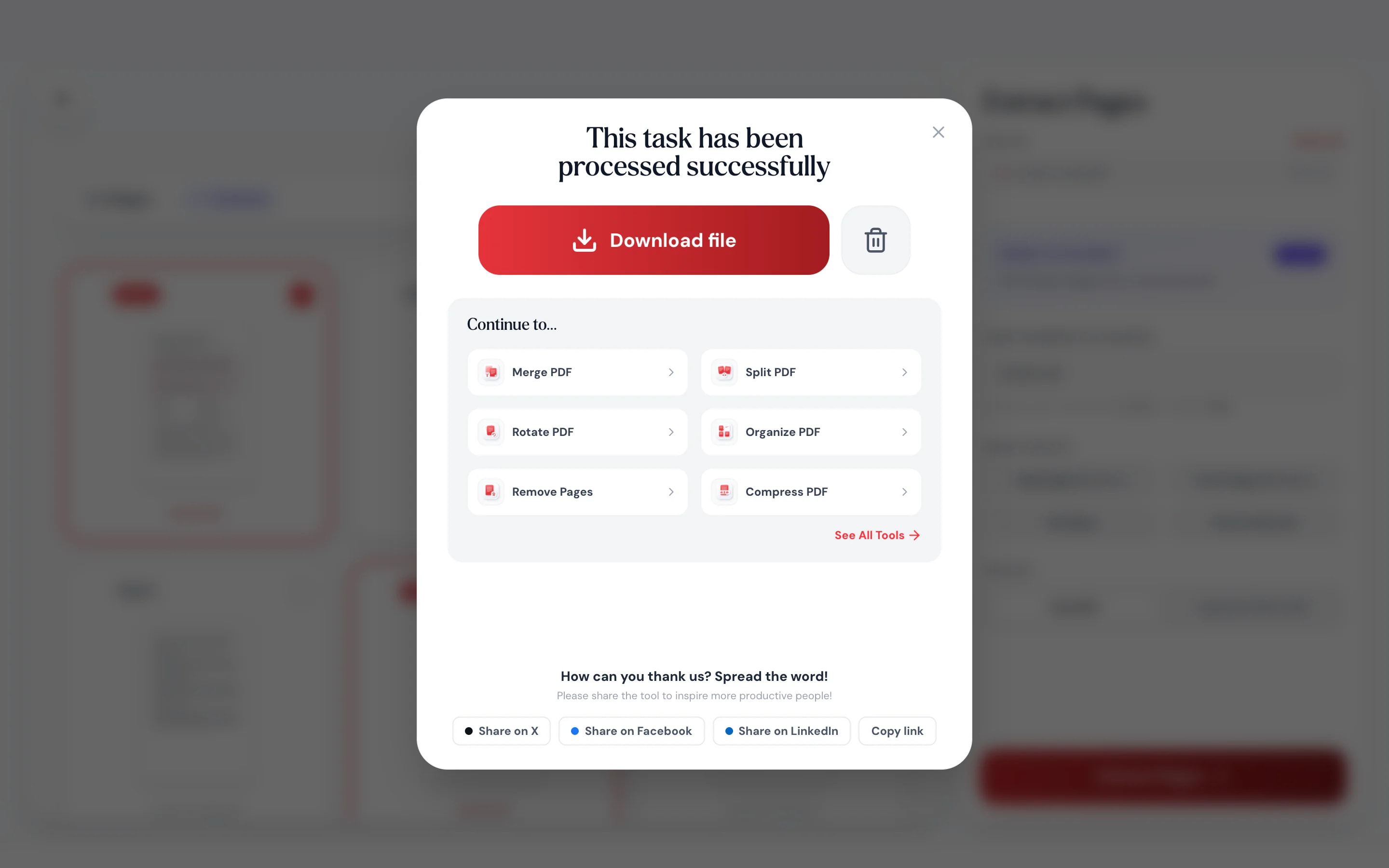
- 3Download the new PDFThe pages you picked are saved together in one PDF, in their original order, or as separate PDFs in one ZIP.
At a glance
- uploaded: pages are copied on your device
- 0 bytes
- with only the pages you pick
- 1 new PDF
- per source file, up to 100 MB
- 200 pages
- no sign-up, no watermark
- Free
Questions and answers
How do I extract pages from a PDF?
Add the PDF, click the pages you want or type them in, such as 2, 5-7, and press Extract Pages. You get a new PDF with only those pages.
How do I save one page of a PDF as a separate file?
Type that page number, or click its thumbnail, and press Extract Pages. The download is a one-page PDF.
Can I get each page as its own file?
Yes. Under Output, choose Separate PDFs (ZIP): every page you picked becomes its own PDF, and they download together in one ZIP file.
Can I change the order of the extracted pages?
Extracted pages keep their original order. To rearrange them, open the new file in Organize PDF.
Does the original PDF change?
No. Pagestro copies the pages into a new file, and your original stays exactly as it was.
Are my files uploaded?
No. Pages are copied in your browser, so the document never leaves your device.
Is there a limit?
The source PDF can be up to 100 MB and 200 pages.
Related tools
At a glance
- uploaded: pages are copied on your device
- 0 bytes
- with only the pages you pick
- 1 new PDF
- per source file, up to 100 MB
- 200 pages
- no sign-up, no watermark
- Free
Pull pages out in three steps
The source file stays exactly as it was.
Drop in a file up to 100 MB and 200 pages. Each page shows as a thumbnail.
Click thumbnails or type 1, 4-6. Shortcuts select odd, even or all pages.
The pages you picked are saved together in one PDF, in their original order, or as separate PDFs in one ZIP.
- 1
Add the long PDF
Drop in a file up to 100 MB and 200 pages. Each page shows as a thumbnail.
- 2
Pick the pages you need
Click thumbnails or type 1, 4-6. Shortcuts select odd, even or all pages.
- 3
Download the new PDF
The pages you picked are saved together in one PDF, in their original order, or as separate PDFs in one ZIP.
Share less, say more
Send the pages people need and keep the rest to yourself.
Pick pages you can see
Every page is a thumbnail, so you grab the right signature page or table, not a guess by number.
Keep private pages private
Send the one page a landlord or client asked for, not the whole file.
Ranges in plain text
Type 3, 8-12, 20 and every listed page is selected.
Phone friendly
Type the page numbers on your phone and save the new PDF.
Same quality
Pages are copied, not redrawn.
No upload
Everything happens in your browser.
Need-to-know sharing
Hand over the page, not the file
A tax return, a medical report, a contract with pricing in it. Often only one or two pages are needed. Extract them into a fresh PDF and the rest of the document never leaves your hands, or your device.
- The new file holds only the pages you pick
- The source PDF is never changed
- Nothing is uploaded at any step
On your phone
Grab a page from an attachment
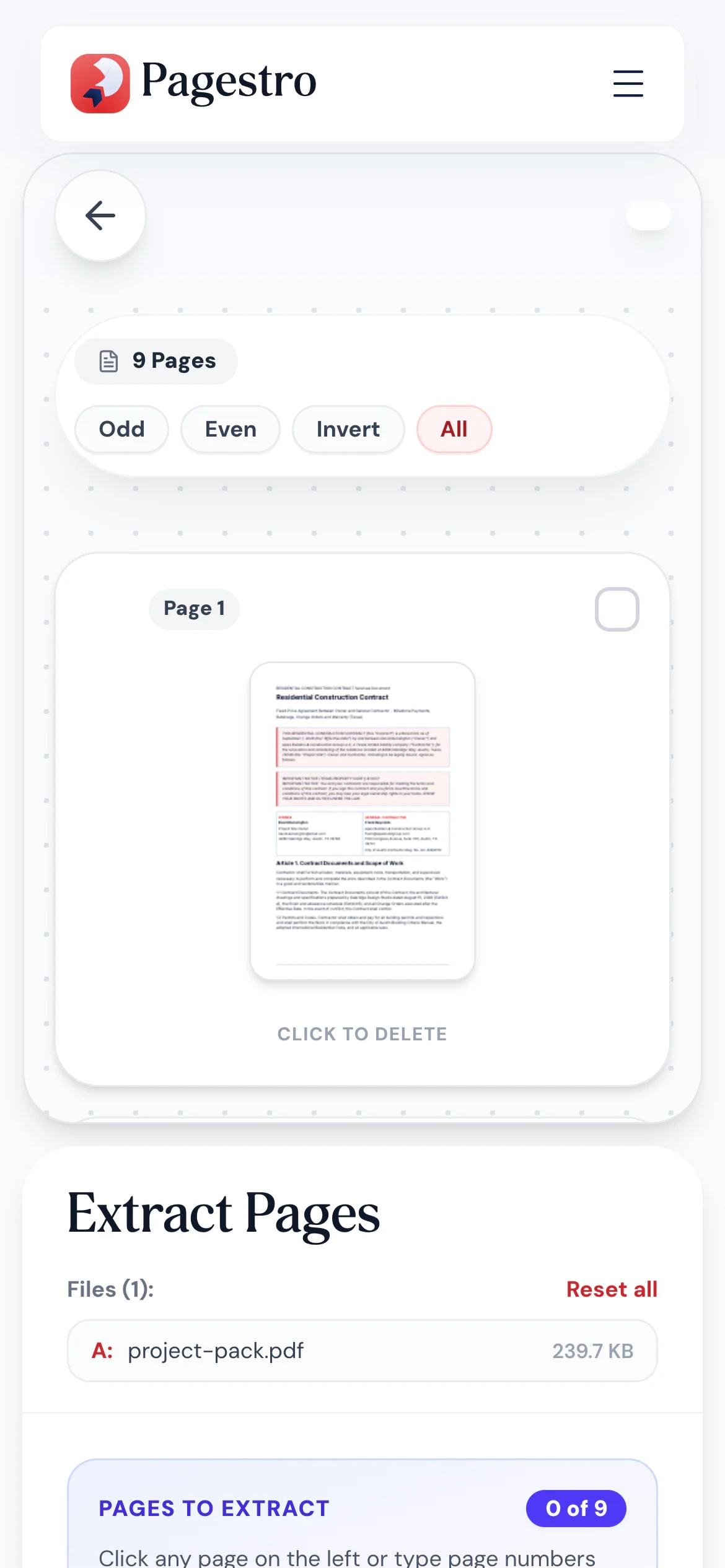
Someone asked for the page with your signature, and the PDF is in your inbox. Open Pagestro in your phone’s browser, type the page number and send back just that page.
- Works in Safari and Chrome on iOS and Android
- Pick files from Files, Drive or downloads
- Saves the new PDF to your phone
The right pages for the right person
- Pages extracted
Renters
Proof without oversharing
Send the page of a statement a landlord asked for, not the full year.
- Pages extracted
Researchers
Cite the pages that count
Pull the relevant pages of a long report to share with a colleague.
- Pages extracted
Contractors
Just the signed page
Send back the signature page of an agreement without resending the rest.
- Pages extracted
Teachers
One worksheet from the pack
Take one exercise out of a workbook PDF and share it with the class.
How Pagestro compares
 Pagestro Pagestro | Desktop software | Upload-based sites | |
|---|---|---|---|
| Files stay on your device | Yes | Yes | No |
| Nothing to install | Yes | No | Yes |
| Works in a phone browser | Yes | No | Yes |
| Select pages by thumbnail | Yes | Varies | Varies |
| Price | Free | Often a paid license | Often free with limits |
How do I extract pages from a PDF?
Add the PDF, click the pages you want or type them in, such as 2, 5-7, and press Extract Pages. You get a new PDF with only those pages.
How do I save one page of a PDF as a separate file?
Type that page number, or click its thumbnail, and press Extract Pages. The download is a one-page PDF.
Can I get each page as its own file?
Yes. Under Output, choose Separate PDFs (ZIP): every page you picked becomes its own PDF, and they download together in one ZIP file.
Can I change the order of the extracted pages?
Extracted pages keep their original order. To rearrange them, open the new file in Organize PDF.
Does the original PDF change?
No. Pagestro copies the pages into a new file, and your original stays exactly as it was.
Are my files uploaded?
No. Pages are copied in your browser, so the document never leaves your device.
Is there a limit?
The source PDF can be up to 100 MB and 200 pages.
Related tools
 Split PDFSplit PDF by pages, ranges or extract all pagesOpen tool
 Remove PagesDelete specific pages from your PDFOpen tool
 Organize PDFReorder, add, or remove pages with drag & dropOpen tool
 Merge PDFCombine multiple PDFs into one documentOpen tool
 Protect PDFPassword-protect your PDF with 256-bit AESOpen tool
 Redact PDFPermanently black out sensitive contentOpen tool


