

SVG Optimizer
Clean and minify SVG files.
or drop files here · SVG up to 100 MB · files stay on your device
How it works
- 1Add your SVGDrop in one or more SVGs exported from a design app or downloaded from an icon set.
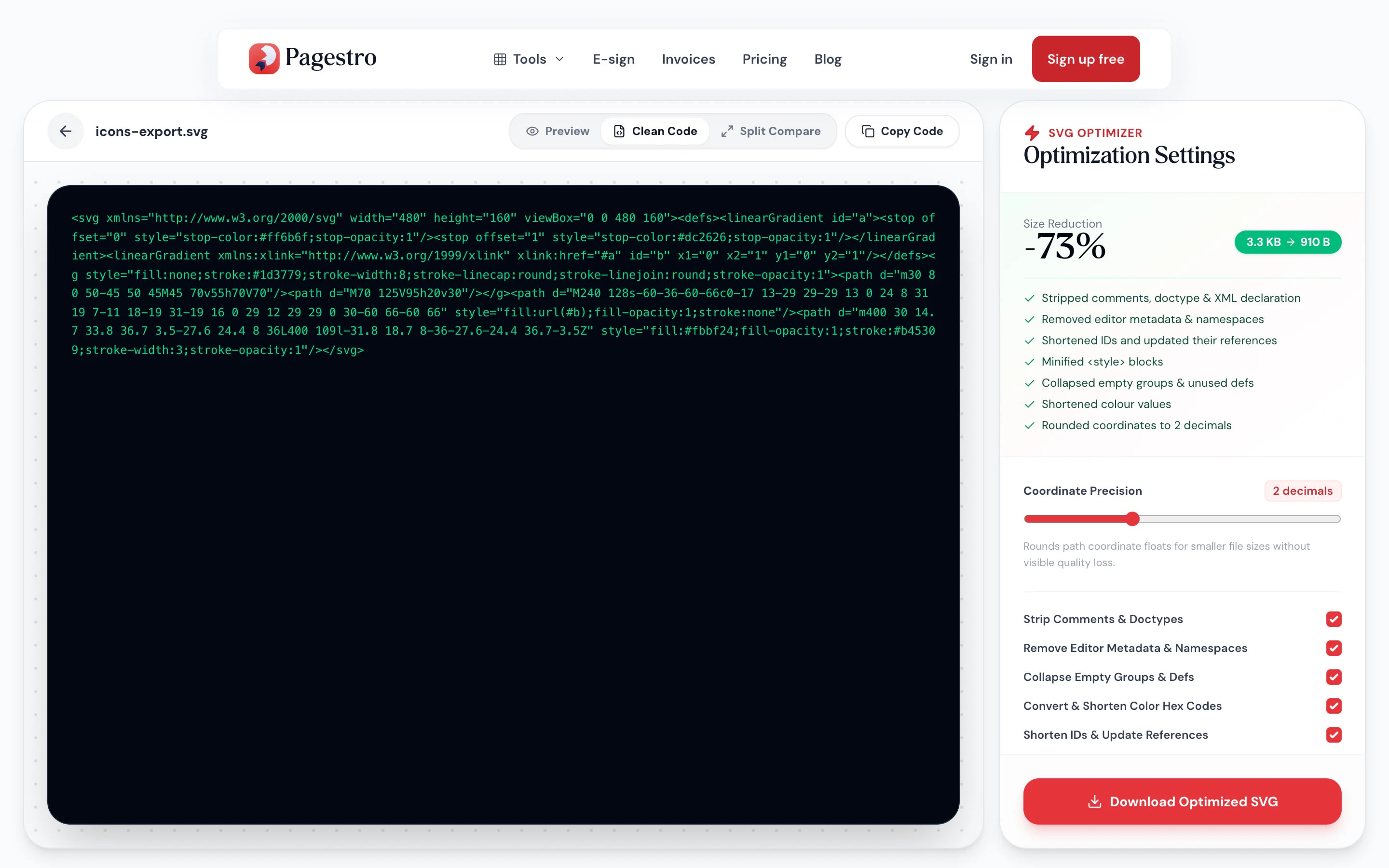
- 2Choose what to cleanToggle comments, metadata, empty groups, color shortening, ID shortening and style minifying, and set the precision.
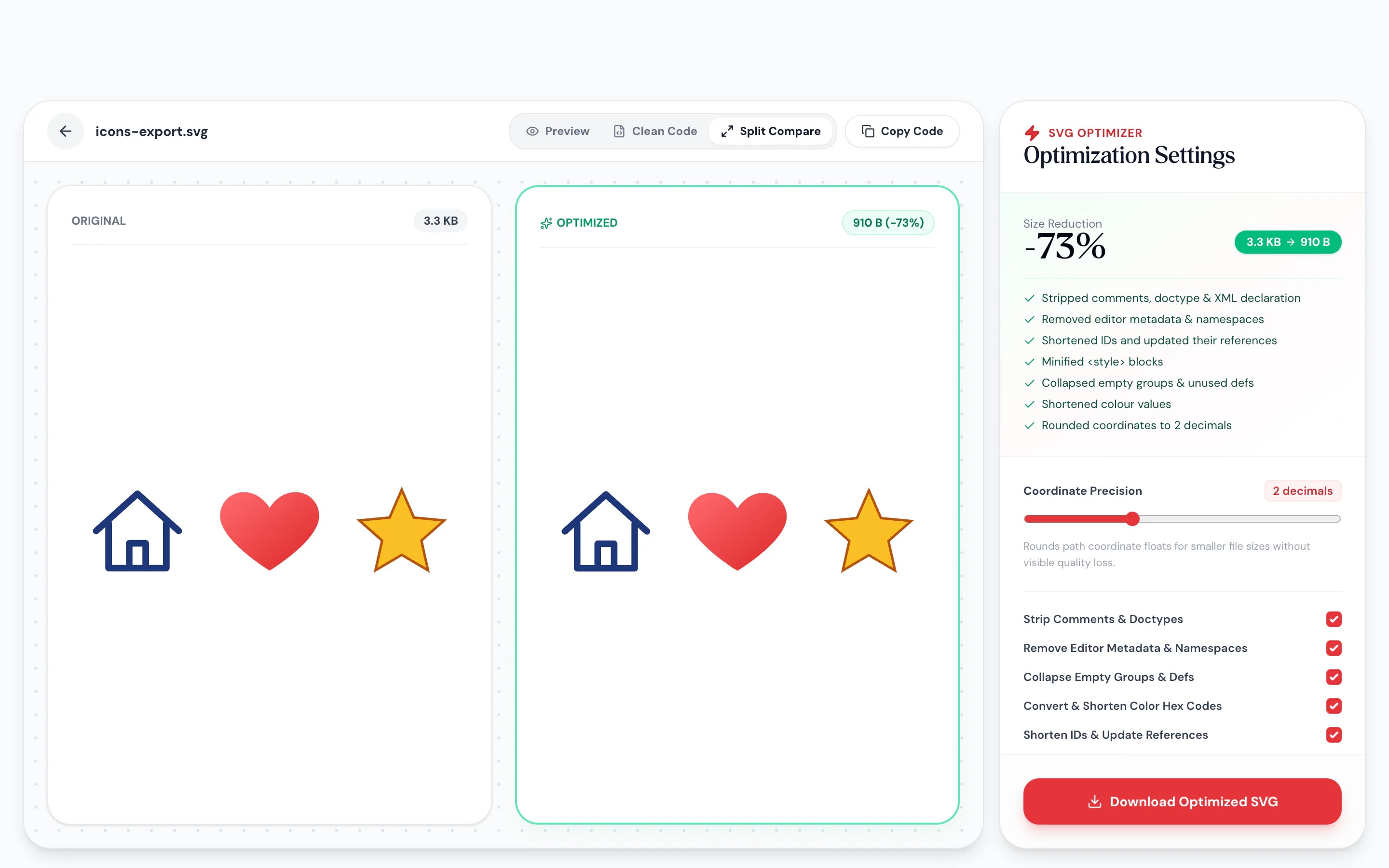
- 3Copy or downloadCheck the preview, then copy the code or download the optimized file.
At a glance
- uploaded: your SVG is cleaned in the browser
- 0 bytes
- compare the original and the result
- Side by side
- coordinate precision, your choice
- 1–4 decimals
- no sign-up, copy or download the code
- Free
Questions and answers
How do I reduce the size of an SVG file?
Add the SVG to the tool at the top of this page. Pagestro cleans it in your browser: comments, editor metadata and empty groups go, IDs and styles get shorter, coordinates are rounded and paths rewritten more compactly. Then copy or download the result.
Will optimizing change how my SVG looks?
Usually not. Very low precision can shift small details, so check the preview. Two decimals, the default, suits most icons and logos.
What exactly gets removed?
Depending on your settings: XML declarations, doctypes, comments, metadata, design-app attributes, editor-generated desc text, and empty groups and unused definitions. Long numbers are rounded, colors shortened, IDs renamed (with every reference updated) and style blocks minified.
Does it keep the title and desc tags for accessibility?
Titles are always kept. A desc is removed only when it is empty or just an editor’s “Created with…” note; turn the metadata option off to keep every desc.
Can I use the result inline in HTML?
Yes. Copy the code and paste it into your HTML or component. The root element keeps a standard SVG namespace.
Are my files uploaded?
No. The SVG is processed in your browser on your own device and never sent to Pagestro.
More image tools
At a glance
- uploaded: your SVG is cleaned in the browser
- 0 bytes
- compare the original and the result
- Side by side
- coordinate precision, your choice
- 1–4 decimals
- no sign-up, copy or download the code
- Free
How it works
Leaner SVG in three steps
Drop in one or more SVGs exported from a design app or downloaded from an icon set.
Toggle comments, metadata, empty groups, color shortening, ID shortening and style minifying, and set the precision.
Check the preview, then copy the code or download the optimized file.
- 1
Add your SVG
Drop in one or more SVGs exported from a design app or downloaded from an icon set.
- 2
Choose what to clean
Toggle comments, metadata, empty groups, color shortening, ID shortening and style minifying, and set the precision.
- 3
Copy or download
Check the preview, then copy the code or download the optimized file.
What it does
Less markup, same drawing
Lighter SVGs, same picture
Design apps leave notes, metadata and long decimals in every export. Strip them and keep the shapes.
Editor clutter removed
Design-app namespaces, metadata and comments.
Precision you control
Round long decimals to 1–4 places.
Preview, code or both
Switch views, or put the drawing and the code side by side.
Copy straight into code
One click copies the SVG for inline use in HTML or a component.
See what changed
A list of what was cleaned, with the size before and after.
Private and free
Your files are processed on your device. No upload, no sign-up.
For developers
Smaller icons, cleaner diffs
Every byte of an inline SVG ships with your page, and every editor leftover shows up in code review. Optimize before you commit: fewer decimals, no editor metadata, no empty groups, one line of tidy markup.
- Shorter hex colors, such as #ffffff to #fff
- Empty groups and definitions removed
- Whitespace collapsed
Anywhere
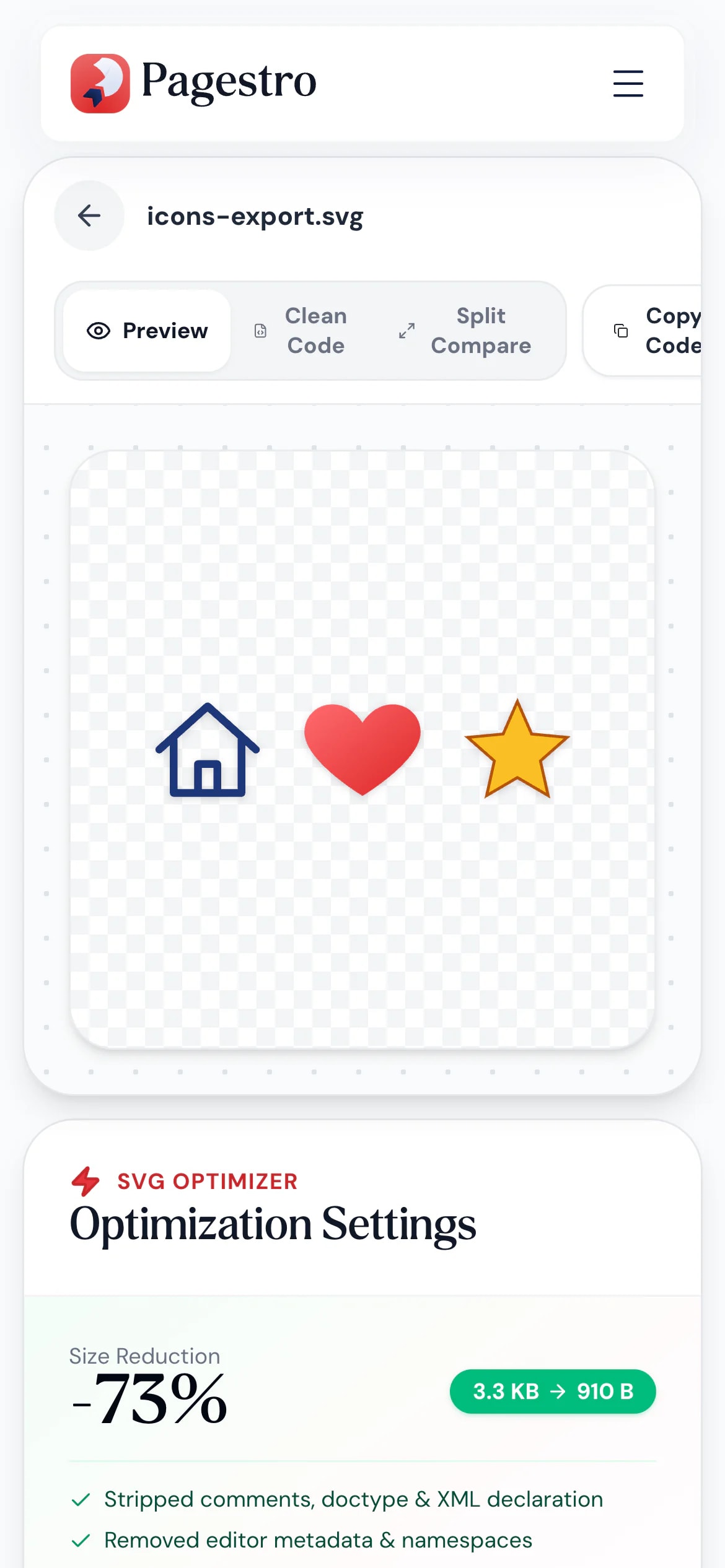
Check an SVG from your phone
Someone sent a logo file and you want to know if it’s clean? Open Pagestro in your phone’s browser, drop it in, and see the size difference and the code.
- Preview and code views
- No app to install
- Download the result to your phone
Who uses it
For anyone shipping vector graphics
- SVG optimized
Front-end developers
Inline icons in components
Smaller markup without editor leftovers.
- SVG optimized
Designers
Handing off clean exports
Give developers SVGs without design-app leftovers.
- SVG optimized
Site owners
Logos that load fast
Trim the logo and icons that load on every page.
How Pagestro compares
 Pagestro Pagestro | Command-line tools | Upload-based sites | |
|---|---|---|---|
| Files stay on your device | Yes | Yes | No |
| Nothing to install | Yes | No | Yes |
| Visual before-and-after preview | Yes | No | Varies |
| Copy code with one click | Yes | No | Varies |
| Price | Free | Free | Varies by site |
How do I reduce the size of an SVG file?
Add the SVG to the tool at the top of this page. Pagestro cleans it in your browser: comments, editor metadata and empty groups go, IDs and styles get shorter, coordinates are rounded and paths rewritten more compactly. Then copy or download the result.
Will optimizing change how my SVG looks?
Usually not. Very low precision can shift small details, so check the preview. Two decimals, the default, suits most icons and logos.
What exactly gets removed?
Depending on your settings: XML declarations, doctypes, comments, metadata, design-app attributes, editor-generated desc text, and empty groups and unused definitions. Long numbers are rounded, colors shortened, IDs renamed (with every reference updated) and style blocks minified.
Does it keep the title and desc tags for accessibility?
Titles are always kept. A desc is removed only when it is empty or just an editor’s “Created with…” note; turn the metadata option off to keep every desc.
Can I use the result inline in HTML?
Yes. Copy the code and paste it into your HTML or component. The root element keeps a standard SVG namespace.
Are my files uploaded?
No. The SVG is processed in your browser on your own device and never sent to Pagestro.
More image tools
 Compress ImageReduce image file size without quality lossOpen tool
 Convert ImageConvert images to JPG, PNG, WebP, GIF, SVG and moreOpen tool
 Resize ImageResize images by pixels or percentageOpen tool
 Crop ImageCrop images with an interactive editorOpen tool
 QR Code StudioGenerate custom branded vector QR codesOpen tool


