

Split PDF
Split PDF by pages, ranges or extract all pages.
or drop a file here · PDF up to 100 MB · files stay on your device
How it works
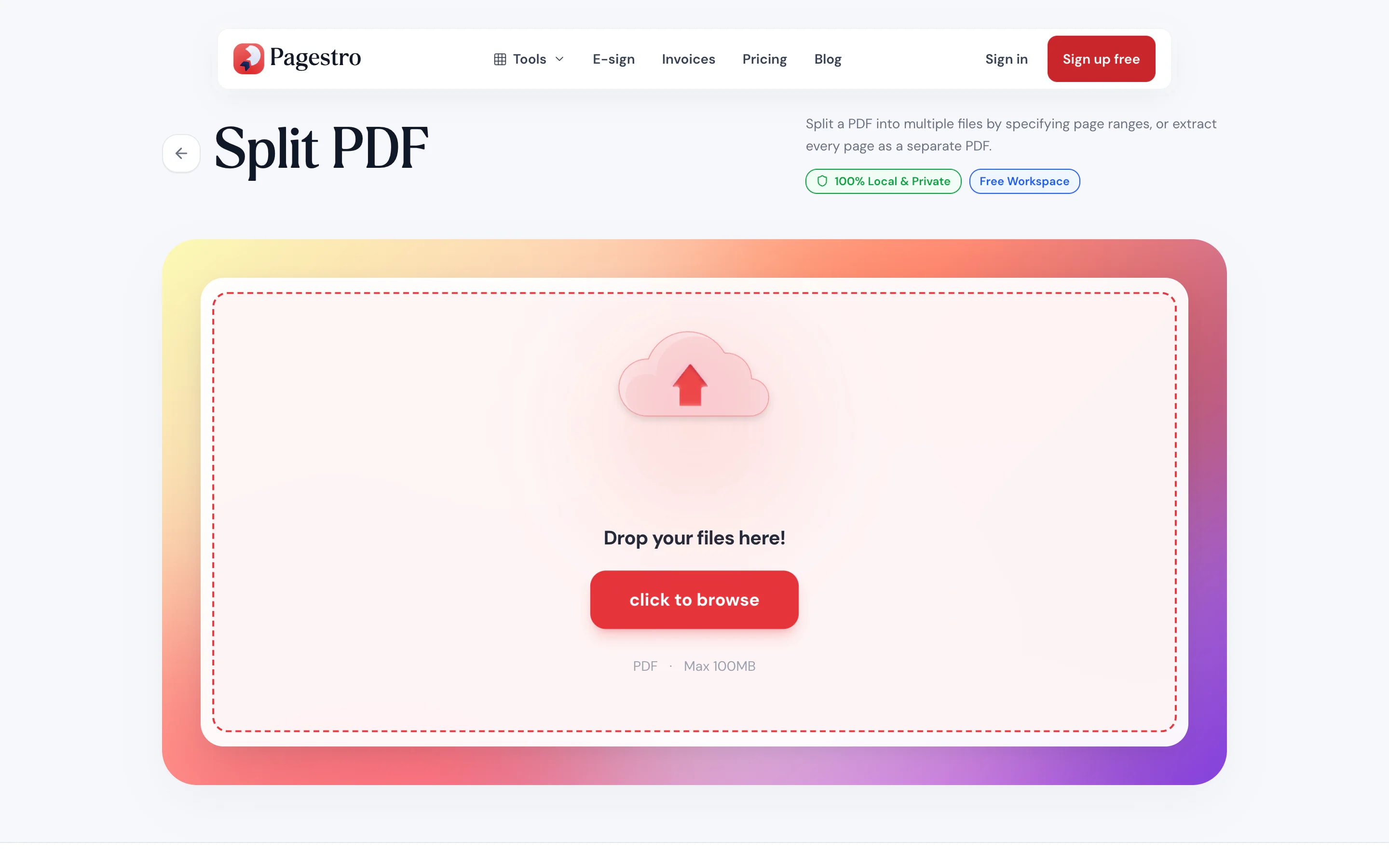
- 1Add your PDFDrop in a file up to 100 MB and 500 pages, or choose one from your device.
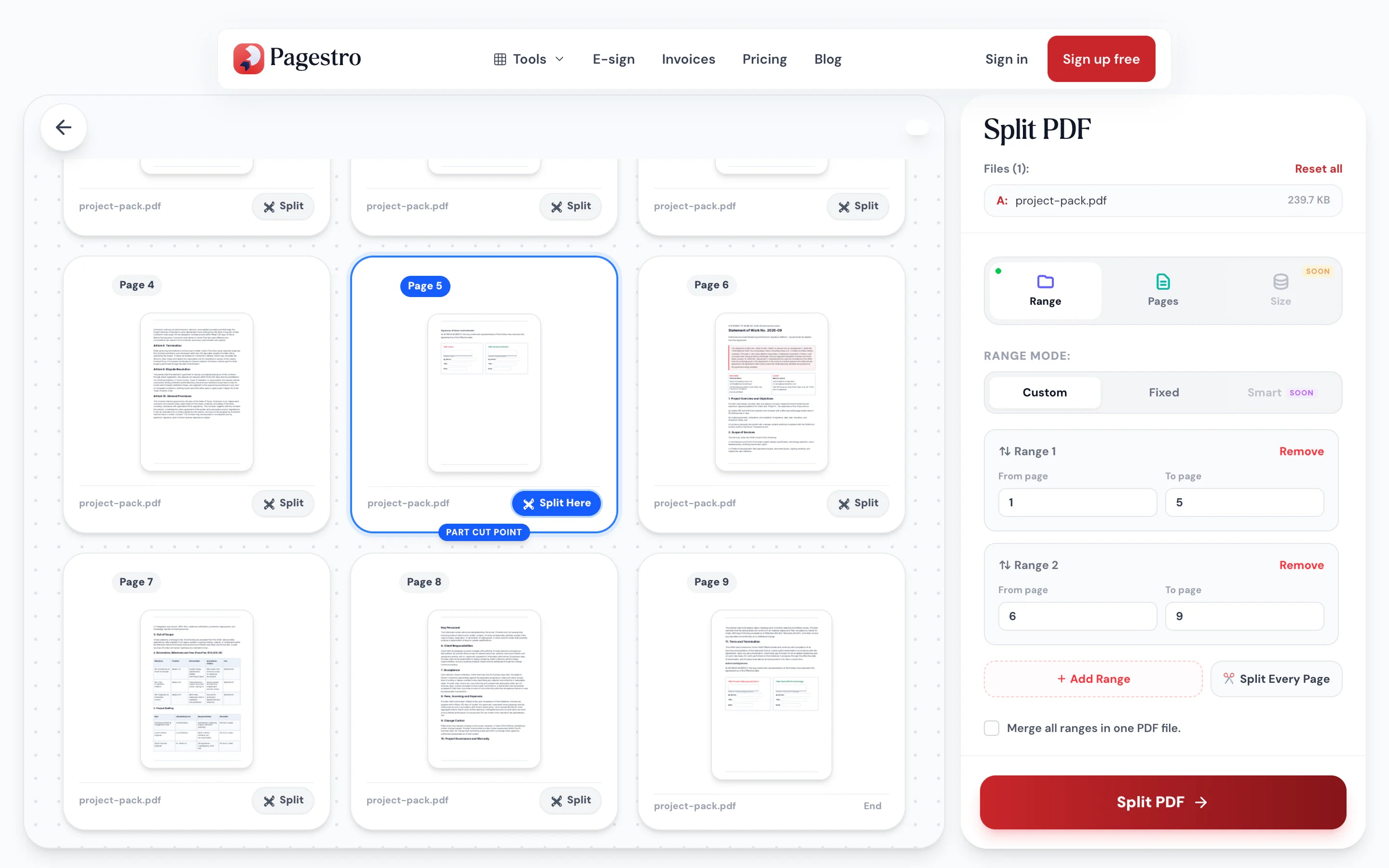
- 2Mark where to splitType page ranges, split after every few pages, or click the gap between two thumbnails to cut there.
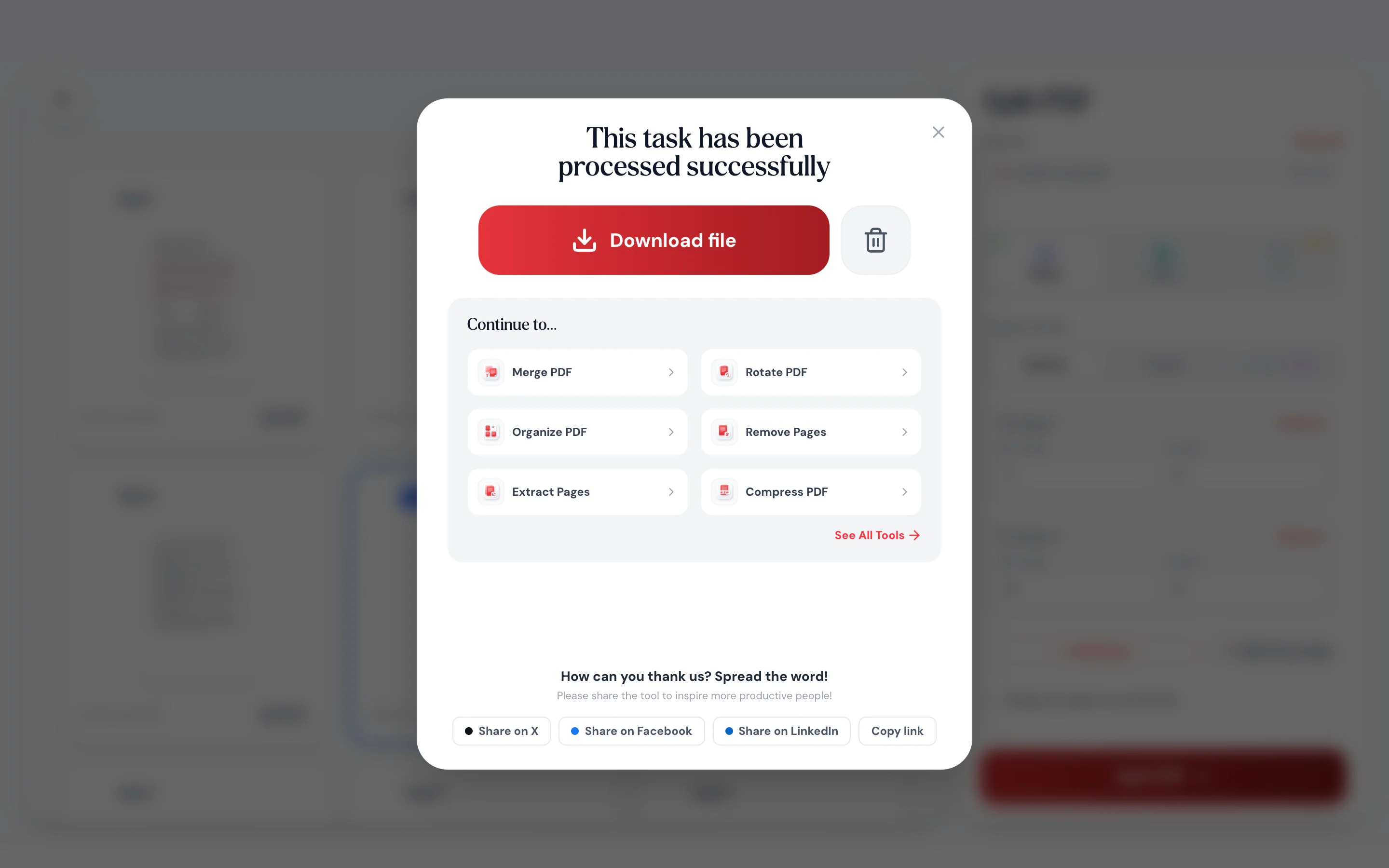
- 3Download the partsEach range becomes its own PDF. When there are several, they arrive together in one ZIP.
At a glance
- uploaded: pages are split on your device
- 0 bytes
- per PDF, with files up to 100 MB
- 500 pages
- custom ranges, every N pages or every page
- 3 ways
- no sign-up and no watermark
- Free
Questions and answers
How do I split a PDF into multiple files?
Add your PDF, stay on the Range tab and set the ranges you want, such as 1-5 and 6-12. Each range becomes its own PDF, or tick Merge all ranges in one PDF file to get them together. Choose Split every page to get one file per page.
How do I split a PDF every few pages?
In the Range tab, choose Fixed and set the number of pages. A 30-page file split after every 10 pages gives you three PDFs.
Can I take out just a few pages?
Yes. Open the Pages tab, choose Select pages and type something like 2, 7, 9-11. Tick the merge option to get those pages in one PDF instead of separate files.
Is there a page or file size limit?
Each PDF can be up to 100 MB and 500 pages. Splitting runs on your device, so very large files also depend on its memory.
Are my files uploaded when I split a PDF?
No. The split happens in your browser, so the file and the parts never leave your device.
How do I split a PDF on iPhone or Android?
Open this page in Safari or Chrome, tap the drop zone and choose the file. Type your ranges and download. Several parts arrive as one ZIP file.
Does splitting lower the quality?
No. Pages are copied as they are, so text stays sharp and images aren’t recompressed.
Can I split a password-protected PDF?
Yes, if you know the password. Enter it when asked and the file is decrypted in memory. The parts are saved without a password.
More ways to work with pages
At a glance
- uploaded: pages are split on your device
- 0 bytes
- per PDF, with files up to 100 MB
- 500 pages
- custom ranges, every N pages or every page
- 3 ways
- no sign-up and no watermark
- Free
Split a PDF in three steps
Pick the file, mark the cuts, save the parts.
Drop in a file up to 100 MB and 500 pages, or choose one from your device.
Type page ranges, split after every few pages, or click the gap between two thumbnails to cut there.
Each range becomes its own PDF. When there are several, they arrive together in one ZIP.
- 1
Add your PDF
Drop in a file up to 100 MB and 500 pages, or choose one from your device.
- 2
Mark where to split
Type page ranges, split after every few pages, or click the gap between two thumbnails to cut there.
- 3
Download the parts
Each range becomes its own PDF. When there are several, they arrive together in one ZIP.
Cut exactly where a section ends
Long files rarely break in neat places. These controls make that easy.
See every page before you cut
Thumbnails load right in the page, so you check each split against the real content, not page numbers alone.
Every page, its own file
One click turns a 40-page scan into 40 separate PDFs.
Pick pages by number
Type 1, 3, 5-8 to pull just those pages, as separate files or one PDF.
Split from your phone
Type the ranges in the side panel and save the parts to your phone.
Fix pages while you split
Rotate a sideways page or drop one you don’t need before the cut.
Nothing leaves your device
Splitting runs in your browser. No copy of your file is made anywhere else.
Password-protected files work too
Enter the password when asked. The file is decrypted in memory, and the parts are saved without a password.
Full control
Split by ranges, intervals or single pages
A bank export, a batch of scans, a bundle someone merged months ago. Set as many ranges as you need, split after every N pages, or click between thumbnails to cut exactly where one document ends and the next begins.
- Add as many ranges as the file needs
- Split after every 1, 2, 10 or any number of pages
- Rotate or remove pages before the split
On the go
Split an attachment without a laptop
Got a 30-page PDF when you only need the first chapter? Open Pagestro in your phone’s browser, pick the file, type the range and save the part. There is no app to install.
- Works in Safari and Chrome on iOS and Android
- Pick the PDF from Files, Drive or your downloads
- Several parts save as one ZIP file

Big files in, useful pieces out
- Split and ready
Bookkeepers
One statement per client
Break a long export or batch scan into one file per client or month.
- Split and ready
Teachers
A section for each class
Send each class only its part of the course pack instead of the whole file.
- Split and ready
Legal and HR
Exhibits and forms on their own
Pull each exhibit or signed form out of a bundle so it can be filed separately.
- Split and ready
Home offices
One scan, many documents
Scanned ten receipts in one go? Split every page into its own file.
How Pagestro compares
 Pagestro Pagestro | Desktop software | Upload-based sites | |
|---|---|---|---|
| Files stay on your device | Yes | Yes | No |
| Nothing to install | Yes | No | Yes |
| Works in a phone browser | Yes | No | Yes |
| No waiting for uploads | Yes | Yes | No |
| Page previews before you split | Yes | Varies | Varies |
| Price | Free | Often a paid license | Often free with limits |
How do I split a PDF into multiple files?
Add your PDF, stay on the Range tab and set the ranges you want, such as 1-5 and 6-12. Each range becomes its own PDF, or tick Merge all ranges in one PDF file to get them together. Choose Split every page to get one file per page.
How do I split a PDF every few pages?
In the Range tab, choose Fixed and set the number of pages. A 30-page file split after every 10 pages gives you three PDFs.
Can I take out just a few pages?
Yes. Open the Pages tab, choose Select pages and type something like 2, 7, 9-11. Tick the merge option to get those pages in one PDF instead of separate files.
Is there a page or file size limit?
Each PDF can be up to 100 MB and 500 pages. Splitting runs on your device, so very large files also depend on its memory.
Are my files uploaded when I split a PDF?
No. The split happens in your browser, so the file and the parts never leave your device.
How do I split a PDF on iPhone or Android?
Open this page in Safari or Chrome, tap the drop zone and choose the file. Type your ranges and download. Several parts arrive as one ZIP file.
Does splitting lower the quality?
No. Pages are copied as they are, so text stays sharp and images aren’t recompressed.
Can I split a password-protected PDF?
Yes, if you know the password. Enter it when asked and the file is decrypted in memory. The parts are saved without a password.
More ways to work with pages
 Merge PDFCombine multiple PDFs into one documentOpen tool
 Extract PagesPull specific pages into a new PDF or ZIPOpen tool
 Remove PagesDelete specific pages from your PDFOpen tool
 Organize PDFReorder, add, or remove pages with drag & dropOpen tool
 Compress PDFReduce PDF file size while keeping qualityOpen tool
 Rotate PDFRotate pages 90°, 180°, or 270°Open tool


