

Redact PDF
Permanently black out sensitive content.
or drop a file here · PDF up to 100 MB · files stay on your device
How it works
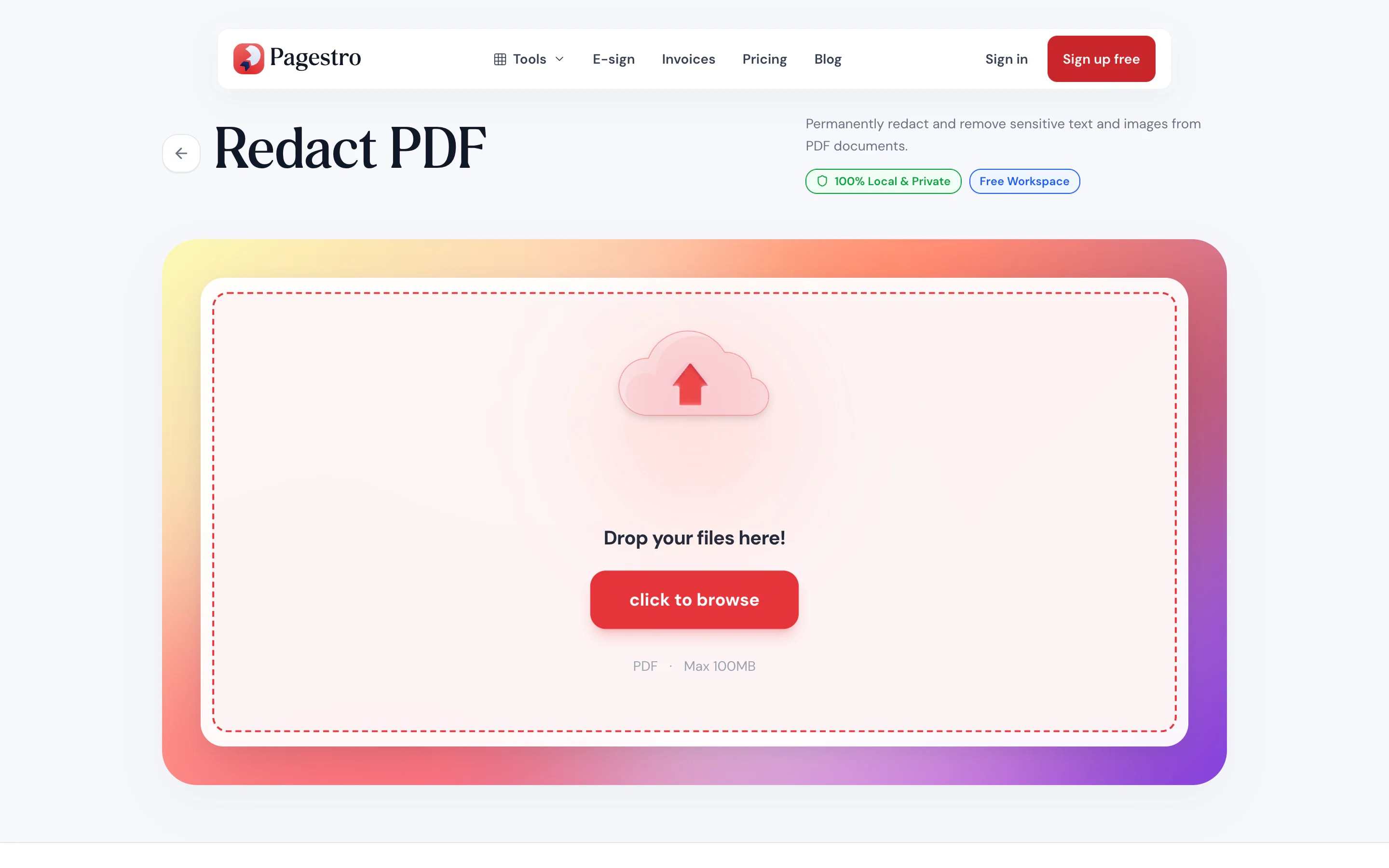
- 1Open your PDFDrop in a document of up to 100 pages. It opens with the redact tool ready.
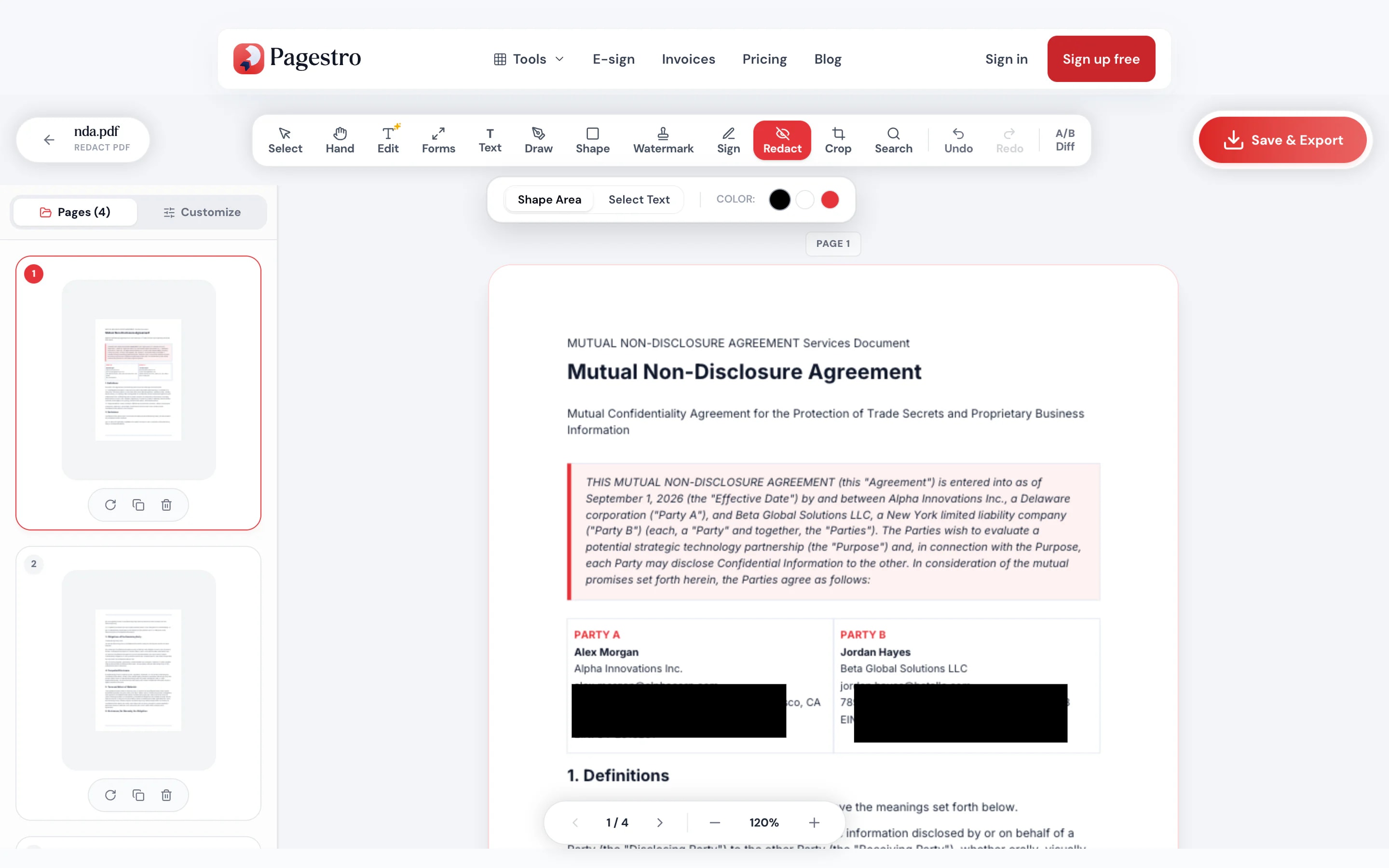
- 2Draw boxes or searchDrag a box over any area, or search for a name or number and cover every match.
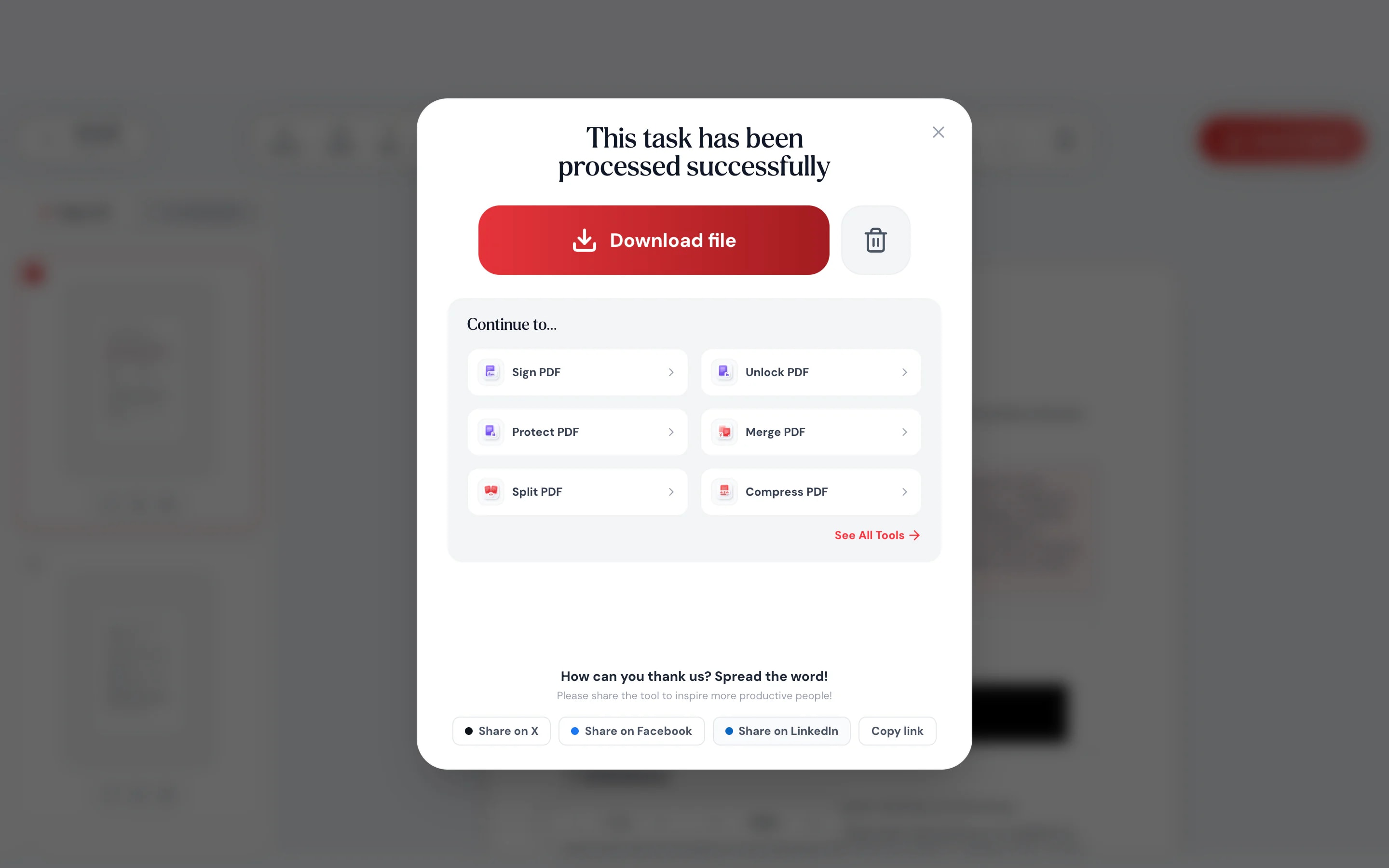
- 3Download and checkSave the PDF and look it over before you share it. See the questions below for sharing it digitally.
At a glance
- uploaded: the file stays on your device
- 0 bytes
- search a word and cover every match
- Find all
- black, white or red boxes
- 3 colors
- no sign-up and no watermark
- Free
Questions and answers
How do I black out text in a PDF?
Open the PDF in the tool at the top of this page, drag a box over the text, and download. To cover a word everywhere, search for it and choose to cover all matches.
Is the text under the black box removed?
Yes. When you download, the text under each box is deleted from the file, the part of any picture under it is wiped, drawings that sit entirely inside it are removed, and form fields and comments under it are dropped with their values. The title, author and other document metadata, bookmarks, accessibility tags and attached files are removed too. Copy and search tools find nothing there.
What does a white or red box do?
The same removal as a black box. Only the colour of the box left on the page changes.
Can I redact every instance of a name or number?
Yes. Search for it, and Pagestro lists every match. Cover them one by one or all at once, in black or white.
Can I redact on my phone?
Yes. Open this page in your phone’s browser. A tablet or bigger screen makes drawing precise boxes easier.
Is my PDF uploaded?
No. Everything happens in your browser on your own device. The file is never sent to Pagestro.
Related tools


At a glance
- uploaded: the file stays on your device
- 0 bytes
- search a word and cover every match
- Find all
- black, white or red boxes
- 3 colors
- no sign-up and no watermark
- Free
How it works
Cover it in three steps
Drop in a document of up to 100 pages. It opens with the redact tool ready.
Drag a box over any area, or search for a name or number and cover every match.
Save the PDF and look it over before you share it. See the questions below for sharing it digitally.
- 1
Open your PDF
Drop in a document of up to 100 pages. It opens with the redact tool ready.
- 2
Draw boxes or search
Drag a box over any area, or search for a name or number and cover every match.
- 3
Download and check
Save the PDF and look it over before you share it. See the questions below for sharing it digitally.
What you can do
Hide details without printing a page
Draw a box over anything
Names, signatures, account numbers, photos. Drag a box and it’s covered.
Find every match
Search a name once and cover it on every page.
Black, white or red
Classic black bars, a white cover, or red to mark it.
Easier on a big screen
Drag boxes with your finger on a tablet.
Stays on your device
The document you’re hiding details in is never uploaded to Pagestro.
Undo a wrong box
Covered the wrong line? Undo it and draw again.
Gone for good, not just hidden
Text, image pixels and form values under each box are deleted from the file, and the document’s metadata is cleared. Nothing is left underneath to copy or search.
Private by design
Hide details without uploading the file
The documents that need redacting are the ones you least want on someone else’s server: bank statements, medical letters, HR files. Pagestro opens them inside your browser, and the covered copy is built on your device.
- No upload, so no server copy
- Search and cover runs on your device
- Close the tab and nothing is kept
On the go
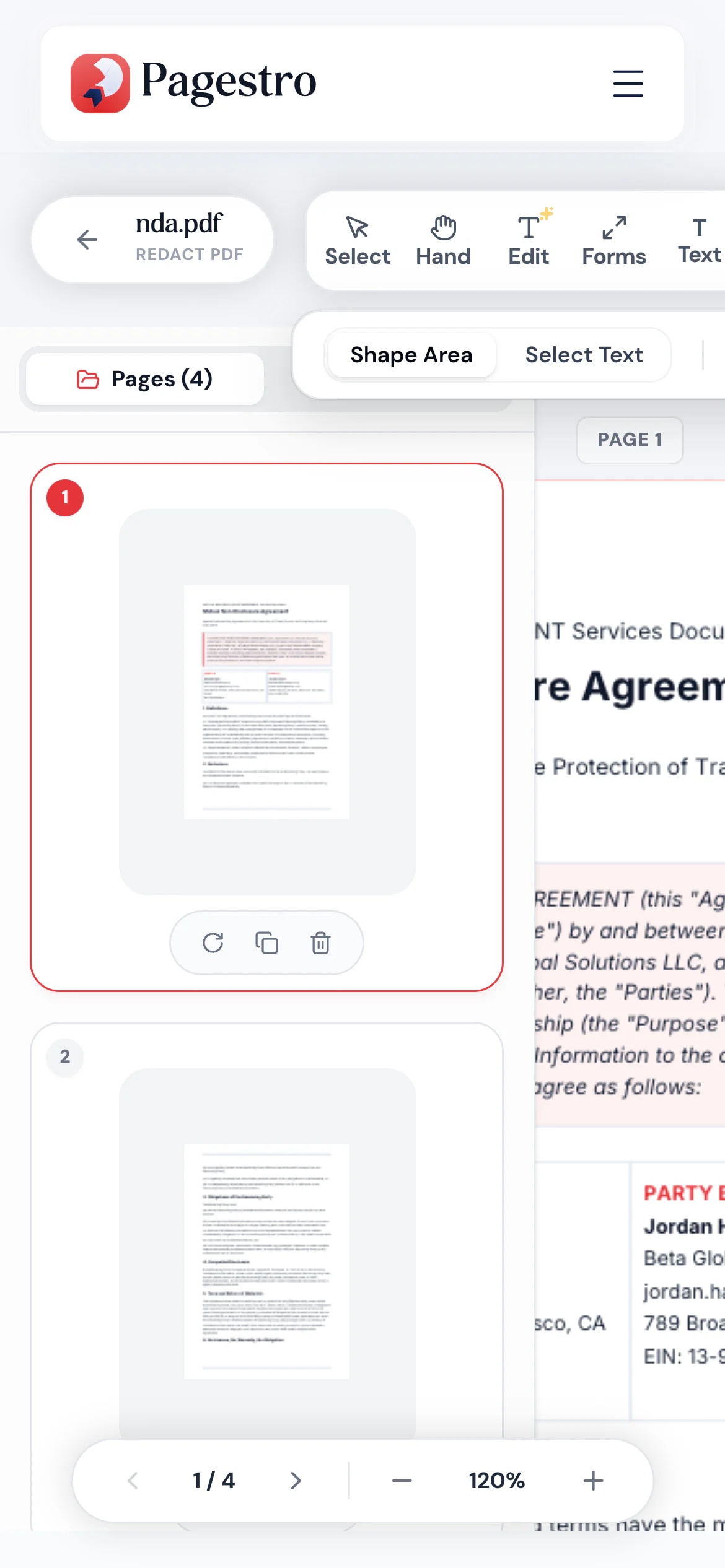
Cover a detail from your phone
Asked for a statement but don’t want to show every transaction? Open the PDF in your phone’s browser, box the lines that aren’t anyone’s business, and download the covered copy.
- No app to install
- Works in Safari, Chrome and Firefox
- The file stays on your phone
Who uses it
Share what’s needed, hide the rest
- Redacted
Renters
Statements for a landlord
Cover account numbers before you print the pages they asked for.
- Redacted
Teachers
Student work shown to the class
Hide names before putting examples on the projector.
- Redacted
Support teams
Screenshots for bug reports
Cover customer details before you capture the page.
- Redacted
Job seekers
Work samples from past roles
Black out client names in a portfolio piece.
How Pagestro compares
 Pagestro Pagestro | Desktop software | Upload-based sites | |
|---|---|---|---|
| File stays on your device | Yes | Yes | No |
| Search and cover every match | Yes | Varies | Varies |
| Nothing to install | Yes | No | Yes |
| Works on phones and tablets | Yes | No | Yes |
| Price | Free | Often a paid license | Varies by site |
How do I black out text in a PDF?
Open the PDF in the tool at the top of this page, drag a box over the text, and download. To cover a word everywhere, search for it and choose to cover all matches.
Is the text under the black box removed?
Yes. When you download, the text under each box is deleted from the file, the part of any picture under it is wiped, drawings that sit entirely inside it are removed, and form fields and comments under it are dropped with their values. The title, author and other document metadata, bookmarks, accessibility tags and attached files are removed too. Copy and search tools find nothing there.
What does a white or red box do?
The same removal as a black box. Only the colour of the box left on the page changes.
Can I redact every instance of a name or number?
Yes. Search for it, and Pagestro lists every match. Cover them one by one or all at once, in black or white.
Can I redact on my phone?
Yes. Open this page in your phone’s browser. A tablet or bigger screen makes drawing precise boxes easier.
Is my PDF uploaded?
No. Everything happens in your browser on your own device. The file is never sent to Pagestro.


