

Compare PDF
Show a side-by-side document comparison.
or drop files here · PDF up to 100 MB · files stay on your device
How it works
- 1Add the originalDrop in the first version of the document.
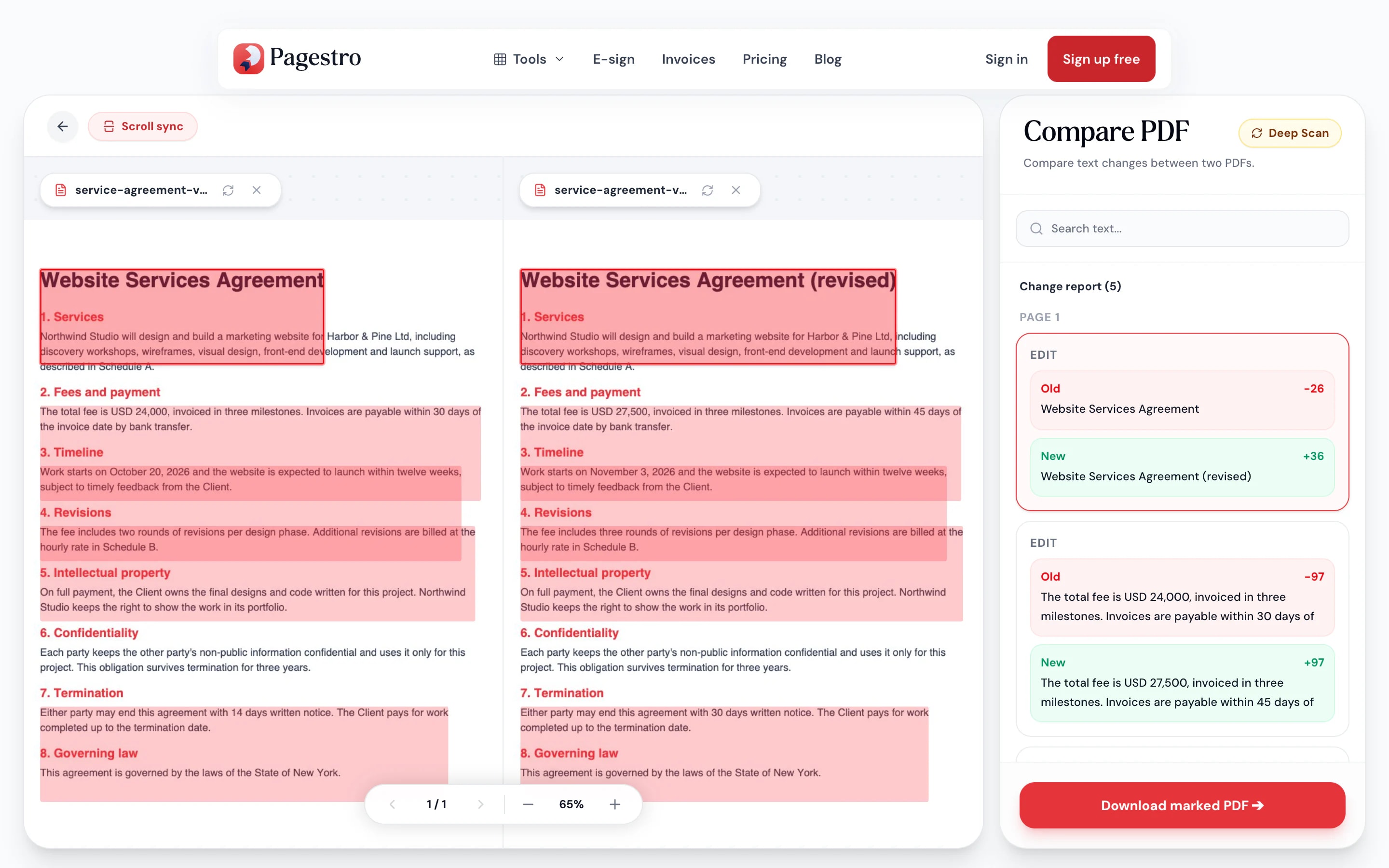
- 2Add the new versionChoose the second file. Both open side by side and the comparison runs right away.
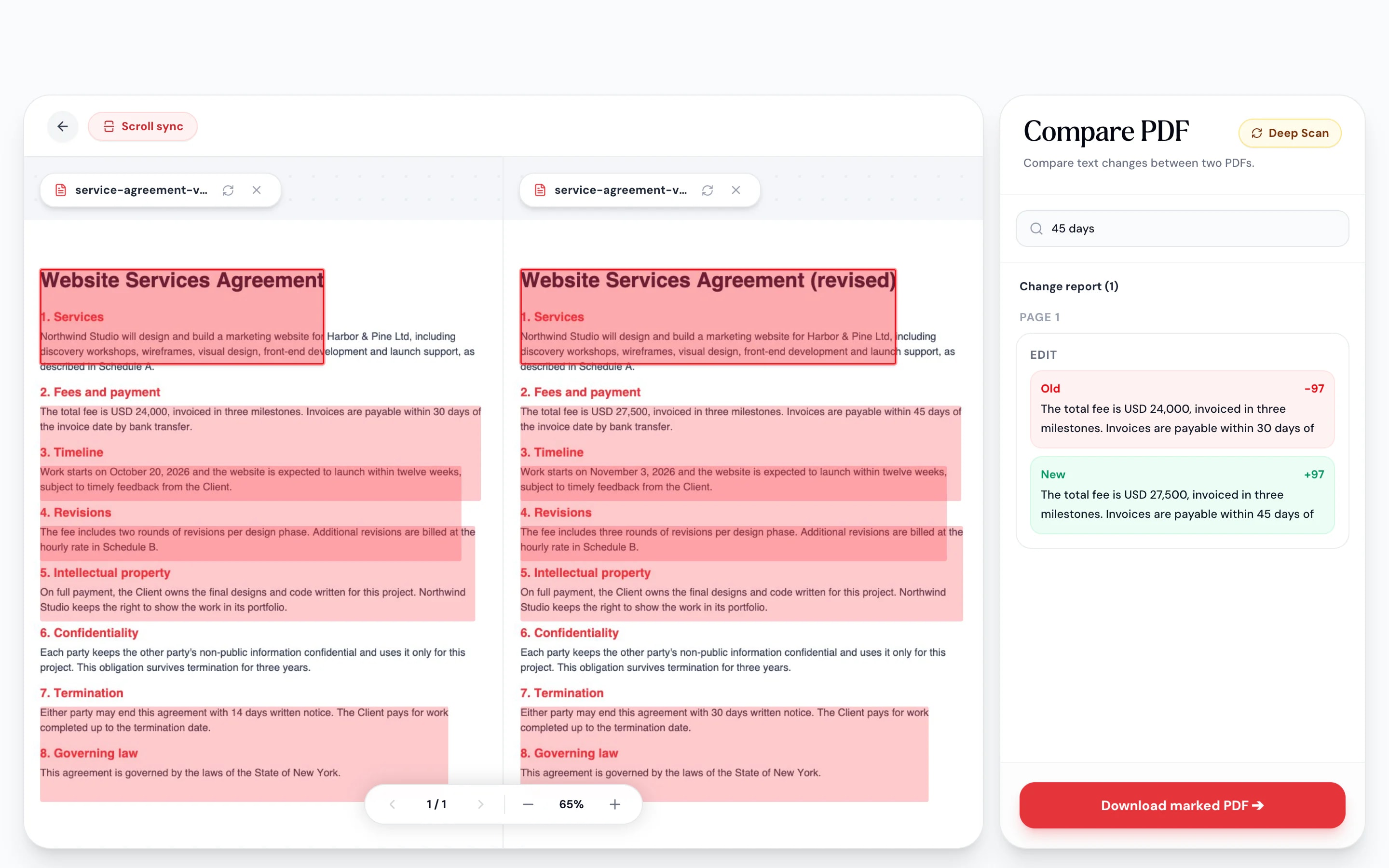
- 3Review and downloadClick a change in the report to jump to it, then download the new version with every change marked.
At a glance
- two versions with synced scrolling
- Side by side
- every edit, addition and deletion listed
- Change report
- uploaded: both files stay on your device
- 0 bytes
- no sign-up, no watermark
- Free
Questions and answers
How do I compare two PDF files for differences?
Add the original, then the new version. Pagestro shows them side by side, highlights the differences and lists every change in a report.
What kinds of changes does it find?
Text that was edited, added or removed, page by page, and layout shifts: text that stayed the same but moved, such as paragraphs pushed down by an insertion, is grouped into one change that says how far it moved. Changes to images, colors or fonts aren’t reported.
What if a page was added or removed?
Pages are compared in order, page 1 with page 1 and so on. If the new version gains or loses a page, text after that point may show as removed on one side and added on the other.
Does it work with scanned PDFs?
Yes. Any page with little or no text is read with OCR, on every page of both files, and Deep Scan runs OCR on all pages. Recognition is in English.
Can I save the comparison?
Yes. Download the marked PDF: the new version with every change outlined in red.
Are my files uploaded?
No. Both PDFs are read and compared in your browser and never leave your device.
Related tools
At a glance
- two versions with synced scrolling
- Side by side
- every edit, addition and deletion listed
- Change report
- uploaded: both files stay on your device
- 0 bytes
- no sign-up, no watermark
- Free
Compare two PDFs in three steps
Drop in the first version of the document.
Choose the second file. Both open side by side and the comparison runs right away.
Click a change in the report to jump to it, then download the new version with every change marked.
- 1
Add the original
Drop in the first version of the document.
- 2
Add the new version
Choose the second file. Both open side by side and the comparison runs right away.
- 3
Review and download
Click a change in the report to jump to it, then download the new version with every change marked.
What you get
Nothing slips through between drafts
Built for the moment a “final” version comes back with edits nobody mentioned.
Changes highlighted on the page
Edited, added, removed and moved text is marked on both documents, so you see each change in context.
A list of every change
The change report shows old and new wording, grouped by page. Click one to jump there.
Scroll both at once
Synced scrolling and shared zoom keep the two versions lined up.
Download a marked copy
Save the new version with each change outlined in red, ready to send back with your questions.
Search the changes
Filter the report by a word or phrase.
Private
Both files stay on your device.
Confidential by design
Compare contracts without sharing them
The documents worth comparing are usually the sensitive ones: agreements, offers, policies. Pagestro reads and compares both files in your browser, so neither version is uploaded anywhere.
- Both files processed on your device
- Old and new wording shown for each change
- Marked copy saved straight to your computer
Best on a bigger screen
Room for two documents
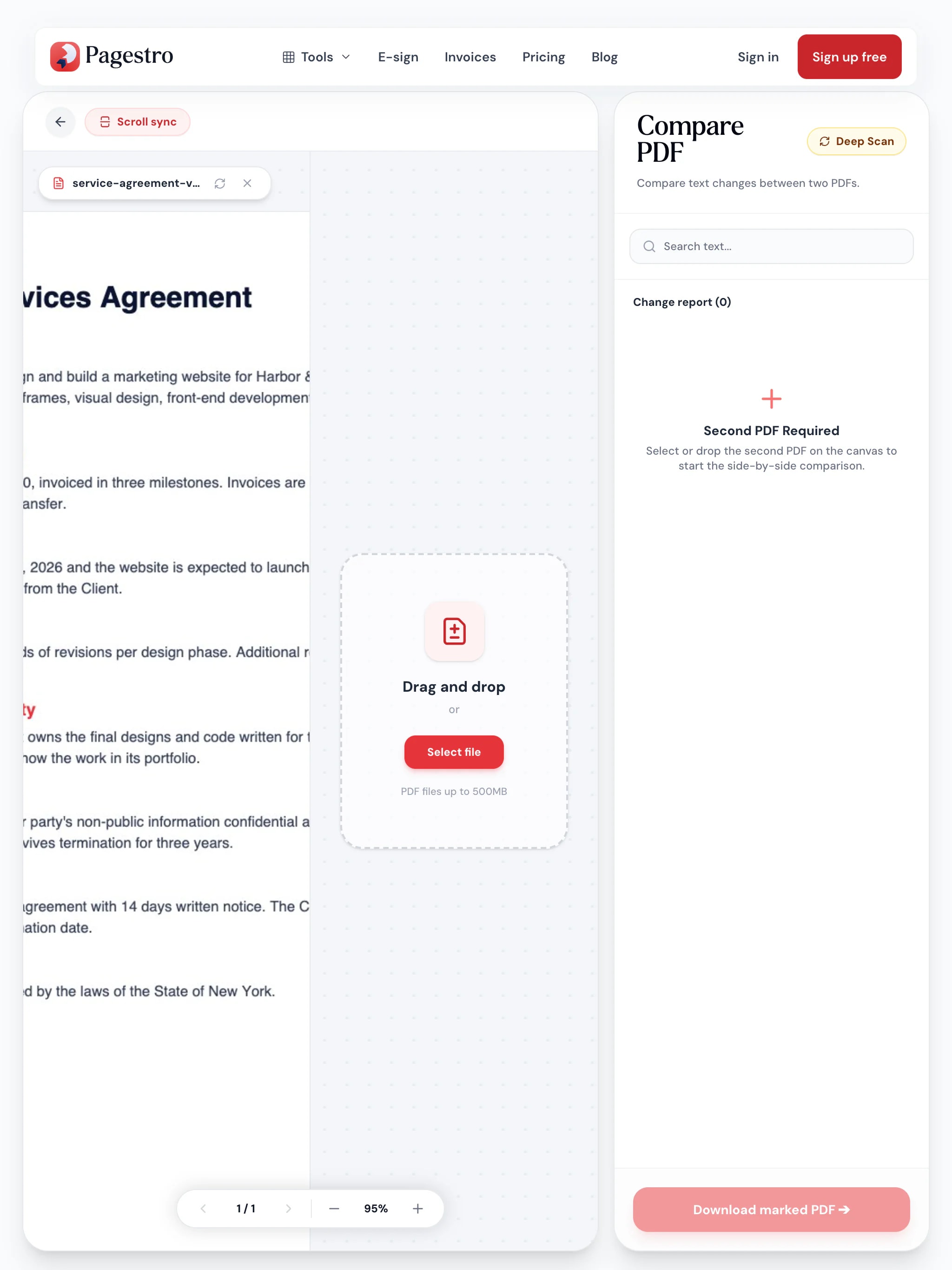
Comparing means reading two pages at once next to a list of changes. It works best on a laptop, desktop or a tablet held sideways, where both versions and the report fit on screen together.
- Two pages and the change report in one view
- Zoom to fit width or height
- Nothing to install
Know exactly what changed
- Differences found
Lawyers and paralegals
Check a returned draft
See which clauses the other side changed before you sign off.
- Differences found
Freelancers
Review a revised scope
Catch quiet changes to deliverables, dates or fees in a client’s new version.
- Differences found
Editors and teachers
Track revisions
See what a writer or student changed between two submissions.
How Pagestro compares
 Pagestro Pagestro | Desktop software | Upload-based sites | |
|---|---|---|---|
| Files stay on your device | Yes | Yes | No |
| Nothing to install | Yes | No | Yes |
| Downloadable marked copy | Yes | Varies | Varies |
| Compares images and formatting | No | Varies | Varies |
| Price | Free | Often a paid license | Often free with limits |
How do I compare two PDF files for differences?
Add the original, then the new version. Pagestro shows them side by side, highlights the differences and lists every change in a report.
What kinds of changes does it find?
Text that was edited, added or removed, page by page, and layout shifts: text that stayed the same but moved, such as paragraphs pushed down by an insertion, is grouped into one change that says how far it moved. Changes to images, colors or fonts aren’t reported.
What if a page was added or removed?
Pages are compared in order, page 1 with page 1 and so on. If the new version gains or loses a page, text after that point may show as removed on one side and added on the other.
Does it work with scanned PDFs?
Yes. Any page with little or no text is read with OCR, on every page of both files, and Deep Scan runs OCR on all pages. Recognition is in English.
Can I save the comparison?
Yes. Download the marked PDF: the new version with every change outlined in red.
Are my files uploaded?
No. Both PDFs are read and compared in your browser and never leave your device.
Related tools
 OCR PDFMake scanned PDFs searchable and selectableOpen tool
 Redact PDFPermanently black out sensitive contentOpen tool
 Sign PDFDraw, type or upload your signature and place it on a PDFOpen tool
 PDF to WordConvert PDF to editable Word documentOpen tool
 Merge PDFCombine multiple PDFs into one documentOpen tool


