
How to merge PDF files into one, in the right order
Several attachments, one request for "a single PDF". Here's how to combine PDF files, put every page in the right order and avoid the mistakes that make a merged file hard to use.

MD Rakib Shekh · Founder & Lead Architect
· 7 min read
On this page
A client wants "everything in one PDF". A job portal accepts a single upload. Your scanner saved each page as its own file. Whatever the reason, you have several PDFs and you need one, with the pages in the right order.
This guide shows how to merge PDF files in a few minutes, how to fix the order of single pages, and the small mistakes that make a merged file annoying to read.
Before you merge: a two-minute check
A merge copies pages as they are. It won't turn a sideways scan or remove a blank page for you, so it pays to look at your files first.
- Open each file once. Make sure it's the latest version and that it opens without errors.
- Decide the order. Write it down if there are more than five files. Cover letter first, then the CV, then the portfolio, for example.
- Rename files with numbers. Names like "01-cover.pdf" and "02-cv.pdf" sort themselves into the right order.
- Note any passwords. If a file is password-protected, you'll need the password to merge it.
- Look for blank or extra pages. It's easier to spot them now than in a 60-page file later.
How to merge PDF files with Pagestro
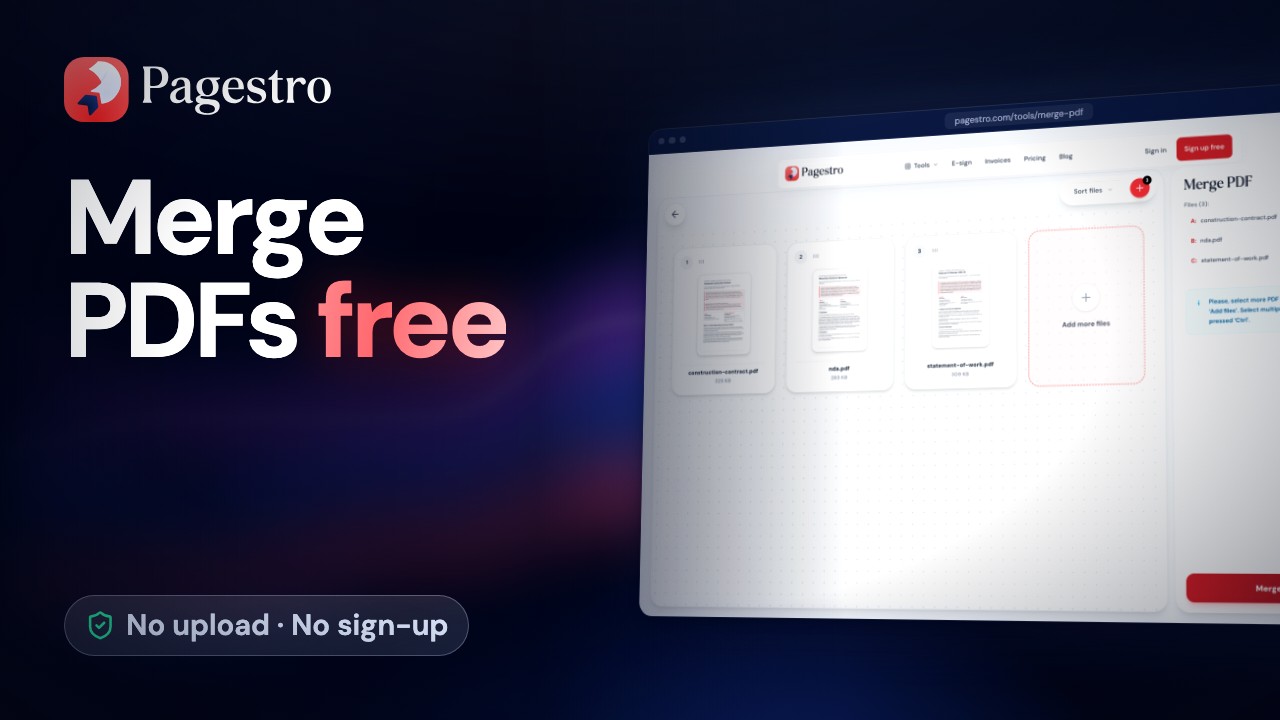
Merge PDF runs in your browser. Your files are combined on your own device, so nothing is uploaded and there's nothing to delete from a server afterwards. It's free, with no sign-up and no watermark.
Step 1. Open Merge PDF and drop in two or more files, or tap the drop zone to pick them from your computer or phone.
Step 2. Drag the file cards into the order you want the pages to appear. List view is easier when you have a lot of files. Remove any file you added by mistake.
Step 3. If a file is password-protected, type the password when asked. Pagestro opens the file in memory so it can copy the pages.
Step 4. Merge and download. You get one PDF with every page from every file, in the order you set.
Each file can be up to 100 MB and 300 pages. Very large jobs also depend on how much memory your device has.
When you need to move single pages
Merge PDF works with whole files. Sometimes that isn't enough. Maybe the signed page belongs in the middle of the contract, or one page of a scan is upside down.
For that, use Organize PDF. It shows every page as a thumbnail on one board, and you can:
- drag pages into any order
- rotate a single page by 90 degrees without touching the rest
- delete pages you don't need
- insert pages from another PDF, or a PNG, JPG or WebP image, before or after any page
- reverse the whole order, or reset it, from the Sort Pages menu
Organize PDF also runs in your browser. The PDF you start with can be up to 100 MB and 200 pages.
A good routine for messy jobs: merge the files first, then open the merged PDF in Organize PDF and fix single pages.
| You want to | Use |
|---|---|
| Join whole files in a set order | Merge PDF |
| Move, rotate or delete single pages | Organize PDF |
| Add a photo as a page | Organize PDF |
| Take a few pages out of a long file | Split PDF or Extract Pages |
Common mistakes and how to avoid them
The order looks right, but it isn't
File names like "scan 10" can sort before "scan 2". Check the order in list view before you merge, then scroll through the result before you send it. A quick look at the first page of each section is enough.
A sideways page slips through
Phone scans and old faxes often have one page turned the wrong way. Merging won't fix it. Open the merged file in Organize PDF and rotate that one page.
The merged file is too big to send
Merging doesn't make pages smaller. Combine five scanned files and you get the size of all five together. Run the result through Compress PDF, and see our guide on making a PDF smaller for email for the limits you're working with.
Bookmarks and form fields don't come along
The merged file is built from the pages of your files. Bookmarks, the clickable outline some PDFs show in a sidebar, are not carried over. If one of your files is a fillable form, fill it in before you merge and check the merged copy, because the fields may not stay fillable.
Blank pages end up in the middle
Double-sided scans often leave blank backs. Remove them from the source file before merging, or from the merged file afterwards. Our guide on splitting a PDF and removing pages shows the quick way to drop every even page at once.
You expect the password to carry over
When you merge a password-protected file, the merged PDF has no password. If the result needs one, add it as the very last step, after any other changes.
When another approach is better
A browser tool is the quickest choice for most one-off jobs. A few cases call for something else:
- Your files are Word documents. Put the content together in one Word file and convert once. You'll get one consistent set of fonts, headers and page numbers.
- You merge the same set of files every week. Desktop software or a small script can do the job automatically.
- The result is very large. Hundreds of scanned pages can strain a phone or an older laptop, because the merge happens in your device's memory. Send it as two or three merged parts, or use desktop software built for very large documents.
Finishing touches
Once the pages are in order, a few small steps make the file easier to use. Add page numbers so people can say "see page 14". Stamp DRAFT on it if it isn't final yet. Our guide on adding page numbers and a watermark walks through both.
Then give the file a clear name, like "2026-10-smith-application.pdf". A name like that is easy to find in an inbox search a month later, and "merged(2).pdf" is not.
Frequently asked questions
How many PDFs can I merge at once?
There is no fixed number of files. Each file can be up to 100 MB and 300 pages. Very large jobs depend on your device's memory.
Does merging lower the quality of my PDF?
No. Pages are copied as they are, so text stays sharp and images aren't compressed again.
Can I merge PDF files on my phone?
Yes. Open Merge PDF in your phone's browser, add the files and download the result. There's no app to install.
Are my files uploaded when I merge them?
No. Merging runs in your browser, so your files never leave your device.
Can I merge password-protected PDFs?
Yes, if you know the password. Pagestro asks for it, opens the file in memory and merges it. The merged PDF has no password.
- Merge PDF
- Organize PDF
- Productivity
Written by
MD Rakib Shekh
Founder & Lead Architect
Founder of Pagestro & UIXport. Specializing in WebAssembly browser tools, PDF processing, and high-performance design workflows.
