
Online vs desktop PDF editors: which is right for you?
Install an app or open a website? An honest look at cost, privacy, features and offline work, so you can pick the PDF editor that fits how you work.

MD Rakib Shekh · Founder & Lead Architect
· 6 min read
On this page
You need to fix a date in a contract, sign a form or add a note to a report. Do you install a PDF editor, or open one in your browser? Both can do the job. The right choice depends on how often you edit, how private your files are and whether you need to work offline.
The three kinds of PDF editor
It helps to split "online" in two, because the two kinds treat your files very differently.
Desktop editors are apps you install on your computer. The file stays on your machine. Some are free and basic; the full-featured ones are usually paid.
Upload-based online editors run on a website, but your file is sent to the company's servers, edited there and sent back to you.
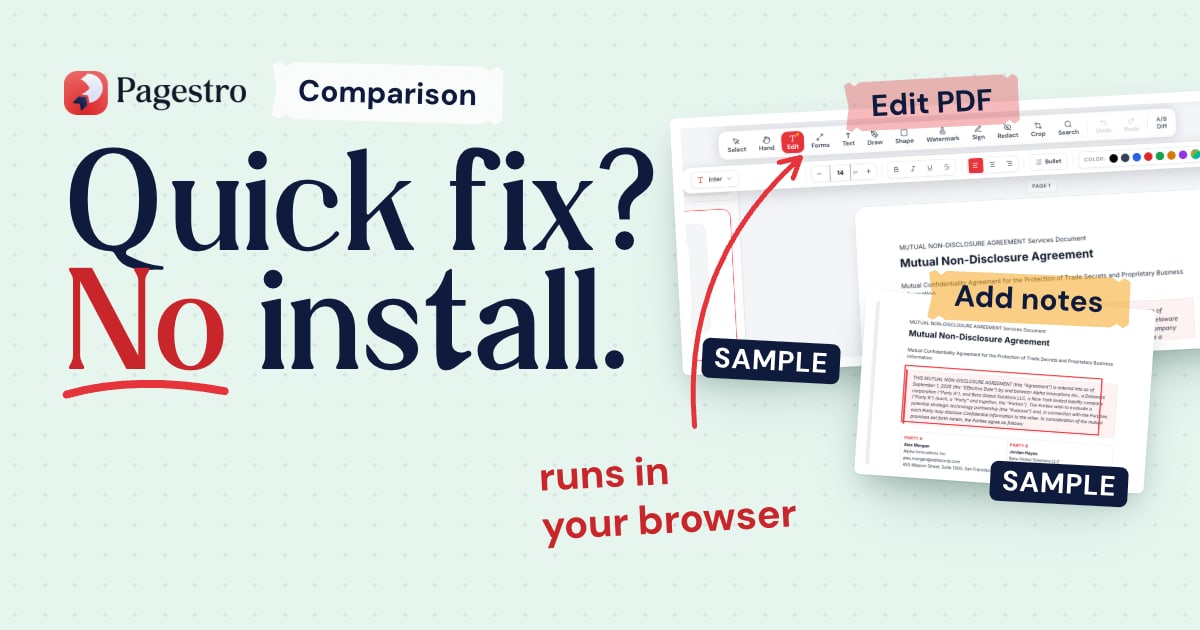
In-browser online editors also run on a website, but the editing code runs inside your browser, so the file is never uploaded. Pagestro's Edit PDF works this way.
Not sure which kind a website is? Our guide to in-browser vs upload PDF tools shows how to check.
Cost
Online editors are often free for basic jobs, with paid plans for heavier use. Pagestro's PDF tools, including Edit PDF, are free with no sign-up and no watermark.
Desktop editors range from free to paid. If you use a Mac, Preview is already installed. It can annotate PDFs, fill out and sign forms, combine files, and add, delete or move pages (Apple's Preview guide). Full-featured desktop editors are usually sold as a license or a subscription.
If you edit a PDF once a month, a subscription is hard to justify. If PDFs are your daily work, a paid desktop editor can easily pay for itself in saved time.
Privacy
This is where the three kinds differ most.
- Desktop: the file stays on your computer, unless the app syncs it to its own cloud.
- Upload-based online: your file travels to someone else's server. A good service explains in its privacy policy how files are protected and when they're deleted, but you're still trusting that policy and their security. Read it before you upload contracts, payslips or medical letters.
- In-browser online: the file stays on your device, as with desktop software, but there's nothing to install.
With Pagestro, editing happens in your browser on your own device. The document is never sent to Pagestro, and nothing is kept after you close the tab.
Features
Be honest about what you actually need.
In-browser editors are great for quick fixes. In Pagestro's Edit PDF you can:
- Click a line of text and retype it
- Add new text in any size or color, with bold, italic or underline
- Draw freehand, and add shapes, arrows, ticks and crosses
- Draw, type or upload a signature and place it on any page
- Delete, duplicate or rotate pages
- Undo and redo anything until you download
It handles documents of up to 100 pages and 100 MB.
Know the limits of quick edits. When you retype a line, Pagestro uses the closest standard font: a Helvetica, Times or Courier style. Common fonts look the same; unusual ones may look a little different. A scan is a picture of text, so there are no lines to click, though you can still add text, shapes and a signature on top.
Desktop editors go deeper. Full-featured desktop editors are built for heavy, everyday PDF work, such as rewriting whole paragraphs that reflow, preparing files for professional printing and processing many files in one go. If your work depends on features like these, a desktop editor is the better tool.
If you need to rewrite a lot of text and you don't have a full editor, go back to the original Word or Google Docs file if you can. If you only have the PDF, PDF to Word turns it into an editable Word file. If it's a scan, OCR PDF reads the text first and can export it to Word. Our guide to editing a PDF without Acrobat walks through the options.
Offline work
Desktop editors win here. Once installed, they work on a plane, in a basement office or anywhere without a connection.
Online editors need a connection to load, and Pagestro is no exception: you need to be online to open the tool. If you often work offline, keep a desktop editor installed, even a free one.
Devices
Online editors run anywhere a modern browser does: Windows, Mac, Chromebook, iPhone and Android. That's handy when the PDF lands on your phone five minutes before a meeting. Pagestro's editor works in Safari, Chrome and Firefox, on phones and tablets as well as computers.
Desktop editors are tied to the machines they're installed on, and some only exist for one operating system.
There's one trade-off with in-browser tools: your device does the work. On an older phone or a laptop low on memory, very large PDFs can be slow.
Which should you choose?
| Your situation | Good fit |
|---|---|
| A few quick fixes a month | In-browser editor |
| Confidential files and no permission to install apps | In-browser editor |
| Editing on a phone or someone else's computer | In-browser editor |
| Long rewrites where text must reflow | Desktop editor or the original source file |
| Working offline often | Desktop editor |
| Heavy daily PDF work or print production | Paid desktop editor |
| Very large files on an older device | Desktop editor |
Plenty of people use both: a desktop editor for the heavy work, and a browser tool for quick jobs on any device.
How to make a quick edit in Pagestro
Step 1. Open Edit PDF and drop in your file.
Step 2. Click the line you want to change and type the new text. Or pick a tool to add text, shapes, a drawing or a signature.
Step 3. Use the page list on the left to delete, duplicate or rotate pages.
Step 4. Download the edited PDF to your device.
Frequently asked questions
Is it safe to edit a PDF online?
It depends on the tool. Upload-based editors send your file to a server, while in-browser editors like Pagestro keep it on your device. Check which kind you're using before you open anything confidential.
Can I edit a PDF for free?
Yes. Pagestro's Edit PDF is free with no sign-up and no watermark. On a Mac, Preview can also annotate, fill out and sign PDFs.
Can I change the text in a scanned PDF?
Not directly, because a scan is a picture of text. You can add new text and a signature on top. For editable text, run the scan through OCR first.
Do I need a paid PDF editor?
Not for everyday fixes. Free tools cover most small edits. A paid desktop editor is worth it if you work with PDFs heavily every day or need to work offline.
- PDF editing
- Comparisons
- Privacy
- Productivity
Written by
MD Rakib Shekh
Founder & Lead Architect
Founder of Pagestro & UIXport. Specializing in WebAssembly browser tools, PDF processing, and high-performance design workflows.